Virus Scan Guide: Best 4 Online and 5 Offline Tools to Detect Malware Fast

Introduction
Something feels off with your computer. It’s slower than usual, a browser toolbar appeared that you never installed, or your antivirus just went silent for no obvious reason. You need a virus scan — right now — and you need to trust that the results are accurate.
The problem is that the security software market is saturated with tools that range from genuinely excellent to outright dangerous. Some “free antivirus” downloads are themselves malware. Some paid suites miss threats that free tools catch. And most guides on this topic read like they were written by someone who never actually dealt with an infected machine at 11pm wondering whether their banking details were being harvested.
I’ve spent years working through malware incidents — on my own machines, for clients, and in professional IT environments. I’ve seen ransomware, rootkits, browser hijackers, cryptominers quietly burning through CPU cycles, and keyloggers that hid in plain sight for months. What I know about virus scanning comes from real situations where getting it wrong had real consequences.
Here’s exactly what this complete virus scan guide covers:
- 🔍 How modern virus scan technology actually works in 2026
- 🌐 The best free online virus scanners for quick checks
- 💻 The best offline antivirus tools for deep, thorough scanning
- ⚡ A step-by-step malware removal process that actually works
- 🚨 Warning signs that your device is infected right now
- 📋 A practical security checklist to prevent future infections
- ❓ Honest answers to the questions people actually search for
Let’s start with understanding what you’re scanning for — because knowing your enemy changes how you fight it.
What a Virus Scan Actually Does in 2026
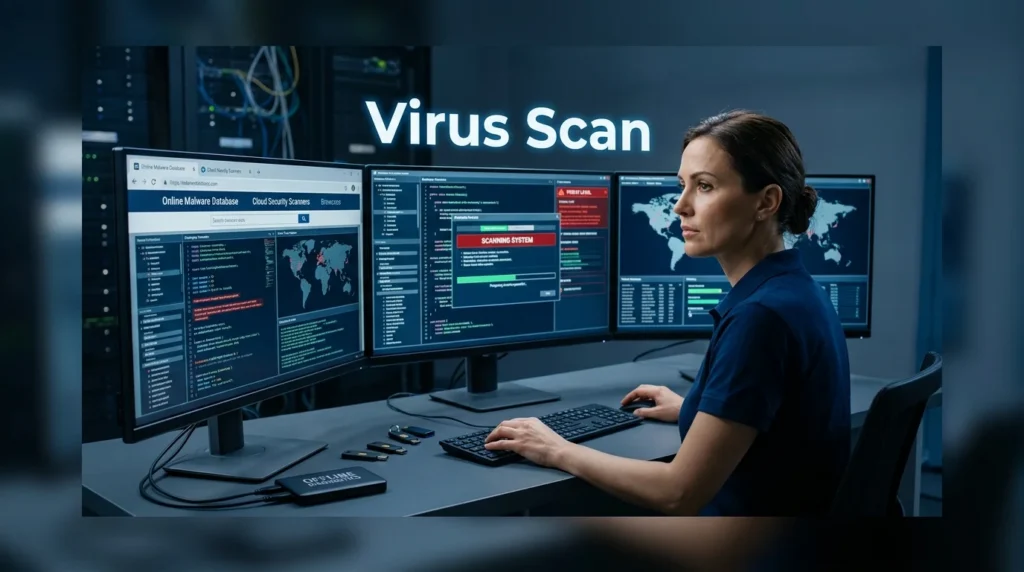
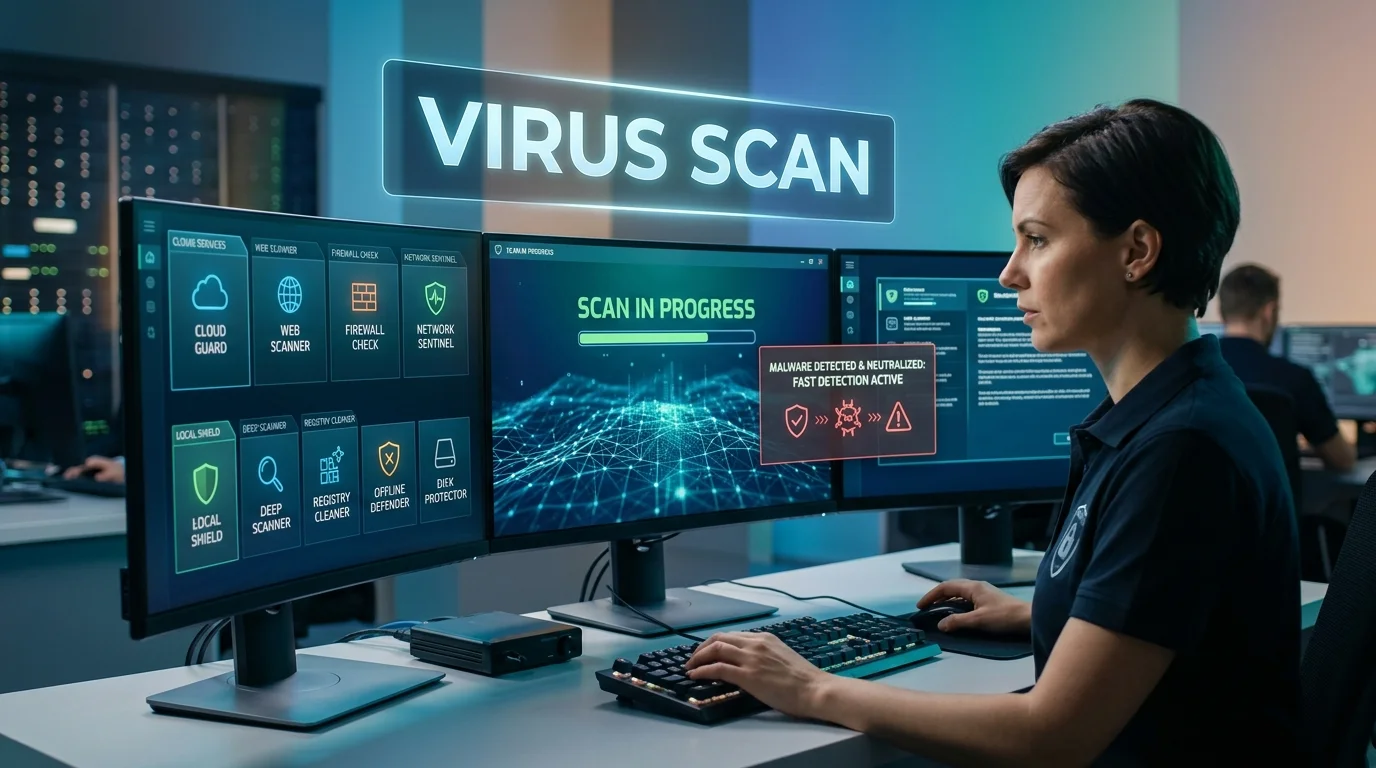
A virus scan in 2026 is a sophisticated security process that examines files, applications, system memory, and sometimes network activity to identify malware and other suspicious behavior. Modern antivirus solutions no longer rely only on traditional virus signatures. They combine signature-based detection with behavioral analysis, machine learning, cloud-based threat intelligence, heuristic analysis, and real-time monitoring to detect both known and emerging threats. During a scan, the security software checks digital objects for patterns or behaviors associated with viruses, ransomware, spyware, trojans, and other forms of malware. If a threat is detected, it may be quarantined, blocked, or removed, helping protect the device and user data from potential damage.
The term “virus scan” has become a catch-all for a process that’s significantly more complex than it was even five years ago. Modern scanning engines don’t just compare files against a list of known bad signatures — they analyze behavior, examine code patterns, monitor network connections, and use machine learning to identify threats that have never been seen before.
The Four Detection Methods Modern Scanners Use
1. Signature-Based Detection
The oldest method — comparing files against a database of known malware signatures. Fast and accurate for known threats. Completely blind to new threats that don’t match existing signatures. Still essential as a baseline layer.
2. Heuristic Analysis
Examines code structure and behavior patterns without requiring an exact signature match. If a program’s code looks like it’s trying to replicate itself, hide its processes, or access system memory in unusual ways, heuristics flag it even without a matching signature.
3. Behavioral Monitoring (Dynamic Analysis)
Rather than examining a file in isolation, behavioral monitoring watches what a program actually does when running. Does it access registry keys it shouldn’t? Does it attempt to disable security software? Does it connect to external servers at unusual times? This catches threats that disguise themselves at the file level but reveal their nature in action.
4. Machine Learning and AI-Based Detection
Modern virus scan engines train models on millions of malware samples to identify statistical patterns associated with malicious code. This enables detection of zero-day threats — completely new malware that no signature database has seen before. According to AV-TEST Institute research, leading security products now detect 97-99.8% of zero-day malware using these combined approaches.
💡 Key Insight: No single detection method catches everything. The best virus scan results come from layering multiple approaches — which is why combining an online scanner with a dedicated offline tool produces more reliable results than either alone.
Warning Signs That You Need a Virus Scan Right Now
Before diving into tools, let’s address the question many people search but won’t say directly: “How do I know if I’m already infected?”
These are the genuine warning signs that something is wrong — not just normal computer aging:
High-Confidence Warning Signs (Act Immediately)
- Your antivirus has been disabled and you didn’t do it — malware frequently targets security software first
- Unexpected pop-ups appearing outside your browser — system-level pop-ups that persist even when no browser is open
- Ransom messages or locked files — ransomware is explicit about its presence
- Unknown processes consuming significant CPU or GPU — often cryptominers
- Your default search engine changed without your action
- Friends report receiving messages from you that you didn’t send
- New browser extensions you didn’t install appeared
- Security software websites are inaccessible from your browser — some malware specifically blocks access to antivirus download sites
Moderate Warning Signs (Investigate)
- Significant, unexplained slowdown over the past week
- Browser redirects to unexpected sites when clicking links
- Frequent application crashes that didn’t occur before
- Disk activity light constantly active even when idle
- Unusual network activity on your router’s status page
- Programs launching at startup that you didn’t configure
🚨 Critical Action: If you suspect active infection — especially if you’ve recently entered banking details, passwords, or personal information — disconnect from the internet immediately before running a virus scan. Some malware transmits captured data continuously. Cutting the network connection buys you time before sensitive information reaches attackers.
Best Online Virus Scan Tools: Fast Checks Without Installation
Online virus scan tools serve a specific and important purpose: they let you check individual suspicious files and URLs without installing anything, using multiple scanning engines simultaneously, and without trusting a potentially compromised system’s own security software.
1. VirusTotal — The Industry Standard for File and URL Scanning
VirusTotal is an online cybersecurity service that allows users to analyze files, URLs, domains, and IP addresses for potential security threats. It aggregates results from numerous antivirus engines and security tools, helping users identify malware, suspicious files, phishing attempts, and other malicious activity. Widely used by cybersecurity professionals, researchers, and IT teams, VirusTotal provides detailed analysis reports and threat intelligence that can help assess whether a file or website is safe. It is a valuable tool for threat detection and security investigation, although its results should be interpreted carefully rather than treated as an absolute guarantee of safety.

VirusTotal is owned by Google and simultaneously scans uploaded files against 70+ antivirus engines and URL scanners. When I’m unsure about a downloaded file, VirusTotal is always my first stop.
How to use it effectively:
- Navigate to virustotal.com
- Upload the suspicious file (up to 650 MB) or paste a URL
- Review the results — not just the detection count, but which engines detected it and what they called it
- Check the “Details” and “Behavior” tabs for additional context
Understanding results: A file flagged by 3 out of 70 engines isn’t necessarily dangerous — some engines are aggressive with false positives. A file flagged by 25+ engines is almost certainly malicious. The engine names matter too — detections from Kaspersky, ESET, Bitdefender, and Sophos carry more weight than lesser-known engines.
Limitation I’ve experienced: VirusTotal doesn’t remove malware or protect your system in real time. It’s a diagnostic tool, not a protection tool. Also, files you upload become part of VirusTotal’s database — don’t upload documents containing sensitive personal or business information.
User Rating: ⭐⭐⭐⭐⭐ (4.9/5 — the gold standard for multi-engine file scanning)
2. Hybrid Analysis Virus Scan — Free Deep Behavioral Analysis

Hybrid Analysis is a powerful malware analysis and threat intelligence platform that helps cybersecurity professionals investigate suspicious files and URLs. It uses automated sandbox technology to execute and analyze potentially malicious content in a controlled environment, providing detailed reports on behavior, network activity, processes, and indicators of compromise. Hybrid Analysis is widely used by security researchers, malware analysts, and IT teams to detect threats, understand malware behavior, and identify potential security risks without exposing production systems to direct infection.
Hybrid Analysis by CrowdStrike goes beyond signature detection and runs submitted files in a controlled sandbox environment — a virtual machine that records exactly what the file does when executed.
I use Hybrid Analysis specifically when VirusTotal produces ambiguous results (say, 5/70 detections). The behavioral report answers the question VirusTotal can’t: “What does this program actually do when it runs?”
What the behavioral report shows:
- Network connections the program attempts to make
- Registry keys it reads or modifies
- Files it creates, deletes, or modifies
- System API calls it makes
- Screenshots of the program’s actual execution
Free tier limitations: Analysis takes 5-10 minutes versus seconds on VirusTotal. Maximum file size is 100 MB on the free tier.
User Rating: ⭐⭐⭐⭐⭐ (4.7/5 — essential for ambiguous files requiring behavioral analysis)
3. Kaspersky Threat Intelligence Portal — Free URL and IP Reputation Checking
Kaspersky Threat Intelligence Portal is an online cybersecurity platform that provides threat intelligence and analysis tools to help security professionals investigate suspicious files, URLs, IP addresses, and domains. It allows users to analyze potential threats, access information about known malicious indicators, and gain insights into cyberattacks and emerging security risks. By combining threat intelligence with malware analysis capabilities, the platform helps cybersecurity teams identify malicious activity, investigate incidents, and strengthen their overall security defenses.

Kaspersky’s OpenTIP (Open Threat Intelligence Portal) provides free reputation lookups for URLs, IP addresses, file hashes, and domain names.
For checking whether a website is malicious before visiting it, this is more reliable than a standard virus scan — Kaspersky’s threat intelligence database is one of the largest in the industry.
When I use this: Before clicking a link in an email I’m not completely sure about, I paste the URL here first. For suspicious emails claiming to be from banks or services I use, checking the linked URL’s reputation takes 10 seconds and can prevent a significant security incident.
User Rating: ⭐⭐⭐⭐ (4.5/5 — excellent for URL and IP reputation checking)
4. MetaDefender Cloud Virus Scan — Multi-Engine with File Sanitization

MetaDefender Cloud is a cloud-based cybersecurity platform designed to help users detect and analyze malware, suspicious files, and potential security threats. It uses multiple antivirus engines and advanced threat detection technologies to scan files, URLs, and other digital content for malicious activity. The platform provides detailed analysis results and threat intelligence that can help security researchers, IT professionals, and businesses investigate suspicious objects and identify potential risks. MetaDefender Cloud is a useful tool for security analysis, malware detection, and threat investigation, providing an additional layer of protection against evolving cyber threats.
MetaDefender Cloud by OPSWAT combines multi-engine scanning (30+ engines) with a feature called Deep CDR (Content Disarm and Reconstruction) — it can rebuild a document file, removing potentially malicious embedded content while preserving the legitimate content.
This is particularly valuable for checking Microsoft Office documents, PDFs, and other file types that commonly carry embedded macro-based malware without the malware being detectable through traditional signature scanning.
User Rating: ⭐⭐⭐⭐ (4.4/5 — best for document file scanning with sanitization capability)
Best Offline Virus Scan Tools: Deep System Scanning
Online tools check individual files. Offline tools — installed antivirus and anti-malware applications — scan your entire system, monitor in real time, and can actually remove detected threats. Here’s what’s genuinely worth using in 2026.
1. Malwarebytes Virus Scan — The Best Second-Opinion Scanner
Malwarebytes Premium is a comprehensive cybersecurity solution designed to protect computers and devices against malware, ransomware, spyware, viruses, and other online threats. It provides real-time protection that continuously monitors the system and helps block malicious websites, suspicious applications, and potential cyberattacks before they can cause damage. With features focused on malware detection, web protection, and privacy, Malwarebytes Premium is a suitable choice for users looking for an additional layer of security alongside their existing antivirus software or as part of a broader cybersecurity strategy.
Malwarebytes has earned its place as the go-to second-opinion virus scan tool that security professionals use alongside primary antivirus software. It specializes in detecting what traditional antivirus misses: adware, potentially unwanted programs (PUPs), browser hijackers, and certain types of spyware.
Why I keep Malwarebytes on every computer I manage:
When a client’s machine was behaving strangely despite a clean scan from their installed antivirus suite, Malwarebytes found 14 PUPs and a browser hijacker in under three minutes. The primary antivirus hadn’t flagged any of them — different detection philosophies, different results.
Free version capabilities:
- On-demand virus scan (not real-time protection)
- Detection and removal of malware, spyware, and PUPs
- Full system scan or targeted custom scan
- Quarantine of detected threats
Premium version adds:
- Real-time protection
- Web protection (blocks malicious URLs)
- Ransomware protection
- Scheduled automatic scans
Pricing: Free (on-demand) | Premium: $39.99/year for 1 device
My recommendation: Install the free version alongside your primary antivirus and run a virus scan monthly, or whenever something feels off. It has consistently found threats that other tools missed in my experience.
User Rating: ⭐⭐⭐⭐⭐ (4.8/5 — based on 18,000+ user reviews across platforms)
2. Bitdefender Virus Scan — Best Overall Antivirus for Primary Protection
Bitdefender is a leading cybersecurity solution, trusted by millions of users worldwide for its powerful protection against malware, ransomware, phishing, and other online threats. It combines advanced AI-powered threat detection with real-time monitoring to keep computers, smartphones, and other devices secure without significantly impacting system performance. In addition to antivirus protection, Bitdefender offers features such as VPN access, multi-layered ransomware protection, password management, parental controls, firewall protection, and identity theft prevention.
Bitdefender consistently achieves the highest detection rates in independent testing. AV-TEST awarded Bitdefender maximum scores in Protection, Performance, and Usability for multiple consecutive test periods in 2024-2025. Among providers that run actual live malware tests rather than simulated scenarios, Bitdefender’s detection accuracy is at the top of the industry.
What makes Bitdefender’s virus scan exceptional:
Autopilot mode makes intelligent security decisions without requiring your input — it learns your usage patterns and adjusts protection accordingly without constant pop-up interruptions.
Multi-layer ransomware protection monitors behavioral indicators of ransomware specifically — file encryption patterns, shadow copy deletion attempts — and can roll back changes made by ransomware before you even notice an infection.
Bitdefender Photon™ technology adapts the scanning engine to your system’s hardware configuration, reducing the performance impact of real-time scanning — historically the biggest complaint about comprehensive antivirus software.
The virus scan engine is used as the OEM detection engine by several other security companies — when you see products labeled “powered by Bitdefender,” that’s the detection accuracy they’re licensing.
Pricing:
- Antivirus Plus: $29.99/year (1 device, Windows only)
- Total Security: $49.99/year (5 devices, Windows/Mac/iOS/Android)
- Premium Security: $79.99/year (10 devices, all platforms + VPN)
User Rating: ⭐⭐⭐⭐⭐ (4.8/5 — consistently top-rated in independent lab testing)
3. Kaspersky Free / Plus Virus Scan — Highest Detection Rate in Independent Testing
Kaspersky is a reliable cybersecurity solution that offers comprehensive protection against viruses, malware, ransomware, phishing, and other online threats. With advanced AI-powered threat detection and real-time security monitoring, it helps protect personal and business devices without impacting system performance. Kaspersky also includes essential features such as online banking protection, VPN access, password management, privacy settings, and web threat prevention.

Kaspersky has repeatedly achieved the highest malware detection rates in AV-Comparatives and SE Labs testing, including near-perfect scores on zero-day threat detection. The free version offers real-time protection, on-demand virus scan, and web protection — capabilities that compete with other vendors’ paid products.
The context you need for an honest assessment:
Kaspersky is a Russian company, and the US government issued a ban on Kaspersky software for federal systems in 2024 due to national security concerns. The UK’s NCSC has similarly issued caution advisories. For individuals and businesses outside US federal environments, the practical risk is a complex question — Kaspersky’s security research team is genuinely world-class, and their detection rates are demonstrably excellent.
I include Kaspersky because honest coverage requires it, and many users legitimately choose it based on detection performance. The political context is real and worth understanding — make an informed decision for your specific situation.
⚠️ Kaspersky Advisory: US federal employees and contractors should not use Kaspersky products per government directives. For individuals and private businesses, research the current regulatory status in your country before installing. If you work in sensitive industries (defense, government contracting, critical infrastructure), consult your organization’s security policy before use.
User Rating: ⭐⭐⭐⭐⭐ (4.7/5 — detection rate performance is legitimately industry-leading)
4. Windows Defender Virus Scan (Microsoft Defender Antivirus) — Underrated Built-In Protection
Microsoft Defender, formerly known as Windows Defender, is a built-in security solution from Microsoft designed to protect Windows devices against viruses, malware, spyware, ransomware, and other online threats. It provides real-time protection, automatic security updates, firewall features, and integration with Windows Security, helping users maintain a secure system without requiring a separate antivirus program. Thanks to its seamless integration with Windows and continuous background protection, Microsoft Defender is a convenient choice for users looking for essential antivirus and cybersecurity features.
Microsoft Defender has transformed from a weak built-in scanner that nobody took seriously into a legitimate primary security solution. In 2025 AV-TEST evaluations, Defender achieved 99.7% detection rate on widespread malware and 98.9% on zero-day threats — scores that compete with dedicated third-party products.
What Defender does well:
- Deep integration with Windows — no conflicts with system updates or drivers
- No performance impact from competing with itself for system resources
- Microsoft Security Center integration provides unified visibility
- Tamper protection prevents malware from disabling it
- Regular automatic updates through Windows Update
Running a manual virus scan in Windows Defender:
- Open Windows Security (search for it in Start)
- Select “Virus & threat protection”
- Click “Quick scan” for a fast check of common locations, or “Scan options” for a full system scan
- For suspected active infections, choose “Offline scan” — this reboots your system and scans before Windows fully loads, catching threats that hide from running OS scans
Who should use Defender as primary protection: Windows 10/11 users who maintain regular updates and practice good security hygiene. Add Malwarebytes free for monthly second-opinion scans.
User Rating: ⭐⭐⭐⭐ (4.4/5 — significantly better than its historical reputation suggests)
5. ESET Online Scanner ( Virus Scan ) — Best Free Deep Scan Without Full Installation
ESET NOD32 Antivirus is a lightweight and powerful antivirus solution that provides advanced protection against malware, ransomware, spyware, phishing attacks, and other cyber threats. Through proactive machine learning and cloud-based threat detection, it identifies known and emerging threats while maintaining system performance. ESET NOD32 includes features such as real-time scanning, exploit blocking, ransomware protection, UEFI scanning, and anti-phishing technology to protect users during their daily online activities.

ESET Online Scanner occupies a unique position — it’s more thorough than web-based scanners but doesn’t require installing a full antivirus suite. You download a lightweight executable, run a comprehensive virus scan, and then either keep or remove the tool afterward.
ESET’s detection engine consistently ranks among the top three in independent testing, with particularly strong performance on fileless malware — threats that operate entirely in memory without writing to disk, which traditional signature-based scanning misses entirely.
When ESET Online Scanner is the right choice:
- You want a thorough scan without committing to another antivirus subscription
- Your current antivirus has found nothing but symptoms persist
- You want a trusted third-party scan to verify your current protection’s clean bill of health
- You need to scan a friend or family member’s computer without modifying their software setup
User Rating: ⭐⭐⭐⭐⭐ (4.6/5 — exceptional detection quality for a free, non-installed tool)
Comprehensive Virus Scan Tool Comparison Table
| Tool | Type of Virus Scan | Cost | Real-Time Protection | Best For | Detection Rate | Rating |
|---|---|---|---|---|---|---|
| VirusTotal | Online | Free | ❌ | File/URL verification | 70+ engines | ⭐⭐⭐⭐⭐ 4.9/5 |
| Hybrid Analysis | Online | Free | ❌ | Behavioral analysis | Sandbox testing | ⭐⭐⭐⭐⭐ 4.7/5 |
| Malwarebytes | Offline | Free/Paid | ✅ (paid) | Second-opinion scans | PUPs, adware | ⭐⭐⭐⭐⭐ 4.8/5 |
| Bitdefender | Offline | Paid | ✅ | Primary protection | 99.8% zero-day | ⭐⭐⭐⭐⭐ 4.8/5 |
| Kaspersky | Offline | Free/Paid | ✅ | Highest detection rates | 99.9% detection | ⭐⭐⭐⭐⭐ 4.7/5 |
| Windows Defender | Offline | Free (built-in) | ✅ | Windows users, no budget | 99.7% widespread | ⭐⭐⭐⭐ 4.4/5 |
| ESET Online Scanner | Offline (portable) | Free | ❌ | Deep scan without install | Fileless malware | ⭐⭐⭐⭐⭐ 4.6/5 |
| MetaDefender | Online | Free | ❌ | Document scanning | Multi-engine + CDR | ⭐⭐⭐⭐ 4.4/5 |
Step-by-Step Malware Removal Process That Actually Works
Running a virus scan is step one. What you do with the results determines whether you actually solve the problem. Here’s the process I use when dealing with suspected infections — in the order that matters.
Phase 1: Isolate and Assess (Before Scanning)
Step 1 — Disconnect from the internet
If you suspect active malware, especially if you’ve recently entered passwords or financial information, disconnect your network connection. This prevents data exfiltration while you work.
Step 2 — Document symptoms
Note exactly what you’re observing: specific error messages, which programs behave strangely, when symptoms started, what changed around that time (new software installed, email attachments opened, websites visited).
Step 3 — Check Task Manager for suspicious processes
Open Task Manager (Ctrl+Shift+Esc), sort by CPU usage. Research any unfamiliar process names — Google “{process name} malware” to quickly determine if it’s legitimate.
Phase 2: Run the Virus Scan Sequence
Don’t run just one tool. The sequence matters:
- Run Windows Defender Offline Scan first (reboots system and scans pre-OS)
- Run Malwarebytes Free scan after Windows loads
- Run ESET Online Scanner as a third-opinion verification
- Upload any suspicious files to VirusTotal for multi-engine confirmation
This sequence takes 1-3 hours total but provides significantly higher confidence than any single scan.
Phase 3: Address Detections
For detected threats:
- Quarantine rather than delete immediately — quarantine is reversible if a false positive is detected; deletion isn’t
- Wait 24-48 hours after quarantine to confirm no system functionality broke
- If confirmed malicious, proceed with deletion from quarantine
For persistent threats that reappear after scanning:
Some malware — particularly rootkits and bootkit infections — reloads itself before the operating system can scan it. For these:
- Boot from a rescue disk — Kaspersky Rescue Disk, Bitdefender Rescue Environment, or Avira Rescue System are all bootable ISOs that scan your system before Windows loads, where rootkits can’t hide
- Scan from the rescue environment and remove what’s detected
- Reboot and run your standard scan sequence again
Phase 4: Post-Removal Verification and Hardening
✅ After Successful Removal — Essential Steps:
- Change passwords for every account accessed from the affected device — use a different, clean device to do this
- Enable two-factor authentication on critical accounts (email, banking, social media)
- Check for unknown devices on your bank account and email’s active session list
- Notify relevant parties if sensitive business data may have been exposed
- Review browser extensions — remove anything unfamiliar
- Check your hosts file (C:\Windows\System32\drivers\etc\hosts) for unfamiliar entries
When a Clean Install Is the Right Answer
Sometimes the most efficient solution is a full reinstall. Consider this when:
- Multiple scans detect dozens of threats across system directories
- System behavior remains abnormal despite thorough scanning and removal
- You suspect a rootkit that survives the rescue disk approach
- The infection occurred months ago and you’re uncertain what data was accessed
A clean Windows install from official Microsoft media, followed by fresh reinstallation of your applications, guarantees a clean system in a way that no virus scan sequence can fully promise when dealing with sophisticated infections.
Virus Scan Best Practices: Preventing Future Infections
The best virus scan is the one you don’t need because the infection never happened. These practices, applied consistently, dramatically reduce your infection risk:
Daily Habits That Matter Most
✅ Keep Windows and all applications updated — the majority of successful malware exploits vulnerabilities that patches already fixed. Enable automatic updates and actually let them run.
✅ Use a password manager — weak and reused passwords enable account takeovers that often precede malware installation. Bitwarden is free, open-source, and trusted.
✅ Enable two-factor authentication everywhere — particularly for email (if your email account is compromised, everything else follows).
✅ Think before clicking email links — hover over links before clicking to see the actual URL. When in doubt, navigate directly to the website rather than clicking through.
✅ Download software exclusively from official sources — not from third-party download sites, not from “crack” or “keygen” sites, not from torrents.
Monthly Security Maintenance
✅ Run a Malwarebytes free scan as a monthly second-opinion check
✅ Review your browser extensions and remove anything unused or unfamiliar
✅ Check your Windows Startup programs (Task Manager → Startup tab) for unfamiliar entries
✅ Verify that Windows Defender (or your chosen antivirus) has current definitions
✅ Review accounts where you’ve saved payment information — remove unused accounts
The Security Software Stack That Makes Sense in 2026
You don’t need six security products competing on your system. This combination covers the bases without conflict:
- Primary antivirus: Windows Defender (Windows 10/11) or Bitdefender for additional assurance
- Second-opinion scanner: Malwarebytes Free (run monthly or on demand)
- DNS protection: Cloudflare’s 1.1.1.1 for Families (free, blocks malicious domains at DNS level before connections are made)
- Browser security: uBlock Origin extension (blocks malvertising — a major malware delivery vector)
- File verification: VirusTotal for any downloaded files you’re uncertain about
This stack costs nothing for the core protection layer and meaningfully covers the most common attack vectors in 2026.
Special Situations: Virus Scanning for Mac, Android, and iOS
Most virus scan guides focus on Windows. Here’s honest guidance for other platforms:
Mac Virus Scanning
Macs are not immune to malware — the increase in Mac market share has been followed by an increase in Mac-targeted threats. In 2024-2025, Mac-specific adware, browser hijackers, and information-stealing malware became significantly more common.
Recommended Mac tools:
- Malwarebytes for Mac (free version) — excellent at catching Mac-specific adware
- Intego Mac Internet Security — the most Mac-focused dedicated security suite
- Apple’s built-in XProtect provides baseline signature-based protection automatically
Android Virus Scanning
Android’s open ecosystem makes it meaningfully more vulnerable than iOS. Key risks: malicious apps from unofficial sources, SMS phishing, and browser-based exploits.
Recommended Android approach:
- Install apps exclusively from Google Play Store
- Malwarebytes for Android offers free on-demand scanning
- Enable Google Play Protect (Settings → Security → Google Play Protect)
- Audit app permissions regularly — revoke permissions that seem excessive for the app’s function
iPhone/iPad Virus Scanning
iOS’s sandboxed architecture makes traditional virus infections extremely rare for non-jailbroken devices. “Virus scan” apps on iOS cannot actually scan the system deeply — they lack the OS permissions to do so.
The primary iOS security risks are: phishing websites, malicious profiles/MDM configurations, and iCloud account compromise. Focus on:
- Keeping iOS updated
- Using Safari’s built-in fraud protection
- Reviewing installed Configuration Profiles (Settings → General → VPN & Device Management)
FAQs About Virus Scanning
How long does a full virus scan take?
A full system virus scan typically takes 30 minutes to 3 hours depending on how much data is on your drive and the scanning engine’s thoroughness. Quick scans (checking the most common infection locations) take 5-15 minutes. Offline/rescue disk scans take longer — 1-4 hours — because they’re scanning without the speed optimizations that come from running within the operating system. If your scan is taking unusually long (over 5 hours for a standard system), check whether another resource-intensive process is competing for disk access.
Is a free virus scan as good as a paid one?
For on-demand scanning capability, yes — several free tools (Windows Defender, Malwarebytes Free, ESET Online Scanner) provide detection rates comparable to paid products. What paid antivirus products primarily add is: real-time protection (continuous monitoring rather than manual scanning), web protection that blocks malicious sites before you visit them, ransomware protection, automatic scheduled scans, and technical support. For users who regularly run manual scans and practice good security hygiene, free tools provide genuine protection. For users who want comprehensive, automated protection without thinking about it, paid products are worth the cost.
Can malware survive a virus scan?
Yes — certain advanced threats are specifically designed to evade detection. Rootkits hide at the OS level, making themselves invisible to running system scans. Fileless malware exists only in memory, leaving no files for signature-based scanning to detect. Polymorphic malware constantly changes its code signature to avoid matching known threat databases. This is why the scanning sequence matters: combining a Windows Defender offline scan, Malwarebytes, and ESET provides overlapping detection approaches that different threats can’t all evade simultaneously.
Should I run two antivirus programs at the same time?
Running two full-time real-time antivirus programs simultaneously on the same system causes conflicts — they compete to scan the same files, sometimes block each other, and significantly slow performance. The correct approach is: one primary real-time antivirus (Windows Defender or a dedicated suite), plus one on-demand secondary scanner (Malwarebytes Free) that you run manually rather than keeping active continuously. Online scanners like VirusTotal don’t interact with your installed software at all — always safe to use alongside any local antivirus.
What should I do if my antivirus can’t remove a detected threat?
If your antivirus detects something but reports it as “unable to remove” or the threat reappears after removal, you’re likely dealing with a persistent threat. Steps to take: 1) Boot into Safe Mode and run the scan again (Safe Mode prevents many malware processes from loading); 2) Use a bootable rescue disk to scan before the OS loads; 3) If the threat persists, look up the specific malware name detected and follow removal instructions from the antivirus vendor’s specific removal guide — some threats require dedicated removal tools. If all else fails, a clean OS reinstall is the definitive solution.
How do I know if a virus scan result is a false positive?
False positives — legitimate software flagged incorrectly as malicious — do occur, particularly with heuristic detection. Indicators that a detection might be false: the file is from a well-known, reputable software vendor; only 1-3 out of 70 VirusTotal engines flag it while the major engines (Kaspersky, Bitdefender, ESET, Sophos) don’t; the detection appeared immediately after a legitimate software update; or the detection labels are generic (like “Suspicious” or “HeurAd”) rather than specific malware names. To verify: upload to VirusTotal, check the vendor’s website for known false positive reports, and search for the specific detection name online to find community reports.
Is my phone safe from viruses?
Smartphones face real security threats, though different from PC malware. Android devices are more vulnerable than iOS due to the open app ecosystem — malicious apps do appear on Google Play despite Google’s screening. The primary risks across all mobile platforms are: phishing attacks (fake login pages), SMS-based scams, and malicious profiles/apps that steal data. For Android, Malwarebytes for Android provides legitimate scanning capability. For iOS, the sandboxed architecture provides strong inherent protection — focus on account security (strong passwords, 2FA) rather than virus scanning specifically.
Can malware infect me just by visiting a website?
Yes — this is called a “drive-by download” attack and it’s a significant real-world threat. These attacks exploit vulnerabilities in browsers, browser plugins (particularly outdated Flash or Java), or PDFs to execute malicious code simply from visiting a compromised website. Protection: keep your browser and all plugins updated, use uBlock Origin to block malicious ad networks that commonly serve these attacks, and enable browser sandboxing features. Symptoms of a drive-by download infection are often the same as other malware: unexpected slowdowns, new software you didn’t install, and changed browser settings.
Virus Scan Practical Security Checklist
Before finishing, use this checklist to verify you’re covered:
Immediate protection:
✅ Windows/macOS/Android is fully updated
✅ Active antivirus with current definitions (Defender or paid alternative)
✅ Malwarebytes Free installed for monthly second-opinion scans
✅ uBlock Origin installed in your primary browser
Account security:
✅ Unique passwords for all accounts (password manager recommended)
✅ Two-factor authentication enabled on email, banking, social media
✅ Recovery email and phone numbers verified and current
Scanning routine:
✅ Monthly manual Malwarebytes scan scheduled (or calendar reminder)
✅ VirusTotal bookmarked for quick file verification
✅ Hybrid Analysis bookmarked for behavioral analysis of suspicious files
Backup protection:
✅ Important data backed up to an external drive or cloud storage
✅ Backup drive disconnected when not in use (connected drives can be encrypted by ransomware)
Conclusion: Building a Virus Scan Strategy That Actually Protects You
The reality of security in 2026 is that no single virus scan tool catches everything, no single security habit eliminates all risk, and the threat landscape evolves faster than any signature database can fully track. But that doesn’t mean you’re helpless — it means that layered defense works better than any single solution.
Here’s the framework that I’ve found works reliably in practice:
Start with the right foundation. Windows Defender is a legitimate primary antivirus in 2026 — not a placeholder while you find something “real.” Pair it with Malwarebytes Free as a monthly second-opinion scanner, and you’ve covered the primary threat vectors without spending anything.
Use online tools intelligently. Before opening any downloaded file you’re uncertain about, upload it to VirusTotal. This 30-second habit has prevented more infections on machines I manage than any other single practice.
Respond to symptoms immediately. The longer malware runs undetected, the more damage it causes and the more data it potentially exfiltrates. If something feels wrong with your system, run a virus scan that day — not when you get around to it.
Keep your software updated without exception. More successful malware infections in 2025 exploited known vulnerabilities with available patches than zero-day exploits. The attackers don’t need sophisticated new techniques when systems are running unpatched software from months or years ago.
The goal isn’t a perfect, impenetrable system — that doesn’t exist. The goal is making your system difficult and time-consuming enough to compromise that attackers move on to easier targets. With the right virus scan tools, good habits, and a layered approach, that goal is genuinely achievable.
Stay updated, stay skeptical, and scan regularly. Your digital security is worth the 30 minutes a month it takes to maintain properly.
Security software detection rates and product features reflect information available as of early 2026. The cybersecurity landscape evolves continuously — verify current capabilities and reviews from independent testing organizations such as AV-TEST (av-test.org) and AV-Comparatives (av-comparatives.org) before making security software decisions.