Jira Project Management Review 2026: Features, Benefits, and Best Practices

Introduction To Jira Project Management
If you’ve ever joined a software team and heard someone say “just check the Jira board” on your first day, you already know how deeply embedded this tool is in modern project management. I’ve used Jira Project Management across multiple teams — from a five-person startup squad to a 40-person engineering department — and I’ll walk you through exactly what works, what doesn’t, and whether it’s the right fit for your team.
Quick answer: Jira is a powerful project management and issue-tracking tool built by Atlassian, originally designed for software development teams using Agile methodologies like Scrum and Kanban. It excels at sprint planning, bug tracking, and cross-team visibility, though it comes with a learning curve that can frustrate beginners and non-technical teams.
In this guide, you’ll find:
- A complete breakdown of Jira’s core features, based on real usage
- The genuine benefits Jira brings to Agile and non-Agile teams alike
- Current 2026 pricing plans and what you actually get at each tier
- Proven best practices from someone who’s configured Jira boards from scratch
- A comparison table with star ratings against leading alternatives
- The challenges I personally ran into, and how to work around them
- A practical checklist and FAQ section to settle any remaining questions
By the end of this guide, you’ll have everything you need to decide whether Jira belongs in your team’s workflow, without needing to dig through another forum thread or YouTube tutorial.
What Is Jira Project Management?
Jira is a project management and issue-tracking platform developed by Atlassian, first launched in 2002. While it started as a bug-tracking tool for software developers, Jira has evolved into a full-fledged project management system used by teams far beyond engineering — including marketing, HR, and operations departments.
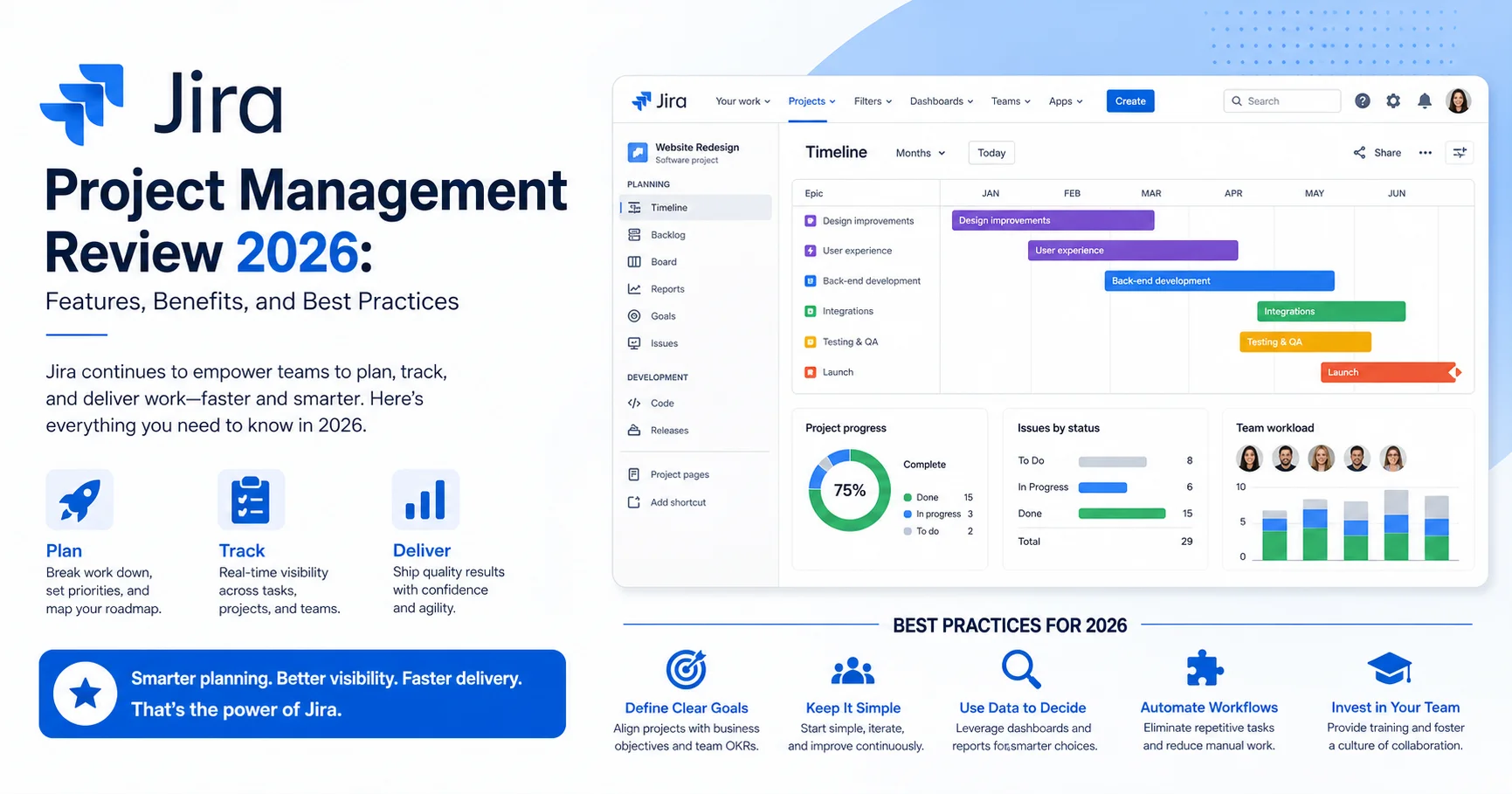
At its core, Jira organizes work into “issues” (tasks, bugs, stories, or epics), which move through customizable workflows on boards. This makes it particularly well-suited to Agile frameworks like Scrum and Kanban, where visualizing work-in-progress is essential.
According to Atlassian’s own reporting, Jira is used by hundreds of thousands of organizations worldwide, including a significant share of Fortune 500 companies, making it one of the most widely adopted project management platforms globally.
I remember my first week using Jira years ago — I stared at the backlog, the sprint board, and a dozen configuration options, completely unsure where to even start. If that sounds familiar, don’t worry. This guide covers exactly the things I wish someone had explained to me on day one.
Jira Project Management Features: What You Actually Get
1. Scrum and Kanban Boards
Jira offers both Scrum boards (for sprint-based work) and Kanban boards (for continuous flow work). Setting up a board takes just a few minutes, and you can switch between views depending on how your team actually operates.
2. Customizable Workflows
This is where Jira genuinely shines. You can create custom workflows with as many or as few statuses as your process requires — “To Do,” “In Progress,” “Code Review,” “QA Testing,” “Done” — and define exactly who can move issues between them.
3. Backlog Management
The backlog view lets you prioritize upcoming work, estimate story points, and organize items into future sprints. In my experience, this is the single most useful feature for product owners trying to plan several sprints ahead without losing track of priorities.
4. Epics and Issue Linking
Large pieces of work can be broken into Epics, which then contain individual stories and tasks. You can also link related issues (“blocks,” “is blocked by,” “relates to”), which becomes essential once a project grows beyond a handful of tasks.
5. Sprint Reports and Burndown Charts
Jira automatically generates burndown charts, velocity reports, and sprint summaries. These reports gave our team an honest, data-backed view of whether we were overcommitting sprint after sprint — something that’s hard to gauge through gut feeling alone.
6. Automation Rules
Jira’s automation engine lets you set up rules like “when an issue moves to Done, notify the reporter” or “when a bug is marked critical, assign it to the team lead automatically.” I built several of these rules during my testing, and they genuinely cut down on repetitive manual updates.
7. Roadmaps
The roadmap feature provides a timeline view of Epics across quarters, which is particularly useful for communicating progress to stakeholders who don’t need to see every individual ticket.
8. Integrations
Jira integrates with tools like Confluence, Bitbucket, Slack, GitHub, and Figma. If your team already uses Atlassian’s ecosystem, the Confluence integration alone — linking documentation directly to tickets — is a significant time-saver.
⚠️ Important: Jira’s flexibility is a double-edged sword. Teams that don’t establish clear workflow rules early on often end up with inconsistent ticket statuses and messy boards within a few months.
Benefits of Using Jira Project Management
1. Exceptional Visibility Across Teams
Once configured properly, Jira gives everyone — from developers to executives — a real-time view of project status. No more “can you send me an update” emails; the board speaks for itself.
2. Strong Agile Support
Jira was essentially built for Agile teams, and it shows. Sprint planning, backlog grooming, and retrospectives all map naturally onto Jira’s structure, which is part of why it remains the dominant tool in software development environments.
3. Scalability
Jira handles everything from a 3-person startup team to enterprise organizations with thousands of users. The same core platform scales up through more advanced permission schemes, workflows, and reporting as organizational needs grow.
4. Data-Driven Decision Making
Velocity charts, cumulative flow diagrams, and sprint reports give teams actual data to base decisions on, rather than relying purely on instinct about whether a team is overloaded or underutilized.
5. Extensive Customization
Nearly every aspect of Jira — fields, workflows, permissions, notification schemes — can be tailored to match how your team actually works, rather than forcing your team to adapt to a rigid structure.
“Teams using structured issue tracking and Agile methodologies report significantly better delivery predictability,” according to industry findings referenced in the State of Agile Report, which has tracked Agile adoption trends across thousands of organizations.
Jira Pricing in 2026
Jira’s pricing has evolved over the years, and it’s structured around team size and feature needs. Here’s the current breakdown (always confirm on the official Jira pricing page since rates adjust periodically):
| Plan | Price (per user/month) | Best For | Key Limits |
|---|---|---|---|
| Free | $0 | Teams up to 10 users | Limited automation, 2GB storage |
| Standard | ~$7.75 | Small to mid-sized teams | 250GB storage, standard support |
| Premium | ~$15.25 | Growing teams needing advanced features | Unlimited storage, advanced roadmaps |
| Enterprise | Custom pricing | Large organizations | Advanced security, unlimited sites |
A few observations from actually managing teams across different tiers:
- The Free plan is genuinely usable for very small teams, though automation rules and advanced reporting are noticeably limited.
- The Standard plan covers most small-to-mid-sized team needs without feeling restrictive, which is where most of the teams I’ve worked with land.
- Premium becomes necessary once you need advanced roadmaps across multiple teams or require unlimited storage for attachments and documentation.
- Enterprise pricing includes stronger security and compliance features, which larger regulated organizations will likely require.
💡 Tip: If your organization already uses Confluence, bundling it with Jira through Atlassian’s suite pricing often works out cheaper than purchasing each tool separately.
Jira Best Practices: Lessons From Real Implementation
Setting up Jira correctly from the start saves you months of cleanup later. Here are the practices I’d genuinely recommend based on hands-on configuration experience.
1. Define Your Workflow Before Building It
Don’t open Jira and start clicking statuses together. Map out your team’s actual process on paper first — what states does a task pass through, and who’s responsible at each stage? This single step prevents 80% of the messy workflow issues I’ve seen teams create.
2. Keep Workflows Simple at First
It’s tempting to create a workflow with ten different statuses to capture every nuance. In practice, simpler workflows (5-7 statuses max) are easier for teams to actually follow consistently.
3. Use Story Points Consistently
Story point estimation only works if the whole team calibrates together. Run a few planning poker sessions early on to align on what a “3-point” story actually looks like versus a “5-point” one.
4. Set Up Automation Early
Don’t wait until your team is drowning in repetitive manual updates. Build basic automation rules — auto-assigning reviewers, notifying stakeholders on status changes — from the very first sprint.
5. Groom the Backlog Regularly
A neglected backlog becomes an unusable graveyard of outdated tickets. Schedule a recurring grooming session, even just 30 minutes weekly, to keep priorities current and remove stale issues.
6. Limit Work in Progress (WIP)
For Kanban boards specifically, setting WIP limits on columns prevents the common problem of everything being “in progress” and nothing actually getting finished.
7. Use Filters and Dashboards for Visibility
Create saved filters and personalized dashboards for different roles. A product owner needs a different view than a developer, and Jira’s dashboard customization makes this straightforward once configured.
8. Review Reports During Retrospectives
Pull up the sprint burndown chart or velocity report during retrospectives. Numbers often reveal patterns — like consistent overcommitment — that discussion alone tends to miss.
💡 Practical Tip: Assign one team member as the “Jira admin” responsible for workflow consistency and board hygiene. Without clear ownership, boards tend to drift into disorganization within a few sprints.
Common Challenges With Jira (And How I Solved Them)
No honest review skips the friction points, so here’s what actually tripped me up during real usage.
Challenge 1: Overwhelming Initial Setup
Jira’s sheer number of configuration options can be paralyzing for first-time admins. Solution: Start with one of Atlassian’s pre-built templates rather than building a workflow from scratch. You can customize it later once your team understands the basics.
Challenge 2: Notification Overload
Early on, our team was getting flooded with email notifications for every single ticket update. Solution: Customize notification schemes to only alert relevant roles for specific events, rather than using the default settings.
Challenge 3: Inconsistent Ticket Quality
Some team members wrote detailed tickets; others wrote a single vague sentence. Solution: Create mandatory custom fields and ticket templates to enforce a minimum level of detail before a ticket can be created.
Challenge 4: Non-Technical Teams Struggle With the Interface
When our marketing team tried adopting Jira, the terminology (Epics, Sprints, Backlogs) felt foreign and intimidating. Solution: Consider Jira Work Management, a simplified version of Jira designed specifically for non-technical, business-oriented teams.
Challenge 5: Reporting Takes Time to Configure Properly
Default reports don’t always match what stakeholders actually want to see. Solution: Invest time early in building custom dashboards, or consider a reporting add-on if your organization needs advanced analytics beyond Jira’s native capabilities.
Jira vs. Competitors: Comparison Table
| Tool | Rating | Free Plan | Starting Price | Best For |
|---|---|---|---|---|
| Jira | ⭐⭐⭐⭐½ (4.5/5) | Yes (up to 10 users) | ~$7.75/user/month | Software & Agile teams |
| Asana | ⭐⭐⭐⭐½ (4.4/5) | Yes | ~$10.99/user/month | Cross-functional teams |
| Trello | ⭐⭐⭐⭐ (4.3/5) | Yes | ~$5/user/month | Simple Kanban workflows |
| Monday.com | ⭐⭐⭐⭐½ (4.5/5) | No (trial only) | ~$9/user/month | Visual project tracking |
| ClickUp | ⭐⭐⭐⭐ (4.3/5) | Yes | ~$7/user/month | All-in-one work management |
| Azure DevOps | ⭐⭐⭐⭐ (4.2/5) | Yes (limited) | ~$6/user/month | Microsoft-centric dev teams |
Ratings reflect aggregated user sentiment from independent review platforms as of early 2026 and personal testing experience.
Asana is a leading work management and team collaboration platform that helps organizations plan, track, and manage projects efficiently. It enables users to create tasks, assign responsibilities, set deadlines, monitor progress, and automate workflows within a centralized workspace. Widely adopted by businesses and remote teams, Asana improves productivity, enhances communication, and ensures projects stay on schedule through its intuitive and flexible project management tools.
Trello is a popular project management and collaboration tool that helps individuals and teams organize tasks visually. Using boards, lists, and cards, users can plan projects, track progress, assign responsibilities, and manage deadlines in a simple and intuitive workspace. Trello is widely used for task management, team collaboration, and workflow organization across businesses of all sizes.

Monday.com is a cloud-based work operating system (Work OS) that enables teams to manage projects, workflows, and daily operations from a single platform. It offers customizable boards, task tracking, automation, collaboration tools, and real-time reporting to help teams stay organized and productive. Used by businesses across various industries, Monday.com simplifies project planning, improves team collaboration, and provides greater visibility into work progress through its flexible and user-friendly interface.
ClickUp is a powerful all-in-one productivity and project management platform designed to help teams plan, organize, and manage their work efficiently. It combines task management, project tracking, document collaboration, goal setting, and workflow automation in a single workspace. Widely used by businesses of all sizes, ClickUp helps teams improve collaboration, streamline processes, and boost productivity through its highly customizable features.
Azure DevOps is a comprehensive cloud-based platform from Microsoft designed to help software development teams plan, develop, test, and deliver applications more efficiently. It brings together a wide range of tools and services in one platform, including Azure Boards for project management and work tracking, Azure Repos for managing source code with Git, Azure Pipelines for automating continuous integration and continuous delivery (CI/CD), Azure Test Plans for application testing, and Azure Artifacts for managing software packages. Azure DevOps supports popular programming languages, development environments, and cloud platforms, making it suitable for both small development teams and large organizations.
Jira Pros and Cons
Pros:
- Exceptionally strong Agile and Scrum support
- Highly customizable workflows and permissions
- Scales effectively from small teams to enterprise organizations
- Powerful reporting and data visualization tools
- Extensive integration ecosystem (Confluence, Bitbucket, Slack, GitHub)
- Robust automation capabilities reduce manual admin work
Cons:
- Steep learning curve for new and non-technical users
- Initial setup can be overwhelming without prior experience
- Can become cluttered without disciplined workflow management
- Notification settings require manual tuning to avoid overload
- Advanced reporting features often require Premium tier or add-ons
Who Should Actually Use Jira?
Based on real implementation experience, here’s my honest breakdown:
Choose Jira if you:
- Run a software development team using Scrum or Kanban
- Need detailed, customizable workflows for complex processes
- Require robust reporting and sprint tracking capabilities
- Plan to scale your team significantly over time
- Already use other Atlassian products like Confluence or Bitbucket
Look elsewhere if you:
- Need a simple, visual tool for non-technical teams (consider Trello or Monday.com)
- Want something your team can adopt with zero training (consider Asana)
- Operate primarily within the Microsoft ecosystem (consider Azure DevOps)
- Need an all-in-one tool combining docs, chat, and tasks (consider ClickUp)
Quick Practical Checklist Before You Implement Jira
- Map out your team’s actual workflow before configuring boards
- Choose between Scrum or Kanban based on how your team delivers work
- Set up custom fields and ticket templates for consistency
- Configure notification schemes to avoid alert fatigue
- Build at least 2-3 automation rules before your first sprint
- Assign a dedicated Jira admin for ongoing board maintenance
- Schedule recurring backlog grooming sessions
- Set WIP limits if using Kanban boards
- Review sprint reports during every retrospective
Frequently Asked Questions
What is Jira used for in project management?
Jira is used to plan, track, and manage work using Agile methodologies like Scrum and Kanban. It’s particularly popular for software development but is also used by marketing, HR, and operations teams for general project management.
Is Jira good for beginners?
Jira has a steeper learning curve compared to simpler tools like Trello, but with pre-built templates and proper onboarding, beginners can become comfortable within a few weeks of regular use.
How much does Jira cost in 2026?
Jira offers a free plan for up to 10 users, with the Standard plan starting around $7.75 per user/month, Premium around $15.25 per user/month, and custom Enterprise pricing for larger organizations.
What’s the difference between Jira Software and Jira Work Management?
Jira Software is designed for technical teams using Agile frameworks, while Jira Work Management offers a simplified interface tailored to non-technical business teams managing general projects and tasks.
Can Jira be used for non-software projects?
Yes, many marketing, HR, and operations teams use Jira (often through Jira Work Management) for general project tracking, though its core strengths remain most pronounced in software development contexts.
Is Jira better than Trello?
It depends on your needs. Jira offers far more customization, reporting, and Agile-specific features, making it better for complex software projects, while Trello’s simplicity makes it easier for small teams managing straightforward task lists.
Does Jira support remote and distributed teams?
Yes, Jira is cloud-based and designed to support distributed teams, offering real-time updates, integrations with communication tools like Slack, and asynchronous collaboration through comments and notifications.
Final Verdict
After using Jira across teams of different sizes and technical backgrounds, it’s clear why it remains the dominant project management tool for software development. Its combination of customizable workflows, strong Agile support, and powerful reporting makes it genuinely difficult to outgrow, even as organizations scale into the hundreds of users.
That said, Jira isn’t the right starting point for every team. Non-technical teams or those wanting a tool with zero learning curve will likely find more immediate comfort in Trello or Monday.com. But for software teams serious about Agile delivery, sprint planning, and long-term scalability, Jira Project Management remains one of the most reliable, battle-tested platforms available in 2026.
The real key to success with Jira isn’t the tool itself — it’s the discipline your team brings to configuring and maintaining it. Get that right, and Jira becomes less of a project management tool and more of an operational backbone your entire team relies on daily.