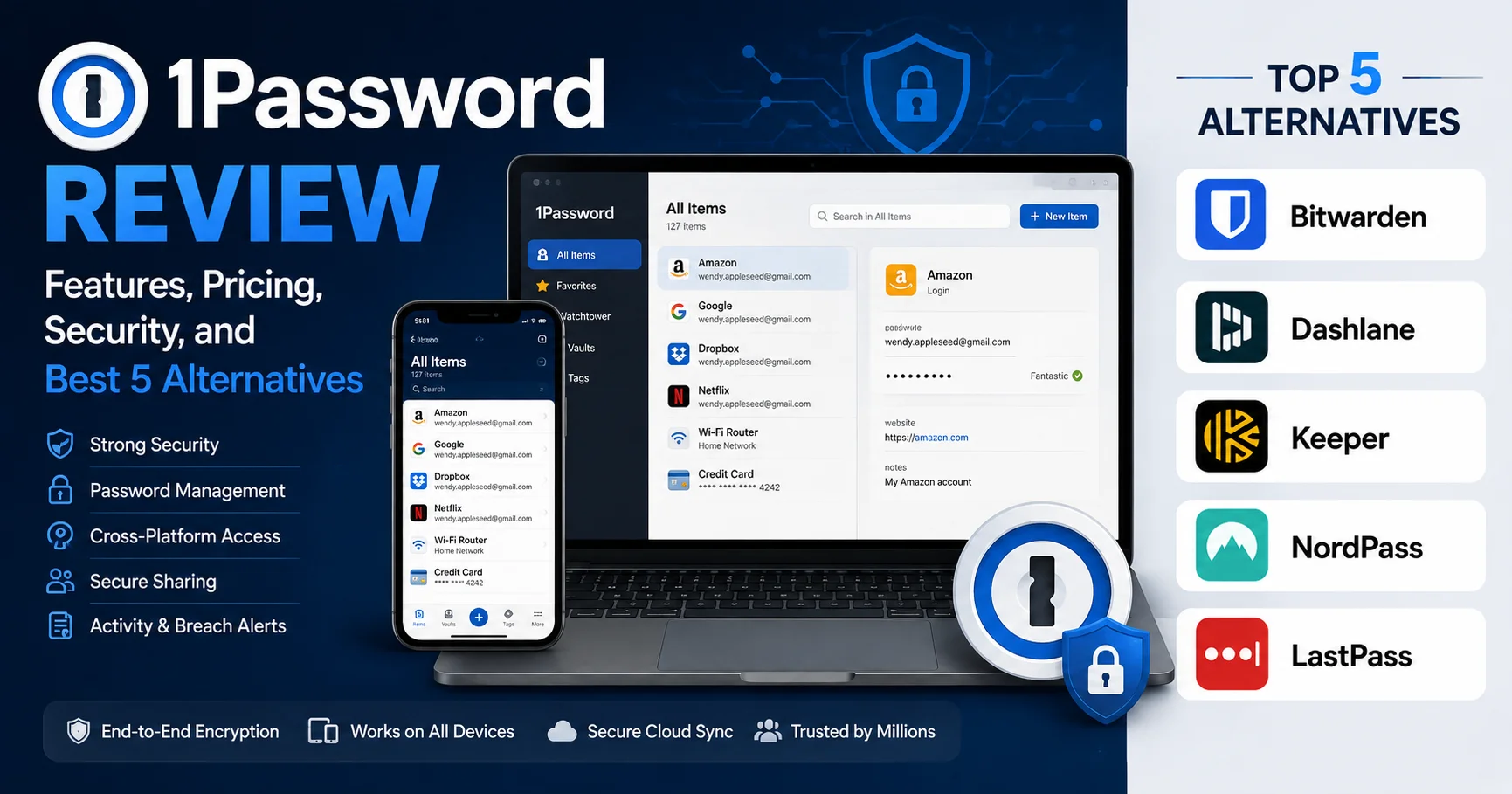
1Password Review: Features, Pricing, Security, and Best 5 Alternatives

INTRODUCTION
You’re using the same password across multiple accounts. Or maybe you’re generating random passwords but storing them in browser autofill, a notes app, or—worst of all—a spreadsheet. You know this is dangerous, but the thought of managing hundreds of unique, complex passwords feels overwhelming.
1Password is a premium password manager that securely stores all your passwords, credit cards, personal information, and sensitive documents in an encrypted vault, then automatically fills them in across all your devices when you need them. The core promise is elegant: remember one strong master password, and 1Password handles the rest securely.
I’ve personally used 1Password for over five years across both personal and professional contexts, migrated entire family and team vaults, tested its security features extensively, and compared it directly against every major competitor. I’ve experienced both its impressive strengths and its genuine frustrations.
The honest answer to “Is 1Password worth it?” depends entirely on what you’re comparing it to and what you need from a password manager. For security-conscious users who can justify the premium pricing, it’s genuinely excellent. For budget-conscious users, strong free alternatives exist.
This comprehensive review covers every aspect of 1Password you need to evaluate—security architecture, features, pricing, cross-platform experience, business capabilities, genuine limitations, and honest alternatives comparison. By the end, you’ll know definitively whether 1Password is the right password manager for you.
What Is 1Password and Who Makes It?
1Password is a password management application developed by AgileBits Inc., a Canadian software company founded in 2005 and headquartered in Toronto. What started as a Mac password manager has evolved into a comprehensive cross-platform security platform serving over 100,000 businesses and millions of individual users worldwide.
Company Background and Trust
AgileBits key facts:
- Founded: 2005 in Toronto, Canada
- Employees: 800+ (as of 2026)
- Funding: $620 million Series C raised in 2022 (Insight Partners, Tiger Global)
- Valuation: $6.8 billion (2022 valuation)
- Business customers: 100,000+ companies
- Individual users: Estimated 15+ million
- Security incidents: Zero successful breaches of customer data
The funding and valuation numbers matter for a different reason than typical software—they indicate long-term organizational stability. Password managers with access to your most sensitive data need to be around for decades, not just years. AgileBits’ financial backing strongly suggests longevity.
The Core Password Manager Problem 1Password Solves
The reality of password security in 2026:
- Average person has 100+ online accounts (NordPass research)
- Only 13% of people use unique passwords for all accounts
- Data breaches expose billions of credentials annually
- Password reuse means one breach compromises multiple accounts
- “Secure” browser storage isn’t actually encrypted properly
What 1Password enables:
✓ Unique, random 20+ character passwords for every account
✓ Automatic filling without memorizing anything
✓ Instant notification if passwords appear in data breaches
✓ Secure sharing with family members or colleagues
✓ Access across all devices (phone, tablet, computer)
1Password Security Architecture: How Your Data Is Protected
Security is the most critical evaluation criterion for any password manager. Understanding how 1Password actually protects your data is essential.
The Secret Key System
1Password’s most distinctive security feature is the Secret Key—a concept no other major password manager implements identically.
How it works:
When you create a 1Password account, you receive:
- Master Password (you choose and memorize)
- Secret Key (34-character code generated locally)
Accessing your vault requires both:
Your Master Password + Secret Key = Encryption key for your vault
Why this matters:
Even if 1Password’s servers are completely compromised, attackers cannot access your vault without your Secret Key. The Secret Key never leaves your devices and is never stored on 1Password’s servers.
The practical implication:
If you lose your Secret Key and forget your Master Password, there is no recovery—your data is permanently inaccessible. This is a feature, not a bug (though it requires careful management of your Emergency Kit).
End-to-End Encryption
Encryption specifications:
- Encryption algorithm: AES-256-GCM
- Key derivation: PBKDF2-HMAC-SHA256 (600,000 iterations)
- Transport security: TLS 1.3
- Signing: ECDSA on P-521 curve
Zero-knowledge architecture:
1Password employees cannot see your passwords. The encryption/decryption happens entirely on your devices. 1Password’s servers store only encrypted blobs they cannot read.
This has been verified independently: 1Password has undergone multiple third-party security audits. Results are available on their website with identified issues and remediation documented.
Two-Factor Authentication (2FA)
1Password supports multiple 2FA methods:
- TOTP authenticator apps (Google Authenticator, Authy)
- Hardware security keys (YubiKey, FIDO2 keys)
- Duo Security (enterprise integration)
- Emergency kit-based recovery (for 2FA loss scenarios)
Important nuance: 1Password’s 2FA protects your account access, not your vault encryption. The Secret Key system provides the primary additional authentication layer.
Watchtower: Breach Monitoring
1Password’s Watchtower feature:
✓ Have I Been Pwned integration (checks if your passwords appeared in data breaches)
✓ Reused password detection (identifies same password used across multiple sites)
✓ Weak password identification (flags easily guessable passwords)
✓ Expired website certificates (warns about HTTPS issues)
✓ Vulnerable websites (identifies sites with known security issues)
✓ Unsecured websites (warns when storing passwords for HTTP sites)
Watchtower runs automatically and surfaces actionable security improvements without manual effort.
Core Features of 1Password
Password Generation and Storage
Password Generator:
1Password’s built-in generator creates:
- Random passwords: Customizable length (up to 64 characters), character types
- Memorable passwords: Word-based passwords easier to type when autofill isn’t available
- PINs: Numeric codes for devices and financial accounts
Vault Organization:
- Multiple vaults: Separate personal, work, and shared content
- Tags and favorites: Quick access to frequently used items
- Custom categories: Not just passwords—secure notes, credit cards, documents, identities
- Search: Full-text search across all vaults and items
What you can store:
✓ Login credentials (unlimited)
✓ Credit and debit cards
✓ Bank accounts
✓ Passports and driver’s licenses
✓ SSH keys and API credentials
✓ Secure notes
✓ Medical information
✓ Software licenses
✓ Custom item categories
✓ File attachments (documents, images)
Autofill and Browser Integration
Browser extensions available:
- Google Chrome
- Mozilla Firefox
- Microsoft Edge
- Apple Safari
- Brave Browser
- Opera
- Arc Browser
Autofill capabilities:
✓ Login forms (username and password)
✓ Payment forms (credit card details)
✓ Personal information (name, address, phone)
✓ Inline autofill suggestions (appears within form fields)
✓ Keyboard shortcut (Cmd/Ctrl+\ triggers fill)
✓ Right-click context menu filling
Where autofill impresses:
1Password’s autofill is consistently more reliable than competitors. It handles:
- Multi-page login flows (unusual approach)
- JavaScript-heavy login forms
- iFrame-based forms (technically challenging)
- Mobile apps (not just browsers)
Where it occasionally frustrates:
Some custom-coded login forms require manual filling. This is rare but happens with legacy enterprise applications and heavily customized login pages.
Travel Mode
1Password’s most unique feature—Travel Mode:
How it works:
- You designate specific vaults as “Safe for Travel”
- Before crossing borders, enable Travel Mode
- Only Safe for Travel vaults appear on your device
- Sensitive vaults (work credentials, financial accounts) are completely hidden
- After crossing border, disable Travel Mode to restore full access
Why this matters:
Border officials in some countries can legally compel you to unlock your devices. Travel Mode means your most sensitive data simply doesn’t exist on the device during the inspection—there’s nothing hidden to find, because it’s not there.
This is a genuinely unique security feature I haven’t seen matched by any competitor. For journalists, executives, lawyers, or anyone crossing borders with sensitive data, it’s invaluable.
Passkey Support
1Password in 2026 fully supports passkeys:
- Store and manage passkeys alongside passwords
- Passkey autofill in browsers and apps
- Cross-device passkey sync
- Fallback to password when passkey unavailable
- Team passkey sharing (Business tier)
Passkeys represent the future of authentication—no passwords to steal, phishing-resistant by design. 1Password’s early, comprehensive passkey support positions it well for this transition.
1Password Pricing: Every Plan Explained
Individual and Family Plans
| Plan | Monthly (Annual) | Devices | Users | Storage | Key Features |
|---|---|---|---|---|---|
| Individual | $2.99/month | Unlimited | 1 | 1GB | Full features, Watchtower, Travel Mode |
| Families | $4.99/month | Unlimited | 5 | 1GB each | Shared vaults, family management, recovery |
Free trial: 14-day free trial (no credit card required)
Note on pricing: 1Password has no permanent free tier. After the 14-day trial, payment is required. This is 1Password’s most significant competitive disadvantage against Bitwarden (which offers a generous free tier).
Business Plans
| Plan | Monthly/User | Minimum | Key Features |
|---|---|---|---|
| Teams Starter | $19.95 flat | Up to 10 users | Full team features, admin controls |
| Business | $7.99/user | No minimum | Advanced admin, reporting, SSO integration |
| Enterprise | Custom pricing | Custom | Dedicated support, custom security policies, SLA |
Business-specific features:
✓ Activity logs (who accessed what, when)
✓ Guest accounts (limited access for contractors)
✓ Advanced permissions (granular vault access control)
✓ SSO integration (Okta, Azure AD, OneLogin, Duo)
✓ SCIM provisioning (automatic user management)
✓ Custom security policies (enforce password strength, 2FA requirements)
✓ Priority support (faster response times)
✓ Compliance reporting (SOC2 Type II, GDPR)
Is 1Password Worth the Price?
Compared to competitors:
- Bitwarden: Free tier available, premium $10/year (vs. $36/year for 1Password)
- Dashlane: $39.96/year premium (comparable to 1Password)
- LastPass: $36/year premium (significant security concerns)
- Keeper: $34.99/year (comparable)
1Password’s premium justification:
For individual users: $36/year ($3/month) is genuinely reasonable for software protecting your most sensitive digital assets. The security record, polished interface, and Travel Mode justify the premium for most users.
For budget-conscious users: Bitwarden’s premium tier ($10/year) provides comparable core functionality at 28% of the cost. If price is your primary concern, Bitwarden is the honest recommendation.
Cross-Platform Experience
Desktop Applications
macOS:
- Native macOS app (not web wrapper)
- Touch ID integration
- Menu bar quick access
- System-level autofill
- Handoff support (start on Mac, continue on iPhone)
Windows:
- Native Windows application
- Windows Hello biometric support
- Taskbar icon quick access
- Windows autofill API integration
Linux:
- Electron-based app (not fully native, but functional)
- Available via Flatpak, .deb, and .rpm packages
- Limited compared to Mac/Windows but adequate
Mobile Applications
iOS:
- Native iOS app (excellent performance)
- Face ID and Touch ID support
- iOS 18 Autofill integration
- Apple Watch companion app
- Widgets for quick access
Android:
- Native Android app
- Biometric (fingerprint, face) support
- Autofill service integration
- Pixel and Samsung-specific optimizations
Mobile experience reality:
Mobile apps are where 1Password genuinely shines versus web-only alternatives. The autofill implementation in iOS and Android apps is consistently better than browser-based competitors when filling credentials in apps (not just browsers).
Web Access
1Password.com access:
Web access works but is noticeably slower than native apps. Browser extension provides most functionality. Web vault is primarily useful for emergency access or shared computers.
What I Genuinely Like (and Don’t Like) About 1Password
Strengths I’ve Experienced Personally
1. The Secret Key system genuinely improves security
When I first set up 1Password, the Emergency Kit concept struck me as unnecessarily complex. After deeper understanding, I appreciate it—the Secret Key means even a complete 1Password server breach doesn’t compromise my passwords. I store my Emergency Kit in a secure physical location and forget about it.
2. Travel Mode has practical real-world value
I’ve used Travel Mode when crossing borders on work trips. Having sensitive client credentials simply absent from my device during customs inspection provides genuine peace of mind. No other major password manager offers this.
3. Cross-device sync is flawless
Adding a credential on my iPhone appears on my Mac within seconds. This sounds trivial until you’ve used competing products where sync delays cause confusion and potential security mistakes.
4. The Watchtower feature prevents real damage
Watchtower flagged three credentials exposed in data breaches I wasn’t aware of. I changed those passwords immediately. Without Watchtower, those compromised credentials would have sat undetected.
5. Business features genuinely work for teams
Managing shared team credentials through 1Password Business eliminates the dangerous practice of sending passwords through Slack or email. The activity logs have helped me track several suspicious access patterns.
Frustrations I’ve Experienced Personally
1. No free tier is a significant barrier
I’ve recommended 1Password to people who simply won’t pay $3/month for password management. Bitwarden exists and is excellent—free tier’s existence makes recommendation conversations much easier.
2. Autofill occasionally requires manual intervention
Roughly 5-10% of autofill attempts require clicking into the extension rather than seamlessly filling. This is minor but noticeable when competitors sometimes handle these edge cases better.
3. The learning curve for advanced features
Most users never discover Travel Mode, SSH agent integration, or developer tools. Feature discoverability could improve significantly. New users often use 1Password as a basic vault without accessing premium capabilities.
4. Electron app on Linux is noticeably inferior
The Linux app performance doesn’t match Mac and Windows native experiences. Heavy Linux users may find this frustrating.
5. Pricing structure isn’t always logical
Teams Starter at $19.95 flat for up to 10 users is excellent value. But jumping to Business at $7.99/user creates a price cliff that confuses small businesses evaluating options.
1Password for Businesses: Deep Dive
Why Password Management Matters for Organizations
Business security statistics:
- 81% of hacking-related breaches leverage stolen or weak passwords (Verizon DBIR)
- Average cost of a data breach: $4.88 million (IBM, 2024)
- Employees reuse work passwords across personal accounts at alarming rates
A single compromised credential can cascade into complete organizational breach. Business password management isn’t optional—it’s fundamental security hygiene.
1Password Business Key Capabilities
Administrative controls:
✓ Policy enforcement: Require strong passwords, mandate 2FA, enforce master password complexity
✓ Vault access management: Control which employees access which credential sets
✓ Guest accounts: Give contractors limited access without full employee privileges
✓ Automated provisioning: SCIM integration with identity providers (Okta, Azure AD)
✓ Automated deprovisioning: Instantly revoke access when employees leave
Audit and compliance:
✓ Activity logs: Every login, every password access, every change—timestamped
✓ Usage reports: Identify users with security hygiene issues
✓ Compliance documentation: SOC2 Type II certified (important for enterprise procurement)
Integration ecosystem:
- SSO providers: Okta, Azure AD, OneLogin, Duo Security, Google Workspace
- Developer tools: CLI, SDKs for automation
- CI/CD integration: Secure credential injection in pipelines
- SIEM integration: Export logs to security monitoring platforms
Business Deployment Challenges
Adoption is the hardest part:
Technical implementation of 1Password Business is straightforward. Getting 50+ employees to actually change their security habits is genuinely difficult.
Effective adoption strategies:
- Executive sponsorship and visible leadership adoption
- Mandatory training with hands-on practice
- Team-by-team rollout (not organization-wide simultaneously)
- Designated “1Password champions” in each department
- Remove alternatives (disable browser password saving)
- Recognition for strong password hygiene
Best 1Password Alternatives
Comprehensive Alternatives Comparison
| Password Manager | Free Tier | Premium Price | Security | Ease of Use | Business Features | Rating |
|---|---|---|---|---|---|---|
| 1Password | No (14-day trial) | $2.99/month | Excellent | Excellent | Excellent | ⭐⭐⭐⭐⭐ |
| Bitwarden | Yes (generous) | $0.83/month | Excellent | Good | Good | ⭐⭐⭐⭐⭐ |
| Dashlane | Limited | $3.33/month | Very Good | Excellent | Good | ⭐⭐⭐⭐ |
| Keeper | Limited | $2.92/month | Excellent | Very Good | Excellent | ⭐⭐⭐⭐⭐ |
| NordPass | Limited | $1.49/month | Good | Very Good | Good | ⭐⭐⭐⭐ |
| LastPass | Limited | $3.00/month | Moderate* | Good | Good | ⭐⭐⭐ |
*LastPass suffered significant security breaches in 2022 that exposed encrypted vaults
1. Bitwarden: Best Free Alternative
Bitwarden is a secure, open-source password manager that allows you to protect and organize your passwords, passkeys, payment cards, and other sensitive information in an encrypted digital vault. Available on Windows, macOS, Linux, Android, iOS, and all major web browsers, Bitwarden offers seamless synchronization across your devices for easy access. Its robust end-to-end encryption, built-in password generator, secure sharing capabilities, support for two-factor authentication, and affordable premium plans make it a popular choice for individuals, families, and businesses seeking a reliable and transparent password management solution.
Why it’s the top alternative:
Bitwarden is open-source, independently audited, genuinely free (with meaningful limits), and technically impressive. For price-sensitive users, it’s the obvious recommendation.
Free tier includes:
- Unlimited passwords
- Unlimited devices
- Secure notes
- Basic autofill
Premium ($10/year) adds:
- 1GB encrypted file storage
- TOTP authenticator
- Emergency access
- Password health reports
Where Bitwarden falls short vs. 1Password:
- No Travel Mode
- Less polished interface (functional but clinical)
- Autofill reliability slightly lower
- Family sharing less intuitive
Choose Bitwarden if: Budget is primary concern and you don’t need Travel Mode or 1Password’s polished experience.
Website: Bitwarden
2. Dashlane: Best Experience-Focused Alternative
Dashlane is a user-friendly password manager that helps individuals and businesses securely store, manage, and autofill passwords across devices. It also includes features such as password health monitoring, dark web monitoring, and secure password sharing.

Why it competes:
Dashlane prioritizes user experience, with the most polished onboarding and interface in the password manager category. It also uniquely includes a VPN in premium plans.
Dashlane strengths:
- Best onboarding experience (ideal for non-technical users)
- Password Health score (gamified security improvement)
- Included VPN (Hotspot Shield partnership)
- Dark web monitoring included
Dashlane weaknesses:
- More expensive than 1Password when factoring full features
- Less granular control than 1Password
- Fewer business-specific features
- VPN quality is mediocre
Choose Dashlane if: You’re onboarding non-technical family members who need the gentlest possible introduction to password management.
Website: Dashlane
3. Keeper: Best Enterprise Alternative

Keeper is a password management and digital security platform designed to securely store, manage, and protect passwords, sensitive credentials, and other confidential information. It uses strong encryption to help users safeguard their data while offering features such as password generation, secure sharing, autofill, and multi-device synchronization. Keeper is suitable for both individuals and businesses looking to improve password security and simplify credential management.
Why enterprises choose it:
Keeper offers deeper enterprise integration than 1Password, with more compliance certifications and zero-knowledge architecture that’s been independently verified extensively.
Keeper strengths:
- Extensive compliance certifications (FedRAMP, SOC2, ISO 27001, PCI DSS)
- Zero-knowledge architecture (third-party verified)
- Secrets Manager (for developer and DevOps teams)
- BreachWatch (dark web monitoring)
- KeeperChat (secure messaging)
Keeper weaknesses:
- Interface less intuitive than 1Password
- Add-on pricing for many features (BreachWatch costs extra)
- Higher total cost when add-ons included
- Less polished consumer experience
Choose Keeper if: Compliance certifications are procurement requirements or you need dedicated DevOps secrets management.
Website: Keeper
4. NordPass
NordPass is a password manager designed to help users securely store, organize, and manage passwords, payment details, and other sensitive information. It offers features such as password generation, autofill, secure sharing, and synchronization across multiple devices. With its simple interface and security-focused features, NordPass provides a convenient solution for individuals and businesses looking to strengthen password management and protect their online accounts.
Why it competes:
NordPass competes by combining an easy-to-use password manager with strong security features and cross-platform support, making it a practical alternative for both individuals and businesses.
Strengths:
Its main strengths include a clean and intuitive interface, secure password storage, password generation, autofill, multi-device synchronization, and features designed to help users identify weak or compromised passwords.
Weaknesses:
Some advanced features require a paid plan, and users looking for highly customizable or enterprise-focused password management may find other solutions more suitable.
Choose NordPass if: you want a simple, secure, and user-friendly password manager with reliable synchronization and essential tools for protecting your online accounts.
5. LastPass

LastPass is a popular password manager that helps users securely store, organize, and manage passwords and other sensitive credentials in one place. It offers features such as password generation, autofill, secure sharing, and security monitoring across supported devices. With its user-friendly interface and convenient credential management tools, LastPass can simplify password security for both individuals and organizations.
Why it competes:
LastPass competes through its long-established password management platform, offering convenient credential storage, autofill, password generation, and synchronization across devices.
Strengths:
Its strengths include an intuitive interface, broad platform support, password sharing, security alerts, password generation, and useful tools for managing credentials across multiple accounts.
Weaknesses:
LastPass has faced significant security incidents and breaches in recent years, which may concern security-conscious users. Some features are also limited depending on the subscription plan.
Choose LastPass if: you prioritize convenience, ease of use, and a mature password management ecosystem, but carefully consider its security history before making it your primary password manager.
1Password Setup and Getting Started Guide
Initial Setup Process
Step 1: Create your account
- Visit 1password.com
- Start 14-day trial (no credit card required)
- Choose a strong Master Password (20+ characters, memorable)
- Download and save your Emergency Kit (PDF with account details)
- Store Emergency Kit securely (safe, locked drawer—not digitally)
Step 2: Import existing passwords
- Export passwords from current browser or password manager
- In 1Password, use Import function
- Review imported credentials for duplicates and weak passwords
- Delete weak passwords and generate strong replacements
Step 3: Install browser extension
- Add 1Password extension to your browsers
- Sign in to extension
- Test autofill on commonly visited sites
- Configure extension preferences (autofill behavior, lock timing)
Step 4: Install mobile apps
- Download 1Password from App Store or Google Play
- Scan QR code from desktop app to link accounts
- Enable biometric unlock (Face ID, fingerprint)
- Test autofill in a few apps
Step 5: Review Watchtower
- Open Watchtower dashboard
- Address any breach notifications immediately (change affected passwords)
- Fix reused passwords (generate unique passwords for each)
- Resolve weak password warnings
Getting Value from Advanced Features
Features most users miss:
- Travel Mode (Settings → Travel Mode) – Enable before border crossings
- SSH Agent (Developer tools) – Secure SSH key management
- Custom fields – Store beyond basic username/password
- Password sharing – Share individual items without sharing your vault
- Item history – Recover previous versions of changed credentials
- Emergency access – Set trusted contacts who can request access
1Password Checklist: Evaluating if It’s Right for You
Choose 1Password if you:
- Need a polished, premium password manager experience
- Travel internationally and value Travel Mode
- Manage a team or business needing centralized credential management
- Store developer credentials (SSH keys, API tokens, certificates)
- Want the most comprehensively audited security architecture
- Need SSO integration with your identity provider
- Can justify $36/year for individual or $60/year for family
- Want the best cross-platform native app experience
Consider alternatives if you:
- Need a free solution (Bitwarden)
- Prioritize extreme simplicity over features (Dashlane)
- Require specific compliance certifications (Keeper)
- Are heavy Linux user (Bitwarden’s Linux experience is better)
- Want open-source code you can audit yourself (Bitwarden)
- Manage enterprise at large scale with complex requirements (Keeper)
Frequently Asked Questions About 1Password
Q: Is 1Password safe to trust with all my passwords?
A: Yes, based on available evidence. 1Password has maintained a clean security record since 2005—no successful breaches of customer vault data. The Secret Key architecture means even a complete server compromise doesn’t expose your passwords. Third-party security audits have been conducted and published. No password manager is guaranteed impenetrable forever, but 1Password’s security implementation is among the strongest available.
Q: What happens if 1Password gets breached?
A: Even if 1Password’s servers were completely compromised, your vault data would remain protected because:
1. Vaults are stored in encrypted form that 1Password cannot read
2. Your Secret Key (never stored on their servers) is required for decryption
3. Attackers would have encrypted blobs requiring your Master Password + Secret Key to decrypt
4. Brute-force attacks are computationally infeasible against properly implemented AES-256
Q: Can I use 1Password without internet?
A: Yes, with limitations. 1Password stores a local encrypted copy of your vault. You can access existing credentials offline. You cannot sync new credentials or access from new devices without internet. If 1Password’s servers went offline permanently, your local copy would remain accessible.
Q: What’s the difference between Master Password and Secret Key?
A: They serve different purposes:
Master Password: You choose this. It encrypts/decrypts your local vault. 1Password never knows it.
Secret Key: 1Password generates this during account creation. Combined with your Master Password, it protects against server-side attacks. If 1Password’s servers are hacked, attackers still need your Secret Key (which never touches their servers) to access your vault.
Q: Is there a free version of 1Password?
A: No permanent free tier exists. 1Password offers a 14-day free trial (no credit card required). After that, payment is required. Individual plans start at $2.99/month (billed annually). If you need a free password manager, Bitwarden offers an excellent free tier with unlimited passwords and devices.
Q: Can my family members share passwords in 1Password Families?
A: Yes. 1Password Families ($4.99/month for up to 5 members) provides:
– Individual private vaults for each member
– Shared family vault for common credentials (streaming services, utilities)
– Item-level sharing (share single item without sharing entire vault)
– Family manager recovery (recover family member accounts)
Q: Can I migrate from LastPass to 1Password?
A: Yes, relatively straightforwardly. 1Password provides an import tool for LastPass exports. Process:
1. Export from LastPass (Account → Advanced Settings → Export)
2. In 1Password, go to File → Import → LastPass
3. Review imported credentials
4. Delete LastPass account after confirming migration
Given LastPass’s 2022 breach (which exposed encrypted customer vaults), migrating to 1Password or Bitwarden is genuinely recommended.
Q: How secure is 1Password for businesses?
A: 1Password Business provides enterprise-grade security including:
– SOC2 Type II certification
– AES-256 encryption with zero-knowledge architecture
– SSO integration (Okta, Azure AD, Google)
– SCIM automated provisioning
– Activity logs and audit trails
– Customizable security policies
For most SMBs and mid-market companies, 1Password Business provides more than adequate security. Large enterprises with specific compliance requirements (FedRAMP, etc.) should evaluate Keeper or purpose-built enterprise solutions.
Conclusion: Is 1Password Worth It in 2026?
After five years of personal use, extensive testing, and team deployments, my honest assessment is clear: 1Password is the best overall password manager for users who can justify the premium pricing.
The Case For 1Password
Security: The Secret Key system, clean breach record, and comprehensive third-party auditing make 1Password the most trustworthy option from a security architecture perspective. This isn’t marketing—the architecture genuinely provides protection that cheaper alternatives don’t match.
Experience: The cross-platform native app experience, reliable autofill, and polished interface reduce friction to the point where secure behavior becomes the path of least resistance. Password managers only protect you if you actually use them—1Password’s usability drives adoption.
Unique features: Travel Mode alone justifies the price for anyone crossing borders with sensitive data. No competitor offers this.
Business value: For teams, the centralized management, activity logging, and SSO integration provide organizational security improvements that far exceed the per-user cost.
The Case Against 1Password
No free tier: Bitwarden provides excellent security and core functionality free. If budget is genuinely a constraint, Bitwarden is the honest recommendation.
Premium pricing: At $36/year individual or $60/year family, 1Password costs more than alternatives. The premium is justified by real features and experience quality, but it remains a premium.
Overkill for simple needs: Users who need only basic password storage on one device might find 1Password’s capabilities—and pricing—excessive.
Final Recommendation
Choose 1Password if: Security is a priority, you value polished cross-platform experience, you travel internationally, or you’re deploying for a team.
Choose Bitwarden if: Free is a requirement, you prefer open-source, or you want comparable security at a fraction of the cost.
Choose Keeper if: Your organization has specific enterprise compliance requirements.
The password manager you actually use consistently is infinitely better than the theoretically superior one collecting digital dust. 1Password’s experience quality drives consistent use—which ultimately determines whether any password manager improves your security.
Additional Resources
1Password Official:
Alternatives:
Security Research:
- Have I Been Pwned (check if your email appears in breaches)