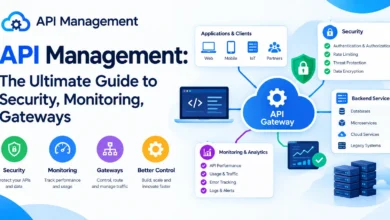
Azure DevOps Guide: 5 Core Services, Pipelines, Repositories, and Best Practices

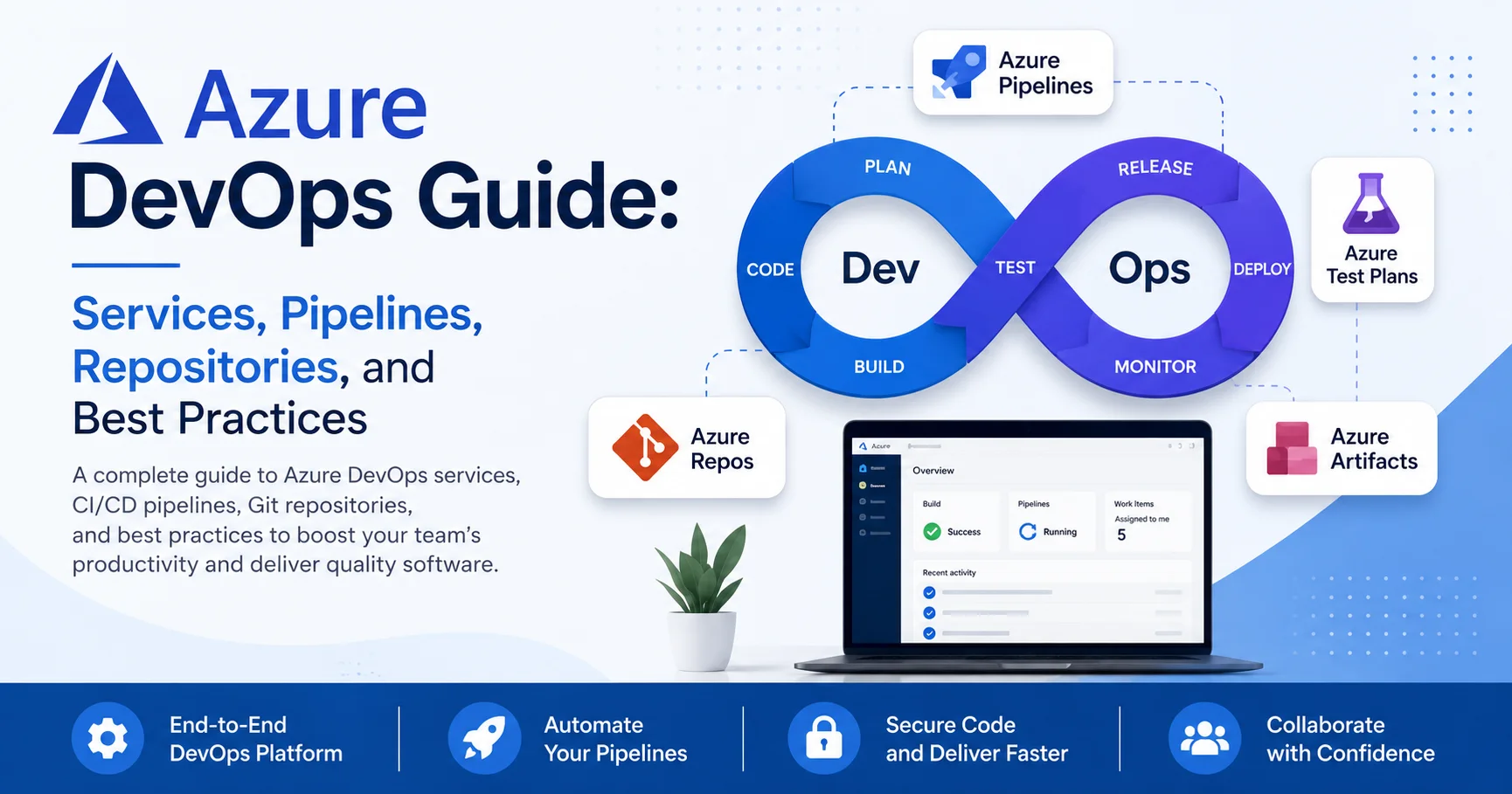
Introduction to Azure DevOps
Azure DevOps is a comprehensive platform from Microsoft that provides a collection of tools and services for planning, developing, testing, delivering, and monitoring software applications. Designed around modern DevOps practices, it helps development and IT teams bring together people, processes, and technologies throughout the software development lifecycle. Instead of relying on multiple disconnected tools, organizations can use Azure DevOps to manage projects, host source code, automate builds, run tests, deploy applications, and track development progress from a centralized environment. Its flexibility makes it suitable for startups, development teams, enterprises, and organizations managing complex software projects.
One of the main strengths of Azure DevOps is its ability to support collaboration between developers, project managers, testers, system administrators, and other stakeholders. The platform includes several integrated services, such as Azure Boards for work planning and project tracking, Azure Repos for Git-based source code management, Azure Pipelines for CI/CD automation, Azure Test Plans for software testing, and Azure Artifacts for managing software packages. These services can be used independently or together, allowing teams to create workflows that match their development methodology, whether they follow Agile, Scrum, Kanban, or another approach.
Azure DevOps also plays an important role in automating the software delivery process. With Azure Pipelines, teams can create continuous integration and continuous delivery workflows that automatically build applications, execute tests, identify potential problems, and deploy successful releases to different environments. This automation can significantly reduce manual work and help organizations release software faster and more consistently. Azure DevOps also integrates with a wide range of Microsoft and third-party technologies, including Azure, GitHub, Docker, Kubernetes, and numerous programming languages and development tools, making it adaptable to different technology stacks.
Beyond automation and development, Azure DevOps provides organizations with greater visibility and control over their software projects. Teams can track tasks, monitor development progress, review code changes, manage releases, analyze testing results, and maintain a clear history of project activities. Because DevOps practices emphasize collaboration, automation, and continuous improvement, Azure DevOps can help organizations improve development efficiency while reducing errors and shortening release cycles. For businesses looking to modernize their software development processes, Azure DevOps offers a scalable and integrated environment for managing the complete application lifecycle.
Quick Answer: Azure DevOps is Microsoft’s end-to-end DevOps platform that brings together planning, source control, CI/CD pipelines, testing, and artifact management under one roof. Used by over 80% of Fortune 500 companies running on Microsoft Azure, it enables development teams to plan smarter, build faster, and release with confidence — regardless of language, platform, or cloud provider.
If you’ve ever tried stitching together five different tools to manage your backlog, source code, build pipelines, test automation, and deployments — and ended up with a fragile, maintenance-heavy mess — Azure DevOps was built specifically to solve that problem. I’ve worked with this platform across teams ranging from 3-person startups to enterprise organizations with hundreds of engineers, and the difference it makes when properly configured is night and day.
In this guide, you’ll find everything you need to understand and use Azure DevOps effectively:
- A clear breakdown of all five core Azure DevOps services
- How Azure Pipelines work and how to build your first CI/CD pipeline
- Azure Repos: Git workflow, branching strategies, and pull request policies
- Pricing breakdown for 2026 (including what’s actually free)
- Azure DevOps vs. GitHub Actions: honest comparison
- Best practices that senior engineers use in production
- Common pitfalls and how to avoid them
- FAQs answered with real-world context
Let’s build something reliable.
What Is Azure DevOps? The Platform Explained
Azure DevOps is a comprehensive cloud-based platform from Microsoft designed to help software development teams plan, develop, test, and deliver applications more efficiently. It brings together a wide range of tools and services in one platform, including Azure Boards for project management and work tracking, Azure Repos for managing source code with Git, Azure Pipelines for automating continuous integration and continuous delivery (CI/CD), Azure Test Plans for application testing, and Azure Artifacts for managing software packages. Azure DevOps supports popular programming languages, development environments, and cloud platforms, making it suitable for both small development teams and large organizations.
Azure DevOps is a cloud-based platform developed by Microsoft that provides a complete suite of tools for software development lifecycle management. It was formerly known as Visual Studio Team Services (VSTS) before being rebranded in 2018, and it has matured significantly since then.
What sets Azure DevOps apart from standalone tools is its integration depth. Every service within the platform — from work item tracking to deployment pipelines — shares a common identity model, permissions system, and data layer. That means your pipeline can automatically link to the user story it implements, the commit that triggered it, and the test run that validated it. That traceability is genuinely powerful in regulated industries or large teams.
📊 By the Numbers: According to Microsoft’s own 2025 data, Azure DevOps processes over 1 billion pipeline minutes per month globally, with organizations in more than 180 countries using the platform actively.
The Five Core Azure DevOps Services
Azure DevOps is not a single product — it’s a suite of five interconnected services. You can use all five together or adopt only the ones that fit your workflow:
| Service | Purpose |
|---|---|
| Azure Boards | Agile project management, work items, sprints, backlogs |
| Azure Repos | Git-based source control (cloud-hosted repositories) |
| Azure Pipelines | CI/CD automation — build, test, and deploy |
| Azure Test Plans | Manual and exploratory testing management |
| Azure Artifacts | Package management (NuGet, npm, Maven, PyPI) |
Each service can be independently enabled or disabled per project, which gives you flexibility without forcing an all-or-nothing adoption.
Azure Boards: Agile Planning That Actually Works
Azure Boards is a project management and work-tracking service within Microsoft Azure DevOps that helps development teams plan, organize, and monitor their work throughout the software development lifecycle. It provides tools such as work items, backlogs, Kanban boards, sprint planning, dashboards, and customizable workflows, allowing teams to manage tasks, user stories, bugs, features, and other development activities in one central place. Azure Boards supports Agile methodologies such as Scrum and Kanban, making it easier for teams to prioritize work, track progress, assign responsibilities, and visualize project status in real time.
Azure Boards is Azure DevOps’s project management layer. If you’ve used Jira, you’ll feel at home — but with tighter integration into your codebase.
What Azure Boards Gives You
- Work Items: User stories, bugs, tasks, epics, and features — all linkable to commits, pull requests, and test cases
- Backlogs: Prioritized lists that feed directly into sprint planning
- Sprints: Time-boxed iterations with capacity planning and burndown charts
- Kanban Boards: Visual workflow management with customizable columns, swimlanes, and WIP limits
- Dashboards: Real-time widgets showing velocity, cumulative flow, and team health metrics
- Queries: Powerful custom filters to surface the exact work items you need
The Feature That Changed How My Teams Work
One of the most underrated Azure Boards features is work item linking to deployments. When a developer mentions AB#1234 in a commit message or pull request title, Azure Boards automatically links that deployment pipeline run to work item #1234. Your product owner can open a story and see exactly which pipeline deployed it, to which environment, and when — without asking the dev team. That level of transparency transforms team communication.
💡 Pro Tip: Use area paths and iteration paths to organize work across multiple teams in the same Azure DevOps organization. This is essential for scaled agile frameworks (SAFe, LeSS) where multiple squads share a product backlog.
Azure Repos: Git Source Control at Enterprise Scale
Azure Repos is a version control service within Microsoft Azure DevOps that allows development teams to securely store, manage, and collaborate on source code. It supports both Git repositories and Team Foundation Version Control (TFVC), giving teams flexibility in choosing the version control system that best fits their workflow. With Azure Repos, developers can create branches, commit changes, review code through pull requests, resolve conflicts, and track the complete history of a project. It also integrates seamlessly with other Azure DevOps services, such as Azure Boards and Azure Pipelines, helping teams connect code changes with work items and automate the build and deployment process.
Azure Repos provides unlimited, cloud-hosted Git repositories. It supports both Git (the industry standard) and TFVC (Team Foundation Version Control, a legacy centralized model), though virtually every modern team uses Git.
Key Features of Azure Repos
- Unlimited private repositories — no artificial repo count limits
- Branch policies — enforce rules before code reaches main
- Pull request workflows — with inline comments, required reviewers, and linked work items
- Semantic code search — search across all repos in your organization simultaneously
- Repository insights — commit frequency, contributor activity, and PR completion rates
- Integration with any Git client — VS Code, IntelliJ, command line, or third-party tools
Branching Strategy: What Actually Works in Production
After years of seeing teams fight over branching models, here’s what works reliably at scale:
Recommended: GitHub Flow (simplified trunk-based)
main (always deployable)
  └── feature/user-login
  └── fix/payment-timeout
  └── release/v2.4.0
Avoid Gitflow’s complexity unless you’re managing multiple long-lived production versions simultaneously. The cognitive overhead rarely justifies the branching model.
Branch Policies You Should Always Enable
⚙️ Recommended Azure Repos Branch Policies for main
- ✅ Require a minimum number of reviewers (at least 1, ideally 2)
- ✅ Check for linked work items — ensures traceability
- ✅ Check for comment resolution — no unresolved feedback merges
- ✅ Limit merge types — prefer squash or rebase for clean history
- ✅ Require a successful build before merge (linked to Azure Pipelines)
- ✅ Automatically include code owners as required reviewers
- ❌ Don’t allow force pushes on protected branches — ever
These policies take about 10 minutes to configure and prevent the majority of production incidents caused by rushed or unreviewed code.
Azure Pipelines: CI/CD That Scales With Your Team
Azure Pipelines is a continuous integration and continuous delivery (CI/CD) service within Azure DevOps that helps development teams automate the process of building, testing, and deploying applications. It enables developers to create automated workflows that run whenever code changes are made, ensuring that applications are consistently tested and prepared for release. Azure Pipelines supports a wide range of programming languages, platforms, and cloud environments, allowing teams to build and deploy applications to Microsoft Azure, other cloud providers, or on-premises servers. It also integrates with Git repositories, Azure Repos, GitHub, and other version control systems, making it easier to automate the entire software delivery process.
Azure Pipelines is the heart of Azure DevOps for most engineering teams. It’s a fully featured continuous integration and continuous deployment (CI/CD) system that supports virtually any language, any platform, and any cloud — including AWS and GCP.
How Azure Pipelines Work
Azure Pipelines run on agents — virtual machines or containers that execute your pipeline tasks. You have two options:
- Microsoft-hosted agents — pre-configured VMs (Windows, Ubuntu, macOS) that Microsoft maintains. Zero setup, always up-to-date.
- Self-hosted agents — your own machines or containers, registered with Azure DevOps. More control, better for custom tooling or compliance requirements.
Every pipeline is defined in a YAML file (azure-pipelines.yml) stored in your repository — meaning your pipeline is versioned alongside your code. This is a critical best practice that many teams still get wrong by using the classic (GUI-based) pipeline editor.
Your First Azure Pipeline: A Real Example
Here’s a production-ready pipeline for a Node.js application:
trigger:
  branches:
    include:
      - main
      - release/*

pool:
  vmImage: 'ubuntu-latest'

variables:
  nodeVersion: '20.x'
  buildConfiguration: 'Release'

stages:
  - stage: Build
    displayName: 'Build & Test'
    jobs:
      - job: BuildJob
        displayName: 'Build Application'
        steps:
          - task: NodeTool@0
            inputs:
              versionSpec: $(nodeVersion)
            displayName: 'Install Node.js'

          - script: npm ci
            displayName: 'Install Dependencies'

          - script: npm run lint
            displayName: 'Run Linter'

          - script: npm test -- --coverage
            displayName: 'Run Unit Tests'

          - task: PublishTestResults@2
            inputs:
              testResultsFormat: 'JUnit'
              testResultsFiles: '**/test-results.xml'
            displayName: 'Publish Test Results'

          - task: PublishCodeCoverageResults@1
            inputs:
              codeCoverageTool: 'Cobertura'
              summaryFileLocation: '$(System.DefaultWorkingDirectory)/coverage/cobertura-coverage.xml'
            displayName: 'Publish Code Coverage'

          - script: npm run build
            displayName: 'Build Application'

          - task: PublishBuildArtifacts@1
            inputs:
              PathtoPublish: '$(System.DefaultWorkingDirectory)/dist'
              ArtifactName: 'drop'
            displayName: 'Publish Build Artifact'

  - stage: Deploy_Staging
    displayName: 'Deploy to Staging'
    dependsOn: Build
    condition: succeeded()
    jobs:
      - deployment: DeployStaging
        displayName: 'Deploy to Staging Environment'
        environment: 'staging'
        strategy:
          runOnce:
            deploy:
              steps:
                - script: echo "Deploying to staging..."
                  displayName: 'Deploy Step'

  - stage: Deploy_Production
    displayName: 'Deploy to Production'
    dependsOn: Deploy_Staging
    condition: succeeded()
    jobs:
      - deployment: DeployProduction
        displayName: 'Deploy to Production Environment'
        environment: 'production'
        strategy:
          runOnce:
            deploy:
              steps:
                - script: echo "Deploying to production..."
                  displayName: 'Deploy Step'
What this pipeline does:
- Triggers on pushes to
mainandrelease/*branches - Runs lint checks, unit tests, and code coverage in parallel-friendly stages
- Publishes test results and coverage reports directly to Azure DevOps (visible in the pipeline run summary)
- Deploys to staging automatically, then waits for approval before production
Environments and Approvals: The Production Safety Net
One of Azure Pipelines’ most valuable features is Environments with approval gates. When you define an environment (like production) in Azure DevOps, you can configure:
- Required approvers — specific users or groups must approve before deployment proceeds
- Business hours gates — deployments only run during allowed time windows
- Exclusive lock — prevents two pipelines from deploying to the same environment simultaneously
- Deployment history — a complete audit trail of what was deployed, by whom, and when
This is the feature that makes compliance officers comfortable with automated deployments. Instead of “we deployed manually and noted it in a spreadsheet,” you have a cryptographically verified, timestamped deployment history that shows approvals, test results, and the exact artifact version deployed.
Azure Artifacts: Package Management Without the Headaches
Azure Artifacts is a package management service within Microsoft Azure DevOps that helps development teams create, store, manage, and share software packages securely. It supports popular package formats such as NuGet, npm, Maven, Python packages, and Universal Packages, allowing teams to manage dependencies and reusable components from a centralized platform. Azure Artifacts can be integrated with Azure Pipelines and other Azure DevOps services to automate package publishing and consumption as part of a CI/CD workflow. It also provides features such as private feeds, package versioning, access controls, and upstream sources, giving teams better control over their software dependencies.
Azure Artifacts provides private package feeds for your organization. Instead of publishing internal libraries to public npm or NuGet registries, you publish them to a private Azure Artifacts feed that only your organization can access.
Supported Package Types
- NuGet (.NET packages)
- npm (JavaScript/Node.js)
- Maven (Java)
- Python (PyPI)
- Universal Packages (any binary artifact)
Why Azure Artifacts Matters More Than You Think
Internal library management is one of the most consistently mishandled aspects of software engineering at scale. Teams either copy-paste code between projects (maintenance nightmare) or publish internal packages to public registries by mistake (security nightmare). Azure Artifacts solves both problems with a private, authenticated feed that integrates directly with your pipeline.
⚠️ Security Warning: Never publish internal packages containing business logic, API keys, or proprietary algorithms to public npm or NuGet feeds. Even “unlisted” packages on public registries are discoverable. Azure Artifacts private feeds are the correct solution for internal packages.
Upstream Sources: The Hidden Gem
Azure Artifacts supports upstream sources, which means your private feed can transparently proxy public registries (npmjs.com, nuget.org). Your developers point their package manager at a single feed URL, and Azure Artifacts serves both your internal packages and public packages from cache. This has two major benefits:
- Supply chain security: You control which public packages are accessible
- Build reliability: If npmjs.com goes down, your builds still succeed from cache
Azure Test Plans: Bridging Manual and Automated Testing
Azure Test Plans is the most commonly skipped Azure DevOps service — which is a mistake for teams building regulated software (fintech, healthcare, government) or products where manual exploratory testing still provides value.
Key capabilities include:
- Test suites and test cases linked to requirements (work items)
- Exploratory testing via the browser extension
- Test execution tracking with pass/fail rates over time
- Integration with automated test results from Azure Pipelines
- Traceability matrix — see which requirements are covered by which tests
For teams subject to SOC 2, ISO 27001, or FDA validation requirements, Azure Test Plans provides the documented evidence of testing activities that auditors require.
Azure DevOps Pricing 2026: What’s Free, What’s Not
💰 Azure DevOps Pricing at a Glance (2026)
Free tier (Azure DevOps Services):
- Up to 5 users free (Basic plan)
- 1 Microsoft-hosted CI/CD parallel job (1,800 minutes/month)
- 1 self-hosted parallel job (unlimited minutes)
- Azure Artifacts: 2 GB storage free
- Azure Boards & Repos: Free for unlimited users on open-source projects
| Plan | Price | Users | Key Features |
|---|---|---|---|
| Basic | Free | Up to 5 | Boards, Repos, Pipelines (limited), Artifacts |
| Basic + Test Plans | $52/user/month | Per user | All Basic features + Azure Test Plans |
| Visual Studio Subscriber | Included in VS subscription | Per user | All features based on subscription tier |
| Additional parallel jobs | $40/month (hosted) | N/A | Each additional CI/CD parallel job |
| Artifacts storage | $2/GB/month | N/A | Beyond 2 GB free |
Honest assessment: For small teams (under 5 developers), Azure DevOps is effectively free for core workflows. As you scale, the per-user cost becomes significant — especially if you add Test Plans. At that point, compare carefully against GitHub Enterprise, which bundles Actions minutes and Packages at different price points.
Azure DevOps vs. GitHub Actions: Honest Comparison
This is the question I get most often from teams evaluating Microsoft’s DevOps tooling.
| Criteria | Azure DevOps | GitHub Actions | Winner |
|---|---|---|---|
| CI/CD Maturity | Enterprise-grade, deep features | Modern, extensive marketplace | Tie |
| Project Management | Azure Boards (full-featured) | GitHub Projects (improving) | Azure DevOps |
| Source Control | Azure Repos | GitHub (industry standard) | GitHub |
| Package Management | Azure Artifacts | GitHub Packages | Tie |
| Enterprise Controls | Excellent (AAD, compliance) | Good (GHEC) | Azure DevOps |
| Community & Marketplace | Large | Massive | GitHub Actions |
| Microsoft Ecosystem | Native integration | Strong integration | Azure DevOps |
| Free Tier | 5 users, 1,800 min/month | 2,000 min/month (public free) | GitHub Actions |
| YAML Pipeline UX | Verbose but powerful | Cleaner syntax | GitHub Actions |
| User Rating | ⭐⭐⭐⭐ (4.3/5) | ⭐⭐⭐⭐⭐ (4.6/5) | GitHub Actions |
My honest recommendation:
- Choose Azure DevOps if you’re in a Microsoft-heavy enterprise (Active Directory, Azure cloud, .NET stack), need strong compliance tooling, or want unified project management + CI/CD in one platform.
- Choose GitHub Actions if your team lives in GitHub, values ecosystem simplicity, or is building open-source software.
- Consider both — many large organizations use Azure Boards + Azure Pipelines with GitHub as their source control. This is a fully supported and increasingly common pattern.
Azure DevOps Best Practices: What Senior Engineers Actually Do
Here’s the knowledge that separates teams who use Azure DevOps from teams who use it well.
1. Store Everything as Code
Every pipeline, every environment configuration, every variable group reference — if it’s not in your Git repository, it doesn’t exist. Classic pipelines are a technical debt trap.
2. Use Variable Groups for Secrets
Never hardcode secrets in your YAML files. Use Variable Groups in Azure DevOps (linked to Azure Key Vault for production secrets) and reference them in your pipeline:
variables:
  - group: 'production-secrets'
3. Implement Pipeline Templates
If you have 10 services with similar pipelines, don’t copy-paste YAML 10 times. Create pipeline templates in a shared repository and reference them:
resources:
  repositories:
    - repository: templates
      type: git
      name: MyOrg/pipeline-templates

stages:
  - template: stages/build-node.yml@templates
    parameters:
      nodeVersion: '20.x'
4. Protect Environments With Gates, Not Just Approvals
Manual approvals are necessary but insufficient for high-frequency deployments. Add automated quality gates — if your staging environment health check fails, block the production deployment automatically, without waiting for a human to notice.
5. Separate Build and Release Artifacts
Your build pipeline should produce an immutable artifact (a versioned container image, a compiled binary, a ZIP file). Your release pipeline should deploy that exact artifact — not rebuild from source. This ensures what you tested is exactly what you deploy.
6. Monitor Pipeline Health as a Team Metric
Track these pipeline metrics every sprint:
- Mean time to recovery (MTTR) after a failed build
- Pipeline success rate (target: above 90%)
- Average pipeline duration (flag anything over 15 minutes)
- Flaky test rate — tests that randomly pass/fail are technical debt
Azure DevOps Best Practices Checklist
✅ Azure DevOps Production Readiness Checklist
Azure Repos:
- Branch policies enabled on
main(required reviewers, build validation) - Force pushes disabled on protected branches
- Work item linking enforced on PRs
Azure Pipelines:
- All pipelines defined in YAML (no classic pipelines in production)
- Secrets stored in Variable Groups linked to Azure Key Vault
- Pipeline templates used for repeated build patterns
- Environment approvals configured for staging and production
- Test results and code coverage published in every build
Azure Artifacts:
- Internal packages published to private feeds (not public registries)
- Upstream sources configured for public package proxying
- Retention policies set to manage storage costs
Security:
- Service connections use managed identities or service principals (not personal access tokens)
- PATs have expiration dates and minimum required scopes
- Organization-level policies restrict pipeline permissions by default
Monitoring:
- Pipeline failure alerts configured (email or Teams notification)
- Deployment frequency and MTTR tracked in dashboards
Common Azure DevOps Mistakes and How to Fix Them
Mistake 1: Using Personal Access Tokens (PATs) for service connections
PATs belong to individuals. When that person leaves the company, the service connection breaks silently. Use service principals or managed identities instead.
Mistake 2: Allowing self-approval on pull requests
If a developer can approve their own PR, your review process is ceremonial. Enforce Allow requestors to approve their own changes: Off in branch policies.
Mistake 3: Running pipelines with admin-level permissions
Your pipeline agent should only have the permissions it needs — nothing more. Apply least-privilege to every service connection. A compromised pipeline with admin access is a catastrophic security incident.
Mistake 4: Not setting retention policies
By default, Azure DevOps keeps build artifacts and logs indefinitely. This accumulates storage costs silently. Set retention policies (e.g., keep last 30 builds, delete artifacts after 90 days) in your pipeline settings.
Mistake 5: Ignoring flaky tests
A test suite that’s 10% flaky isn’t “mostly working” — it’s destroying team trust in automation. Tag flaky tests, investigate root causes, and fix or delete them within one sprint.
FAQs: Azure DevOps
❓ What is Azure DevOps used for?
Azure DevOps is used to manage the entire software development lifecycle — from planning work items and writing code, to building, testing, and deploying applications automatically. It’s used by individual developers, small startups, and large enterprises alike.
❓ Is Azure DevOps free?
Yes, with limits. The free tier supports up to 5 users with access to Boards, Repos, limited Pipelines (1,800 minutes/month on Microsoft-hosted agents), and 2 GB of Artifacts storage. Unlimited users are free for open-source projects. Beyond the free tier, pricing scales per user and per additional pipeline parallel job.
❓ What’s the difference between Azure DevOps and Azure DevOps Server?
Azure DevOps Services is the cloud-hosted version (SaaS) managed by Microsoft — this is what most teams use. Azure DevOps Server (formerly TFS — Team Foundation Server) is the on-premises version, installed and managed on your own infrastructure. Organizations with air-gapped networks or strict data residency requirements use Server; everyone else should use Services.
❓ Can I use Azure DevOps with GitHub repositories?
Absolutely. Azure Pipelines can connect to GitHub repositories via OAuth or GitHub Apps. Many organizations use GitHub as their source control and Azure Pipelines for CI/CD, particularly when they want Azure’s enterprise pipeline controls without migrating repositories.
❓ How does Azure DevOps handle compliance and audit requirements?
Azure DevOps provides detailed audit logs, deployment history with approvals, work item traceability from requirement to deployment, and integration with Azure Policy and Microsoft Defender for DevOps. It supports SOC 2, ISO 27001, and FedRAMP compliance requirements. Azure Test Plans provides the documented testing evidence required for regulated software validation.
❓ What’s the difference between Azure Pipelines and GitHub Actions?
Both are YAML-based CI/CD systems. Azure Pipelines offers more granular enterprise controls (staged environments, approval gates, compliance auditing) and deeper integration with Azure services. GitHub Actions has a simpler syntax, a larger open-source community, and more third-party integrations via the GitHub Marketplace. Many teams use both — Azure Pipelines for enterprise deployments, GitHub Actions for open-source projects.
❓ How many parallel jobs does Azure DevOps free tier include?
The free tier includes 1 Microsoft-hosted parallel job with 1,800 minutes per month, plus 1 self-hosted parallel job with unlimited minutes. Additional hosted parallel jobs cost $40/month each. Public projects get 10 free parallel jobs with unlimited minutes on Microsoft-hosted agents.
Conclusion: Azure DevOps Is a Platform, Not Just a Tool
After working with Azure DevOps across dozens of real projects — from a two-developer startup racing to MVP to a regulated financial institution managing 40+ microservices — the conclusion I keep arriving at is the same: Azure DevOps rewards investment.
The first week feels like overhead. Setting up branch policies, YAML pipelines, environment approvals, and artifact feeds takes time. But by week three, something shifts. Your team stops asking “did anyone deploy that?” and starts seeing it in the audit log. Pull requests stop being rubber stamps and start being real reviews. Builds stop breaking production because staging caught it first.
That’s the actual value of Azure DevOps — not the features, but the discipline those features encode into your workflow. It makes the right thing the easy thing, consistently, at any team size.
If you’re starting fresh: Use Azure Boards, Azure Repos, and Azure Pipelines first. Add Artifacts when you have internal packages, and Test Plans when you need structured manual testing or compliance documentation.
If you’re migrating: Start with pipelines. Migrate your CI/CD to YAML-based Azure Pipelines first — the payoff is immediate and the learning curve is manageable.
If you’re scaling: Invest in pipeline templates, service principal authentication, and environment gates before the complexity catches up with you. These three things alone prevent the majority of scaling problems I’ve seen in growing engineering organizations.
Azure DevOps isn’t perfect — the UI has rough edges, the documentation sometimes lags behind features, and the pricing adds up at enterprise scale. But as a unified platform for shipping software reliably, it remains one of the most capable options available in 2026, particularly for teams building on Microsoft Azure.
Sources: Microsoft Azure DevOps Documentation | Azure DevOps Pricing | Azure DevOps Blog