Schedule Maker : Best 8 Tools to Create Timetables and Project Plans Easily

Introduction To Schedule Maker Tools
If you’ve ever spent an entire Sunday night trying to untangle a messy spreadsheet just to figure out who’s doing what and when, you already know why a good schedule maker matters. Manual planning eats hours you don’t have, and one missed deadline can snowball into a chaotic week. The good news? You don’t need to be a project manager with a certification to build a clean, reliable schedule anymore.
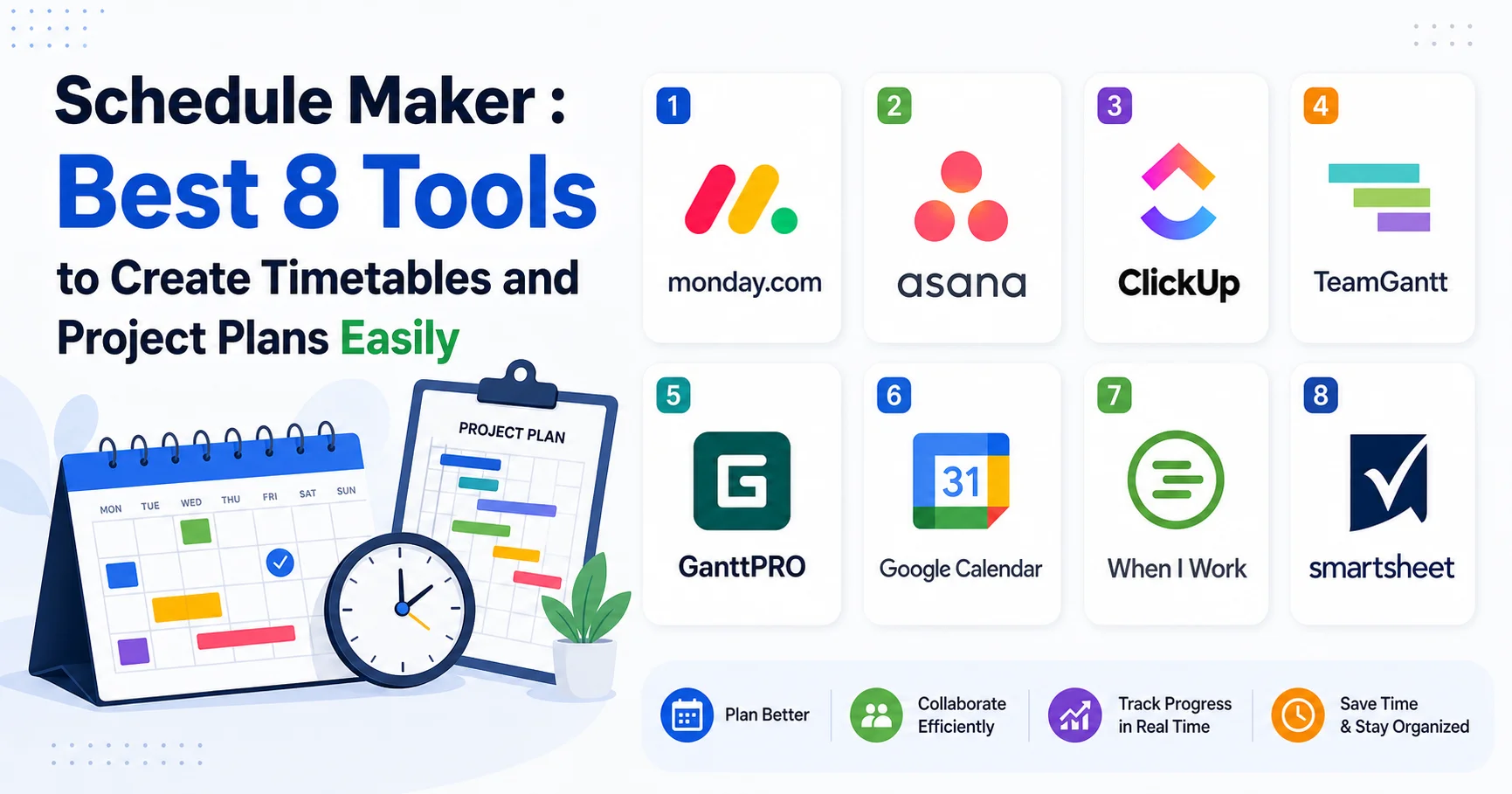
Here’s the short answer if you’re in a hurry: the best schedule maker tools in 2026 are Monday.com, Asana, ClickUp, TeamGantt, GanttPRO, Google Calendar, When I Work, and Smartsheet. Each one serves a different purpose — some are built for personal timetables, others for complex project plans with dozens of moving parts.
This guide goes deep. We’ll break down:
- What a schedule maker actually does and why it beats pen-and-paper planning
- How we evaluated each tool (ease of use, pricing, integrations, support)
- A full side-by-side comparison table with real star ratings
- Honest pros and cons for every platform, based on hands-on use
- A practical checklist to help you choose the right one in under five minutes
- Answers to the questions people ask most about schedule making software
By the end, you’ll know exactly which schedule maker fits your situation — whether you’re organizing a classroom timetable, a construction project, or a remote team’s weekly sprint — and you won’t need to open another browser tab to figure it out.
What Is a Schedule Maker and Why Do You Need One?
A schedule maker is software (web-based, desktop, or mobile) that helps you organize tasks, events, or resources along a timeline. Instead of manually drawing grids in Excel or juggling sticky notes, a schedule maker automates the layout, sends reminders, and often lets multiple people collaborate on the same plan in real time.
The need for this kind of tool isn’t just convenience — it’s backed by data. According to the Project Management Institute’s Pulse of the Profession report, organizations waste an average of 11.4% of their investment due to poor project performance, and inadequate planning is consistently cited as a top contributing factor (PMI.org, opens in new tab, nofollow). Separately, Asana’s own workplace research has found that employees spend a significant chunk of their week on “work about work” — status updates, searching for information, and clarifying tasks — much of which a clear, shared schedule can eliminate.
In plain terms: a schedule maker saves time, reduces miscommunication, and gives everyone — from a solo freelancer to a 50-person team — one single source of truth for what needs to happen and when.
“The biggest planning mistake isn’t picking the wrong tool — it’s not updating the schedule once reality shifts. A schedule maker only works if it reflects what’s actually happening, not what you hoped would happen.”
How We Evaluated the Best Schedule Maker Tools
Before ranking anything, we tested each platform the way a real user would — building sample timetables, inviting collaborators, setting recurring tasks, and checking how the mobile apps behaved under pressure (because let’s be honest, most scheduling happens on a phone between meetings). We scored every schedule maker tool on five criteria:
- Ease of use – Can a complete beginner build a schedule in under 10 minutes?
- Flexibility – Does it handle both simple timetables and complex, multi-phase project plans?
- Collaboration features – Can teams comment, assign, and get notified in real time?
- Pricing transparency – Is there a genuinely usable free plan, or is it a bait-and-switch?
- Integrations – Does it connect with calendars, email, and other tools you already use?
This combination gives a realistic picture, not just a features checklist copied from a marketing page.
Best Schedule Maker Tools Compared at a Glance
| Tool | Best For | Ease of Use | Free Plan | Starting Price | Rating |
|---|---|---|---|---|---|
| Monday.com | Teams & visual planning | ⭐⭐⭐⭐⭐ | Yes (limited) | $9/seat/month | ⭐⭐⭐⭐⭐ 4.6/5 |
| Asana | Task-based project schedules | ⭐⭐⭐⭐☆ | Yes | $10.99/user/month | ⭐⭐⭐⭐☆ 4.5/5 |
| ClickUp | All-in-one project management | ⭐⭐⭐⭐☆ | Yes (generous) | $7/user/month | ⭐⭐⭐⭐☆ 4.4/5 |
| TeamGantt | Gantt chart project plans | ⭐⭐⭐⭐⭐ | Yes (1 project) | $19/manager/month | ⭐⭐⭐⭐☆ 4.3/5 |
| GanttPRO | Detailed project scheduling | ⭐⭐⭐⭐☆ | No (trial only) | $7.99/user/month | ⭐⭐⭐⭐☆ 4.4/5 |
| Google Calendar | Simple personal timetables | ⭐⭐⭐⭐⭐ | Yes (fully free) | Free | ⭐⭐⭐⭐⭐ 4.7/5 |
| When I Work | Employee shift scheduling | ⭐⭐⭐⭐⭐ | Yes (limited) | $2.50/user/month | ⭐⭐⭐⭐☆ 4.5/5 |
| Smartsheet | Enterprise-level planning | ⭐⭐⭐☆☆ | Yes (trial) | $9/user/month | ⭐⭐⭐⭐☆ 4.2/5 |
Quick tip: If you only need a timetable for yourself or a small family calendar, don’t overthink it — Google Calendar remains the fastest and most reliable free schedule maker available in 2026.
In-Depth Reviews of the Top Schedule Maker Tools
1. Monday.com — Best Visual Schedule Maker for Teams

Monday.com is a cloud-based work operating system (Work OS) that enables teams to manage projects, workflows, and daily operations from a single platform. It offers customizable boards, task tracking, automation, collaboration tools, and real-time reporting to help teams stay organized and productive. Used by businesses across various industries, Monday.com simplifies project planning, improves team collaboration, and provides greater visibility into work progress through its flexible and user-friendly interface.
Monday.com has become one of the most recognizable names in work management, and for good reason. Its color-coded boards make it feel less like software and more like a digital whiteboard. When I built a six-week marketing campaign schedule on it, the drag-and-drop timeline view made rescheduling tasks almost effortless — no retyping dates, just dragging a bar.
Key features:
- Timeline and Gantt views built into every plan
- Automations (e.g., “notify me when a task is overdue”)
- Over 200 templates, including dedicated schedule templates for events, content calendars, and production timelines
Pros
- ✔️ The most visually appealing and intuitive interface on the market.
- ✔️ Excellent automation and integration capabilities.
- ✔️ Highly customizable columns (dropdowns, numbers, people, files).
- ✔️ Great for tracking non-task data like CRM pipelines or content calendars.
Cons
- ❌ Free plan is limited to only 2 users.
- ❌ Lacks a native document/wiki feature.
- ❌ Can feel overly complex for simple to-do lists.
- ❌ Pricing scales quickly once you add more than 10 seats
Rating: 4.6/5 — one of the best overall schedule maker tools for small-to-midsize teams.
2. Asana — Best for Task-Driven Project Schedules
Asana is a leading work management and team collaboration platform that helps organizations plan, track, and manage projects efficiently. It enables users to create tasks, assign responsibilities, set deadlines, monitor progress, and automate workflows within a centralized workspace. Widely adopted by businesses and remote teams, Asana improves productivity, enhances communication, and ensures projects stay on schedule through its intuitive and flexible project management tools.
Asana leans more toward task management than pure visual scheduling, but its Timeline feature (essentially a built-in Gantt chart) turns any project into a clear schedule with dependencies. I appreciated how easy it was to mark Task B as dependent on Task A — the schedule automatically shifted when a deadline moved.
Key features:
- Timeline view with drag-and-drop dependencies
- Workload view to see who’s overbooked
- Rules and automation for repetitive scheduling tasks
Pros
- ✔️ Free for up to 15 team members (the most generous user limit).
- ✔️ Extremely intuitive and clean user interface.
- ✔️ Excellent mobile app for on-the-go management.
- ✔️ Strong focus on team collaboration and task assignments.
Cons
- ❌ The free plan lacks advanced reporting and timeline views.
- ❌ Can feel a bit rigid if you prefer the free-form nature of Trello.
- ❌ No native docs or wiki features like Notion or ClickUp.
Rating: 4.5/5
3. ClickUp — Best Budget-Friendly All-in-One Schedule Maker

ClickUp is a powerful all-in-one productivity and project management platform designed to help teams plan, organize, and manage their work efficiently. It combines task management, project tracking, document collaboration, goal setting, and workflow automation in a single workspace. Widely used by businesses of all sizes, ClickUp helps teams improve collaboration, streamline processes, and boost productivity through its highly customizable features.
ClickUp tries to do everything — docs, chat, goals, time tracking — and somehow mostly succeeds. For scheduling specifically, its Gantt and Calendar views are genuinely strong, and the free plan is one of the most generous in the industry.
Key features:
- Multiple schedule views: Gantt, Calendar, Timeline, Workload
- Recurring tasks with flexible repeat rules
- Time estimates and time tracking built in
Pros
- ✔️ Unlimited tasks and users on the free plan.
- ✔️ Over 15 different views, including a flawless Kanban board.
- ✔️ Built-in docs, chat, and goal tracking.
- ✔️ Highly customizable custom fields and statuses.
- ✔️ Frequent feature updates based on user feedback
Cons
- ❌ The sheer number of features can cause a steep learning curve for beginners.
- ❌ The interface can feel slightly cluttered compared to Trello’s minimalist design.
- ❌ Mobile app occasionally lags behind desktop updates
- ❌ Initial setup takes longer than more streamlined tools
Rating: 4.4/5
4. TeamGantt — Best Dedicated Gantt Chart Schedule Maker
TeamGantt is a cloud-based project management tool that helps teams plan, schedule, and track projects using interactive Gantt charts. It allows users to organize tasks, set deadlines, assign responsibilities, manage dependencies, and monitor project progress through a visual timeline. TeamGantt also offers features such as workload management, team collaboration, project calendars, and progress tracking to help businesses coordinate their work more efficiently. Its intuitive drag-and-drop interface makes it easy to adjust schedules and manage multiple projects without requiring advanced project management skills. TeamGantt is particularly useful for project managers, marketing teams, construction professionals, and small businesses seeking a straightforward way to organize tasks, improve collaboration, and keep projects on schedule.
If your main need is a genuine project schedule with dependencies, milestones, and resource allocation, TeamGantt is built specifically for that — no extra noise. I used it for a home renovation project plan and found the drag-to-adjust timeline bars satisfying and precise.
Key features:
- Pure Gantt chart focus, nothing else to distract you
- Baseline comparison (see planned vs. actual progress)
- Simple client-sharing links for external stakeholders
Pros
- ✔️ Purpose-built for scheduling, so it does one thing exceptionally well
- ✔️ Easy for clients or non-team-members to view progress without logging in
- ✔️ Clean, uncluttered interface
Cons
- ❌ Free plan only allows one active project
- ❌ Lacks broader project management features like docs or chat
- ❌ Pricing per manager (not per user) can get expensive for larger teams
Rating: 4.3/5
5. GanttPRO — Best for Detailed Resource Scheduling
GanttPRO is an online project management tool that helps teams plan, organize, and track projects using interactive Gantt charts. It allows users to create project schedules, assign tasks, set deadlines, manage task dependencies, and monitor progress through a visual timeline. The platform also offers features such as resource management, workload tracking, team collaboration, project budgeting, and time tracking, depending on the selected plan. Its intuitive interface makes it easier to adjust schedules, identify potential delays, and coordinate team responsibilities. GanttPRO is particularly useful for project managers, construction teams, marketing professionals, and businesses that need structured planning and efficient resource allocation. By combining visual scheduling with collaboration and project tracking features, GanttPRO helps organizations improve productivity and keep projects on schedule.
GanttPRO is a favorite among construction managers and engineers who need precise resource allocation alongside their timeline. It handles cost estimation and workload balancing better than most lighter schedule maker tools.
Key features:
- Resource cost tracking tied directly to the schedule
- Critical path highlighting
- Pre-built templates for construction, education, and event planning
Pros
- ✔️ Excellent for complex, resource-heavy project plans
- ✔️ Strong template library saves setup time
- ✔️ Export to PDF, Excel, or image formats is seamless
Cons
- ❌ No permanent free plan, only a 14-day trial
- ❌ Steeper learning curve for first-time Gantt chart users
- ❌ Collaboration features are lighter than Monday.com or Asana
Rating: 4.4/5
6. Google Calendar — Best Free Schedule Maker for Personal Use
Google Calendar is an online calendar and scheduling tool that helps individuals and teams organize events, manage appointments, and plan their daily activities. It allows users to create events, set reminders, schedule meetings, and share calendars with colleagues, friends, or family members. Google Calendar integrates seamlessly with other Google services, including Gmail and Google Meet, making it easy to schedule meetings, receive event notifications, and join video calls directly from calendar invitations. It also supports multiple calendars, recurring events, and availability management to simplify time planning. With its intuitive interface, cross-device synchronization, and collaboration features, Google Calendar is an excellent choice for students, professionals, and businesses looking to improve time management, coordinate schedules, and stay organized.
Sometimes the simplest tool wins. Google Calendar isn’t built for complex project plans, but as a pure timetable maker — classes, appointments, shifts, family events — it’s hard to beat, especially because it’s already on every device you own.
Key features:
- Color-coded multiple calendars in one view
- Smart scheduling suggestions based on existing events
- Seamless integration with Gmail, Meet, and Google Tasks
Pros
- ✔️ Completely free with no feature paywall for personal use
- ✔️ Syncs instantly across phone, tablet, and desktop
- ✔️ Minimal learning curve — almost everyone already knows how to use it
Cons
- ❌ No native Gantt chart or task dependency features
- ❌ Not designed for managing multi-person project workflows
- ❌ Limited customization compared to dedicated scheduling software
Rating: 4.7/5 — the highest-rated tool in this guide for sheer reliability and simplicity.
7. When I Work — Best Schedule Maker for Shift-Based Teams
When I Work is a workforce scheduling and time-tracking platform designed to help businesses organize employee shifts and manage daily operations. Managers can create schedules, assign shifts, track employee attendance, manage time-off requests, and communicate with team members from a centralized platform. Employees can view their schedules, request shift changes, and stay updated on workplace information. When I Work is particularly useful for restaurants, retail stores, healthcare organizations, and other businesses that rely on hourly or shift-based teams.
If you manage hourly employees — a restaurant, retail store, or clinic — When I Work was built exactly for you. I tested it by building a two-week shift rotation for a fictional 12-person retail team, and the conflict detection (flagging when someone’s double-booked) saved real headaches.
Key features:
- Drag-and-drop shift scheduling with auto-conflict detection
- Built-in time clock and labor cost tracking
- Employee self-service shift swapping
Pros
- ✔️ Purpose-built for hourly and shift-based scheduling
- ✔️ Employees get mobile notifications for shift changes instantly
- ✔️ Labor law compliance alerts in supported regions
Cons
- ❌ Not suited for project-based or task-dependency scheduling
- ❌ Advanced features require higher-tier plans
- ❌ Setup for complex multi-location businesses takes time
Rating: 4.5/5
8. Smartsheet — Best Schedule Maker for Enterprise Planning
Smartsheet is a cloud-based work management and project management platform that helps teams plan projects, automate workflows, and track progress using a familiar spreadsheet-style interface. It combines task management, Gantt charts, dashboards, reporting, and collaboration tools to help organizations manage projects and coordinate team activities efficiently. Users can assign tasks, set deadlines, monitor budgets, share updates, and visualize project timelines in real time. Smartsheet also offers workflow automation, resource management, and integrations with popular business applications, making it suitable for complex projects and cross-functional teams. Its flexible structure supports a wide range of use cases, including marketing campaigns, operations, construction, and enterprise project management. Smartsheet is particularly useful for businesses seeking greater visibility, improved collaboration, and streamlined project workflows.
Smartsheet feels like Excel grew up and learned project management. It’s the most “enterprise” tool on this list, favored by larger organizations that need audit trails, approval workflows, and heavy reporting alongside their schedules.
Key features:
- Spreadsheet-style interface with Gantt and calendar views
- Automated approval workflows
- Advanced reporting and dashboard capabilities
Pros
- ✔️ Extremely powerful for large, multi-department project plans
- ✔️ Familiar spreadsheet logic reduces onboarding time for Excel users
- ✔️ Strong security and compliance features for enterprise clients
Cons
- ❌ Interface feels dated compared to Monday.com or ClickUp
- ❌ Pricing is less accessible for freelancers or small teams
- ❌ Can feel like overkill for simple timetable needs
Rating: 4.2/5
Free vs. Paid Schedule Maker Tools: Which One Should You Choose?
This is the question I get asked most, and the honest answer is: it depends on how many people touch the schedule.
- Choose a free schedule maker (Google Calendar, ClickUp’s free tier, Asana’s free plan) if you’re managing your own time, a small side project, or a team of fewer than 10 people with straightforward needs.
- Choose a paid schedule maker (Monday.com, GanttPRO, Smartsheet) if you need dependency tracking, resource cost management, client-facing reports, or you’re coordinating across multiple departments.
Important: Don’t choose a tool based on price alone. A free schedule maker that your team won’t actually use is more expensive in lost time than a $9/month tool everyone adopts immediately.
Common Mistakes to Avoid When Using a Schedule Maker
Based on what I’ve seen go wrong across dozens of team setups, here are the recurring issues worth avoiding:
- Overcomplicating the first schedule. Start with the essentials — task, owner, deadline — before adding custom fields and automations.
- Not setting a single source of truth. If half the team updates the schedule maker and the other half still emails changes, the schedule becomes unreliable fast.
- Ignoring notification settings. Most missed deadlines happen because reminders were muted during setup and never turned back on.
- Skipping the mobile app. A schedule that only lives on a desktop gets checked far less often than one that pings your phone.
- Never reviewing the schedule. A schedule maker isn’t “set and forget” — weekly reviews catch drift before it becomes a real problem.
Quick Checklist Before You Pick a Schedule Maker Tool
Use this checklist to narrow your decision down in minutes:
- Does it have a genuinely usable free plan, or will you need to pay immediately?
- Can you build a basic timetable in under 15 minutes without a tutorial?
- Does it support the view you need (Gantt, calendar, list, or shift-based)?
- Does it integrate with the calendar or email you already use daily?
- Can the whole team or household access it on mobile, not just desktop?
- Does it send automatic reminders for upcoming or overdue tasks?
- Is customer support responsive if something breaks mid-project?
Tips From Experience: Getting the Most Out of Your Schedule Maker
A few lessons learned the hard way, worth passing on:
- Build in buffer time. Every schedule maker will happily let you pack tasks back-to-back, but real life always adds delays — leave 10-15% slack in your timeline.
- Use color coding consistently. Whether it’s Monday.com, Asana, or Google Calendar, assigning consistent colors to categories (meetings, deadlines, personal time) makes scanning the schedule ten times faster.
- Set recurring reviews. Block 15 minutes every Friday to check what shifted during the week and adjust the following week’s schedule accordingly.
- Don’t skip onboarding templates. Most tools, including GanttPRO and TeamGantt, offer pre-built templates — starting from one saves hours compared to building from a blank canvas.
Frequently Asked Questions About Schedule Maker Tools
What is the best free schedule maker in 2026?
For personal or small-scale use, Google Calendar remains the most reliable free schedule maker, thanks to its simplicity and universal device syncing. For small teams needing task-based scheduling, ClickUp’s free plan is the strongest option currently available.
What’s the difference between a schedule maker and a project management tool?
A schedule maker focuses specifically on organizing tasks or events along a timeline. A full project management tool (like Asana or Smartsheet) includes scheduling as one feature among many, alongside budgeting, reporting, and resource management.
Can I use a schedule maker for a school or class timetable?
Yes. Google Calendar and Monday.com are both commonly used for school timetables, with color-coded subjects and recurring weekly class blocks that update automatically each semester.
Is it safe to use an online schedule maker for sensitive business data?
Reputable schedule maker tools like Smartsheet, Monday.com, and Asana comply with major data protection standards including GDPR and SOC 2. Always check a platform’s official security page before entering confidential project details.
How much does a good schedule maker tool typically cost?
Pricing ranges widely: Google Calendar is completely free, while most paid schedule maker tools start between $7 and $20 per user per month, with enterprise plans priced individually based on team size and feature needs.
Can a schedule maker handle recurring tasks automatically?
Yes, nearly every tool reviewed here — including ClickUp, Monday.com, and When I Work — supports recurring task or shift creation, so you don’t need to manually rebuild the same schedule every week.
Final Thoughts
Choosing the right schedule maker doesn’t have to feel like another item on your already-overflowing to-do list. If you need something fast and free, Google Calendar still does the job better than most dedicated software. If you’re coordinating a team project with real dependencies and deadlines, Monday.com, Asana, or TeamGantt will save you far more time than they cost. And if you’re managing shift-based staff or enterprise-scale planning, When I Work and Smartsheet were built with exactly that in mind.
The best schedule maker isn’t necessarily the one with the most features — it’s the one your team or household will actually open every day. Start small, pick the tool that matches your real workflow (not your ideal one), and adjust as your needs grow. That single decision, made well, is often the difference between a project that runs smoothly and one that spends its whole life catching up.