Google Password Manager Guide 2026: Features, Security, Pros, Cons, and the 5 Best Alternatives

Introduction To Google Password Manager
You probably already use Google Password Manager without even realizing it. Every time Chrome asks to save a login or autofills your credentials on a website, that’s Google Password Manager working behind the scenes. But is it actually secure enough to trust with your most sensitive accounts? And how does it stack up against dedicated password managers in 2026?
Here’s exactly what this guide covers:
- A complete breakdown of every Google Password Manager feature available today
- An honest, in-depth look at its security architecture and real-world vulnerabilities
- Step-by-step setup instructions for beginners
- A detailed review of the 5 best Google Password Manager alternatives
- A side-by-side comparison table with user ratings
- A practical checklist to help you decide whether to stay or switch
By the time you finish reading, you’ll know precisely whether Google Password Manager is the right tool for your needs — or whether it’s time to upgrade.
What Is Google Password Manager?
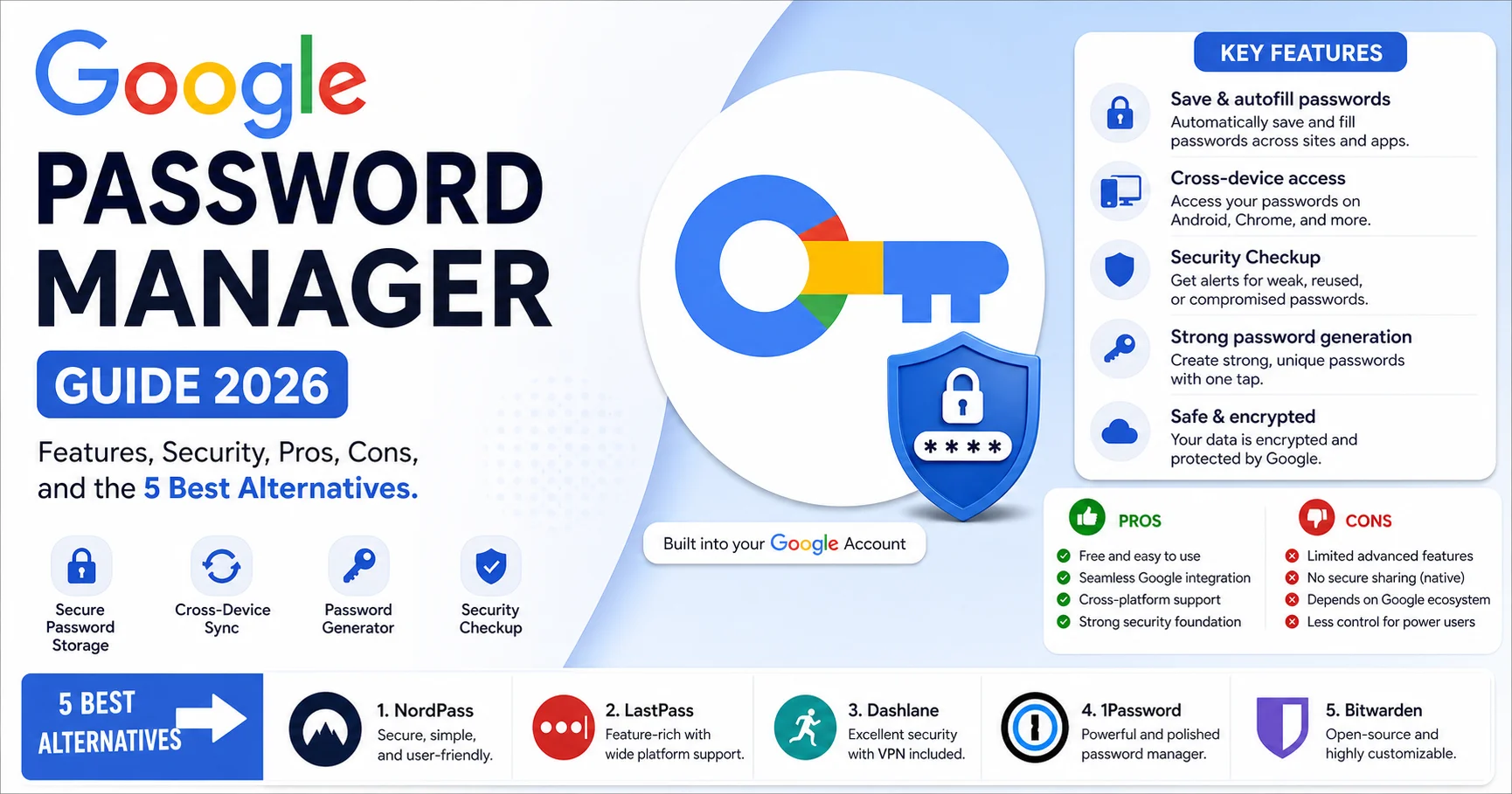
Google Password Manager is a built-in credential storage and autofill tool integrated directly into the Google ecosystem. It lives across three main surfaces: the Chrome browser, Android devices, and the web portal at passwords.google.com.
Unlike standalone password managers that require a separate app installation and subscription, Google Password Manager comes pre-loaded with your Google account. There’s no extra download, no additional login, and — crucially — no monthly fee.
The core functionality is straightforward: when you create or enter a password on any website or app, Google Password Manager offers to save it. The next time you visit that site, it autofills your credentials automatically. It also includes a password generator, a breach-checking tool, and cross-device sync through your Google account.
📊 Key Stat: According to Google’s own data published in 2025, Google Password Manager stores and manages credentials for over 3 billion accounts worldwide, making it the most widely used password management tool on the planet by sheer volume.
Key Features of Google Password Manager in 2026
1. Automatic Password Saving and Autofill
This is the bread and butter of Google Password Manager. When you log into a new site in Chrome or on Android, a prompt appears asking if you’d like to save the credentials. Once saved, autofill kicks in on subsequent visits — no typing required.
My experience: Autofill works reliably on most mainstream websites. However, I’ve noticed it occasionally struggles with sites that use non-standard login forms or multi-step authentication flows. In those cases, you may need to manually trigger the autofill from the key icon in the address bar.
2. Built-In Password Generator
When you’re creating a new account, Google Password Manager can generate a strong, random password on the spot. The generated passwords are typically 16–20 characters long and include a mix of uppercase, lowercase, numbers, and symbols.
This is a genuinely useful feature that most people underuse. If you’re still creating passwords like “MyDog2024!” — stop. Let the generator handle it.
3. Password Health Check (Security Checkup)
One of the most valuable features of Google Password Manager is the Password Checkup tool, accessible through the Security Checkup section of your Google Account or directly at passwords.google.com. It scans your saved passwords and flags three categories of issues:
- Compromised passwords — credentials that have appeared in known data breaches
- Reused passwords — the same password used across multiple accounts
- Weak passwords — credentials that are too short or predictable
Practical tip: Run this checkup at least once every three months. I was surprised the first time I did it — over 30 of my saved passwords had been flagged as compromised from breaches I wasn’t even aware of.
4. Cross-Device Sync
Because Google Password Manager is tied to your Google account, your saved passwords sync automatically across all devices where you’re signed in. Log into Chrome on your laptop, and the passwords you saved on your Android phone are already there.
This sync extends to iOS devices as well, though the experience is less seamless. On iPhone, you can access saved passwords through the Chrome app or the Google app, but native iOS autofill integration requires additional configuration.
5. Passkey Support
In 2026, Google Password Manager fully supports passkeys — the passwordless authentication standard that’s rapidly replacing traditional passwords. Passkeys use biometric verification (fingerprint, face unlock) tied to your device, making them significantly more resistant to phishing attacks than even the strongest text-based passwords.
Google has been one of the biggest drivers of passkey adoption, and Google Password Manager stores and manages passkeys alongside traditional credentials.
6. On-Device Encryption Option
For users who want an additional layer of protection, Google Password Manager offers an on-device encryption setting. When enabled, your passwords are encrypted with a key stored only on your device — meaning even Google cannot access your saved credentials on its servers.
⚠️ Important Warning: If you enable on-device encryption and lose access to your device and recovery key, your passwords cannot be recovered. Make sure you understand this trade-off before activating it.
How Secure Is Google Password Manager?
This is the question everyone asks, and it deserves a thorough, honest answer.
The Security Architecture
Google Password Manager encrypts your stored credentials using AES-256 encryption — the same standard used by banks and government agencies. Your data is encrypted both in transit (using TLS 1.3) and at rest on Google’s servers.
When you enable on-device encryption, an additional layer is applied: your passwords are encrypted locally before they ever leave your device, using a key derived from your device’s lock screen credentials.
The Real-World Vulnerabilities
Despite strong encryption, Google Password Manager has some inherent security limitations that dedicated password managers address more effectively:
- Single point of failure: Your entire password vault is protected by your Google account credentials. If someone gains access to your Google account — through a weak password, a successful phishing attack, or a compromised recovery email — they potentially have access to every saved password.
- Browser-based exposure: Because Google Password Manager operates primarily through Chrome, your passwords are accessible on any device where you’re logged into Chrome and haven’t locked your profile. If you leave your laptop unlocked in a coffee shop, someone could theoretically access your saved credentials.
- No zero-knowledge architecture by default: Unlike Bitwarden or 1Password, Google Password Manager does not use a zero-knowledge model by default. This means Google technically has the ability to access your unencrypted password data on its servers — though there’s no evidence they do so in practice.
- Limited breach monitoring scope: While the Password Checkup tool is useful, it relies on Google’s database of known breaches. Dedicated managers like 1Password and Dashlane integrate with broader breach databases and offer real-time dark web monitoring.
The Verdict on Google Password Manager Security
Google Password Manager security is solid for most everyday users — significantly better than reusing passwords or storing them in a spreadsheet. But for users handling sensitive financial data, business credentials, or high-value accounts, a dedicated password manager with zero-knowledge encryption provides a meaningfully stronger security posture.
Google Password Manager: Pros and Cons
✅ What Google Password Manager Does Well
- Completely free — no subscription, no premium tier, no feature gating
- Zero setup friction — already built into Chrome and Android
- Massive convenience — autofill works seamlessly across the Google ecosystem
- Password Checkup tool — genuinely useful breach detection at no extra cost
- Passkey support — future-proof and increasingly important
- Cross-device sync — works across Chrome, Android, and (with effort) iOS
- No extra app to install — reduces the “one more tool” fatigue
❌ Where Google Password Manager Falls Short
- No standalone desktop app — you’re dependent on Chrome or the web portal
- Limited cross-browser support — doesn’t work natively in Firefox, Safari, or Edge
- No secure sharing — you can’t share individual passwords with family or team members
- No zero-knowledge encryption by default — a concern for privacy-conscious users
- No dark web monitoring — breach detection is reactive, not proactive
- No emergency access — no way to grant a trusted contact access if you’re locked out
- iOS experience is clunky — works, but not as smoothly as on Android
- No travel mode — can’t temporarily hide sensitive vaults when crossing borders
How to Set Up Google Password Manager (Step-by-Step)
If you’re new to Google Password Manager or want to make sure it’s configured correctly, follow these steps:
On Chrome (Desktop)
- Open Chrome and click the three-dot menu (⋮) in the top-right corner
- Go to Settings → Autofill and passwords → Google Password Manager
- Toggle on Offer to save passwords and Auto sign-in
- Click Check passwords to run your first security checkup
- Review any flagged credentials and update compromised or weak passwords
On Android
- Open your device Settings
- Tap Google → Manage your Google Account
- Select the Security tab
- Scroll down to Password Manager
- Enable Offer to save passwords and Auto sign-in
On iOS
- Install the Chrome or Google app from the App Store
- Sign in with your Google account
- Go to Settings → Passwords within the app
- To enable iOS autofill: go to iPhone Settings → Passwords → Password Options → enable Chrome as an autofill provider
💡 Pro Tip: After setup, immediately run a Password Checkup and change any compromised passwords. This single step will dramatically improve your security posture within minutes.
The 5 Best Google Password Manager Alternatives
If you’ve read the security section above and decided you need something more robust, here are the five best password manager options that outperform Google Password Manager in key areas.
1. Bitwarden — Best Overall Alternative (and Best Free Option)
Bitwarden is a secure, open-source password manager that helps users protect and organize passwords, passkeys, payment cards, and other sensitive information in an encrypted digital vault. Available on Windows, macOS, Linux, Android, iOS, and all major web browsers, Bitwarden offers seamless synchronization across devices for convenient access. Its strong end-to-end encryption, built-in password generator, secure sharing, two-factor authentication support, and affordable premium plans make it a popular choice for individuals, families, and businesses seeking a reliable and transparent password management solution.
Bitwarden is an open-source password manager that offers zero-knowledge encryption, cross-platform support, and a genuinely generous free tier. It’s the closest thing to a “no-compromise” password manager available in 2026.
Why it beats Google Password Manager:
- True zero-knowledge architecture — even Bitwarden can’t read your vault
- Works across all browsers (Chrome, Firefox, Safari, Edge, Brave)
- Dedicated desktop and mobile apps for every major OS
- Secure password sharing via Bitwarden Send
- Self-hosting option for advanced users
Where Google Password Manager still wins: Simplicity and zero-friction setup. Bitwarden requires a separate account and app installation.
Pricing: Free plan available; Premium at $10/year; Families at $40/year.
User Rating: ⭐⭐⭐⭐⭐ 4.7/5
2. 1Password — Best for Families and Teams
1Password is a trusted password manager designed to help individuals, families, and businesses securely store and manage passwords, passkeys, credit cards, secure notes, and other sensitive information. With end-to-end encryption, cross-platform compatibility, and seamless synchronization across devices, it ensures that your data remains protected while being easily accessible whenever you need it. Features such as Watchtower security monitoring, password sharing, two-factor authentication support, and biometric login make 1Password an excellent choice for improving online security and simplifying digital life.
1Password is widely considered the gold standard for premium password management. Its interface is polished, its security architecture is bulletproof, and its family and team features are unmatched.
Why it beats Google Password Manager:
- Travel Mode — temporarily removes sensitive vaults from your device when crossing borders
- Watchtower — real-time dark web monitoring and breach alerts
- Emergency access — grant a trusted contact vault access if you’re incapacitated
- Secure sharing with family members and team colleagues
- Excellent cross-platform consistency
Where Google Password Manager still wins: Cost. 1Password has no free tier, while Google Password Manager is entirely free.
Pricing: Individual at $36/year; Families at $60/year; Teams from $24/user/year.
User Rating: ⭐⭐⭐⭐⭐ 4.8/5
3. Dashlane — Best for Dark Web Monitoring and Extras

Dashlane is a password manager and digital security platform designed to help individuals and businesses securely store, manage, and protect passwords and sensitive information. It can generate strong, unique passwords, automatically fill login credentials, and securely synchronize data across supported devices. Dashlane also includes security features such as password health monitoring, alerts for compromised credentials, and tools for improving weak or reused passwords. For businesses, it provides centralized password management and administrative controls to help teams protect accounts and access. With a focus on convenience and security, Dashlane can reduce the risks associated with password reuse while making everyday account management easier.
Dashlane goes beyond password storage to offer a comprehensive digital security suite. Its standout feature is live dark web monitoring, which actively scans underground forums and marketplaces for your personal data — not just your passwords.
Why it beats Google Password Manager:
- Proactive dark web monitoring with real-time alerts
- Built-in VPN (on premium plans)
- Password health dashboard with actionable recommendations
- Secure password sharing with granular permissions
- Clean, modern interface across all platforms
Where Google Password Manager still wins: Native browser integration and zero additional cost.
Pricing: Free plan (limited to 25 passwords); Premium at $33/year; Friends & Family at $60/year.
User Rating: ⭐⭐⭐⭐ 4.4/5
4. Keeper Security — Best for Enterprise and Compliance
Keeper is a password management and digital security platform designed to securely store, manage, and protect passwords, sensitive credentials, and other confidential information. It uses strong encryption to help users safeguard their data while offering features such as password generation, secure sharing, autofill, and multi-device synchronization. Keeper is suitable for both individuals and businesses looking to improve password security and simplify credential management.

Keeper Security is built for organizations that need enterprise-grade password management with strict compliance controls. It’s SOC 2 Type II certified, FedRAMP authorized, and supports FIPS 140-2 encryption — certifications that matter in regulated industries.
Why it beats Google Password Manager:
- Enterprise-grade compliance and audit trails
- Role-based access controls and admin console
- BreachWatch dark web monitoring
- Secure file storage (up to 10 GB per user)
- Zero-knowledge encryption with granular sharing policies
Where Google Password Manager still wins: Simplicity and cost for individual, non-enterprise users.
Pricing: Unlimited at $35/year; Family at $75/year; Enterprise pricing on request.
User Rating: ⭐⭐⭐⭐ 4.3/5
5. Proton Pass — Best for Privacy-Conscious Users
Proton Pass is a secure password manager developed by Proton, designed to help individuals and businesses protect their online accounts and sensitive information. It uses end-to-end encryption to safeguard passwords, usernames, credit card details, and secure notes, ensuring that stored data remains private. Proton Pass also offers password generation, autofill, synchronization across devices, and email aliases to help users protect their real email addresses from spam and unwanted tracking. Its open-source approach and integration with Proton’s privacy-focused ecosystem make it an appealing option for users who prioritize digital security. With support for multiple platforms and convenient account management features, Proton Pass is a strong alternative to password managers such as Bitwarden, 1Password, and Dashlane.
Proton Pass is the newest entrant on this list, built by the team behind Proton Mail — the Swiss-based encrypted email service. If privacy is your top priority, Proton Pass aligns with a broader ecosystem designed to minimize data collection.
Why it beats Google Password Manager:
- Swiss jurisdiction with strict privacy laws
- End-to-end encryption with open-source code
- Email alias generation to hide your real email address
- Integrated with the broader Proton privacy ecosystem
- No ads, no tracking, no data mining
Where Google Password Manager still wins: Ecosystem convenience. If you’re deeply embedded in Google services, switching to Proton requires more effort.
Pricing: Free plan available; Pass Plus at $24/year; Proton Unlimited (full suite) at $120/year.
User Rating: ⭐⭐⭐⭐ 4.2/5
Full Comparison Table: Google Password Manager vs. Alternatives
| Platform | Price | Zero-Knowledge | Cross-Browser | Dark Web Monitoring | Secure Sharing | Rating |
|---|---|---|---|---|---|---|
| Google Password Manager | Free | ❌ (optional) | ⚠️ Chrome only | ❌ | ❌ | ⭐⭐⭐⭐ 3.8/5 |
| Bitwarden | Free / $10/yr | ✅ | ✅ All browsers | ✅ (Premium) | ✅ | ⭐⭐⭐⭐⭐ 4.7/5 |
| 1Password | From $36/yr | ✅ | ✅ All browsers | ✅ Watchtower | ✅ | ⭐⭐⭐⭐⭐ 4.8/5 |
| Dashlane | Free / $33/yr | ✅ | ✅ All browsers | ✅ | ✅ | ⭐⭐⭐⭐ 4.4/5 |
| Keeper | From $35/yr | ✅ | ✅ All browsers | ✅ BreachWatch | ✅ | ⭐⭐⭐⭐ 4.3/5 |
| Proton Pass | Free / $24/yr | ✅ | ✅ All browsers | ⚠️ Limited | ✅ | ⭐⭐⭐⭐ 4.2/5 |
Practical Checklist: Should You Switch from Google Password Manager?
Use this checklist to determine whether Google Password Manager is sufficient for your needs or whether you should consider an alternative:
- I use multiple browsers (not just Chrome) and need passwords everywhere
- I need to share passwords securely with family members or colleagues
- I handle sensitive financial or business credentials that require maximum protection
- I want proactive dark web monitoring, not just reactive breach alerts
- I travel internationally and want a travel mode to hide sensitive vaults
- I need emergency access for a trusted contact
- I want zero-knowledge encryption as the default, not an optional setting
- I use iOS as my primary phone and want seamless autofill
If you checked 0–2 boxes: Google Password Manager is likely sufficient for your needs. Just make sure to enable on-device encryption and run regular security checkups.
If you checked 3–5 boxes: Consider upgrading to Bitwarden (free/affordable) or Dashlane (feature-rich).
If you checked 6+ boxes: A premium solution like 1Password or Keeper is strongly recommended.
Quick Summary: Google Password Manager in a Nutshell
🎯 Bottom Line: Google Password Manager is a surprisingly capable, completely free tool that covers the basics of password management well — saving, autofilling, generating, and checking passwords across the Google ecosystem. For casual users deeply embedded in Chrome and Android, it’s a legitimate option that’s far better than the alternatives most people use (reusing passwords, sticky notes, spreadsheets).
However, it lacks critical features that dedicated password managers provide: zero-knowledge encryption by default, cross-browser support, secure sharing, dark web monitoring, and emergency access. If your digital life involves sensitive accounts, family sharing, or multi-browser workflows, upgrading to a tool like Bitwarden or 1Password is a worthwhile investment.
Best for: Everyday users who want a free, no-fuss password manager within the Google ecosystem.
Not ideal for: Privacy-focused users, families needing shared vaults, or professionals handling high-value credentials.
Frequently Asked Questions About Google Password Manager
Is Google Password Manager safe to use in 2026?
Yes, Google Password Manager is safe for most everyday use cases. It uses AES-256 encryption, TLS 1.3 for data in transit, and offers optional on-device encryption. However, it lacks zero-knowledge architecture by default, meaning Google technically has the ability to access your stored data. For maximum security, a dedicated password manager with zero-knowledge encryption is a stronger choice.
Where are my Google Password Manager passwords stored?
Your passwords are stored on Google’s encrypted servers and synced across devices through your Google account. If you enable on-device encryption, your passwords are encrypted locally before being uploaded, meaning the server-side copy is unreadable without your device key.
Can I use Google Password Manager on iPhone?
Yes, but the experience is less seamless than on Android. You can access Google Password Manager through the Chrome app or Google app on iOS. For native autofill in Safari and other iOS apps, you need to configure Chrome as an autofill provider in your iPhone’s Password settings.
How do I export my passwords from Google Password Manager?
Go to passwords.google.com, click the Settings gear icon, and select Export passwords. You’ll receive a CSV file containing all your saved credentials. Handle this file with extreme care — it contains your passwords in plain text. Delete it immediately after importing into your new password manager.
Does Google Password Manager work with other browsers?
Natively, no. Google Password Manager is designed to work within Chrome and the broader Google ecosystem. It does not integrate with Firefox, Safari, Edge, or Brave. If you use multiple browsers regularly, a cross-browser password manager like Bitwarden or 1Password is a better fit.
Can I share passwords with family using Google Password Manager?
No. Google Password Manager does not currently support secure password sharing. You cannot grant a family member or colleague access to specific credentials without sharing your entire Google account login — which is a significant security risk. Dedicated managers like 1Password and Dashlane offer granular sharing features.
What happens to my passwords if I delete my Google account?
If you delete your Google account, all passwords stored in Google Password Manager are permanently deleted and cannot be recovered. Before deleting your account, export your passwords using the CSV export feature and import them into a new password manager.
Is Google Password Manager better than writing passwords down?
Absolutely. Writing passwords down on paper or in a digital document exposes you to significant risk if that document is lost, stolen, or accessed by someone else. Google Password Manager encrypts your credentials and protects them behind your Google account authentication — a dramatically more secure approach.
How does Google Password Manager compare to Apple Keychain?
Both are free, built-in password managers tied to their respective ecosystems. Google Password Manager works best across Chrome and Android; Apple Keychain excels across Safari, iPhone, and Mac. Neither offers the advanced features of dedicated password managers. If you use both Apple and Google devices, a cross-platform tool like Bitwarden provides a more unified experience.
Conclusion: Is Google Password Manager Enough for You in 2026?
Here’s the honest truth: Google Password Manager is better than what most people are currently doing to manage their passwords. If the choice is between reusing “Password123” across 40 websites and letting Google Password Manager generate and store unique credentials for each one, the answer is obvious. Use Google Password Manager.
But “better than nothing” isn’t the same as “the best available.” The reality is that Google Password Manager has real limitations — no cross-browser support, no secure sharing, no zero-knowledge encryption by default, and no dark web monitoring. These aren’t minor nitpicks. They’re meaningful gaps that dedicated password managers have solved.
My recommendation is simple:
- If you’re a casual user living entirely within the Google ecosystem, Google Password Manager is a solid, free choice. Enable on-device encryption, run regular checkups, and you’ll be in good shape.
- If you need more — cross-browser support, family sharing, advanced security features, or privacy guarantees — invest in a dedicated tool. Bitwarden gives you the most for free. 1Password gives you the most polished premium experience. Either way, the cost is less than a cup of coffee per month.
Your passwords protect your bank accounts, your email, your medical records, and your identity. The tool you choose to manage them matters more than most people realize. Choose deliberately.
Last updated: June 2026 | Sources: Google Security Blog, passwords.google.com, Bitwarden Security Whitepaper, 1Password Security Design, G2 and Capterra user reviews (2025–2026).