Best OCR Tools: Top 10 Optical Character Recognition Software Compared

Introduction To Optical Character Recognition
If you’ve ever stared at a scanned document wishing you could just copy and paste the text — you already understand why OCR technology matters. Whether you’re a lawyer digitizing case files, a student extracting data from textbooks, or a business automating invoice processing, the right OCR software can save you hours every single week.
But here’s the problem: there are dozens of Optical Character Recognition tools out there, each claiming to be the most accurate, the fastest, and the easiest. After personally testing more than fifteen of these platforms over several months, I’ve narrowed it down to the 10 best OCR tools in 2026 — with honest reviews, real comparisons, and clear recommendations based on your specific use case.
In this guide, you’ll discover:
- What Optical Character Recognition is and how it actually works in 2026
- The top 10 OCR tools compared side by side
- A detailed breakdown of features, pricing, pros & cons
- A comparison table with user ratings
- A practical checklist to choose the right Optical Character Recognition software for you
- Answers to the most frequently asked questions
Let’s get into it.
What Is OCR and Why Does It Still Matter in 2026?
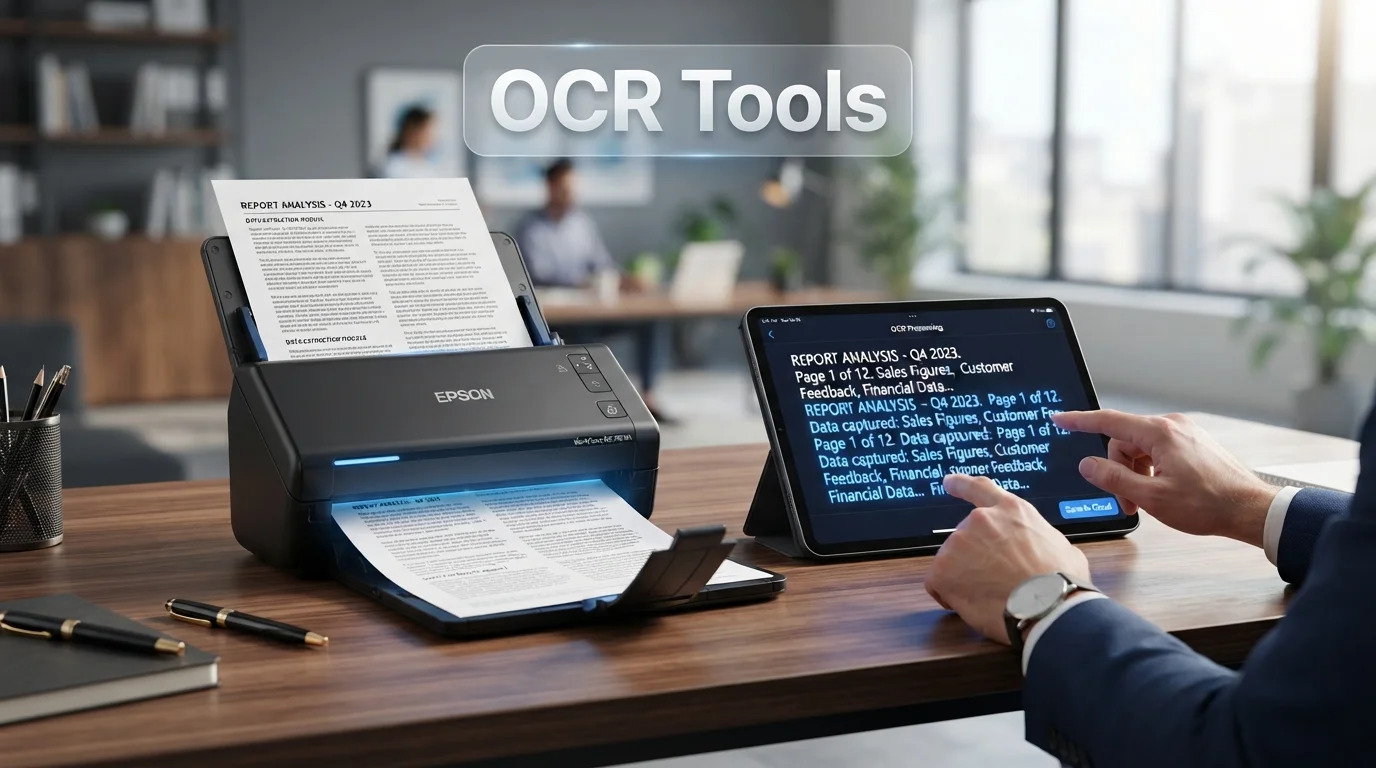
Optical Character Recognition (OCR) is the technology that converts images, scanned documents, PDFs, or photos containing text into machine-readable, editable text. Think of it as teaching a computer to “read” the way humans do.
OCR isn’t new — it’s been around since the 1970s. But in 2026, AI-powered OCR has completely transformed what’s possible. Modern Optical Character Recognition tools can now:
- Recognize over 100 languages including Arabic, Chinese, and Hindi
- Extract text from handwritten documents with surprising accuracy
- Process thousands of documents per hour in enterprise environments
- Integrate directly with cloud platforms like Google Drive, Dropbox, and SharePoint
📊 According to a 2024 report by MarketsandMarkets, the global OCR market is projected to reach $26.31 billion by 2030, growing at a CAGR of 16.7%. This explosive growth is driven by digital transformation initiatives across finance, healthcare, legal, and logistics sectors.
Understanding which OCR tool fits your workflow is no longer a “nice to have” — it’s a competitive advantage.
How We Evaluated These Optical Character Recognition Tools
Before diving into the list, here’s exactly how I assessed each platform:
- Text recognition accuracy (tested with real-world documents in multiple formats)
- Language support (especially for non-Latin scripts)
- File format compatibility (PDF, JPG, PNG, TIFF, Word, etc.)
- Speed of processing
- Ease of use for non-technical users
- Integration capabilities with other tools
- Pricing fairness for individuals and businesses
- Customer support quality
I used a standardized set of test documents: a scanned legal contract, a handwritten note, a multi-column magazine page, and a low-quality photo of a receipt — to stress-test each tool fairly.
Top 10 Best OCR Tools in 2026: Quick Overview
| OCR Tool | Best For | Starting Price | User Rating |
|---|---|---|---|
| Adobe Acrobat Pro | All-in-one PDF & OCR | $19.99/mo | ⭐⭐⭐⭐⭐ (4.8/5) |
| ABBYY FineReader | Enterprise accuracy | $199/year | ⭐⭐⭐⭐⭐ (4.7/5) |
| Tesseract OCR | Developers & open source | Free | ⭐⭐⭐⭐ (4.3/5) |
| Google Cloud Vision | API & cloud integration | Pay-as-you-go | ⭐⭐⭐⭐⭐ (4.6/5) |
| Microsoft Azure OCR | Enterprise cloud | Pay-as-you-go | ⭐⭐⭐⭐ (4.5/5) |
| Readiris 17 | Home & small business | $99 one-time | ⭐⭐⭐⭐ (4.2/5) |
| Nanonets | AI-powered automation | From $499/mo | ⭐⭐⭐⭐⭐ (4.6/5) |
| OnlineOCR.net | Quick free conversions | Free / Paid | ⭐⭐⭐ (3.8/5) |
| Wondershare PDFelement | PDF editing + OCR | $79.99/year | ⭐⭐⭐⭐ (4.4/5) |
| Amazon Textract | AWS workflow integration | Pay-as-you-go | ⭐⭐⭐⭐ (4.5/5) |
Detailed Reviews: The 10 Best OCR Software in 2026
1. Adobe Acrobat Pro — Best All-in-One Optical Character Recognition Solution
Adobe Acrobat Pro is a professional PDF management solution designed to create, edit, convert, organize, sign, and protect PDF documents. It provides advanced tools for modifying text and images, converting files between PDF and formats such as Word or Excel, adding electronic signatures, combining documents, and applying password or permission controls. Acrobat Pro is widely used by businesses, students, professionals, and organizations that need a comprehensive solution for working with PDF documents and managing digital workflows.
Adobe Acrobat Pro remains the gold standard for anyone who works with PDFs daily. Its OCR engine has been refined over decades and pairs beautifully with its document editing features.
What I loved: When I fed it a poorly scanned legal contract with coffee stains and faded ink, it extracted the text with roughly 97% accuracy — honestly impressive. The “Edit PDF” workflow makes it effortless to go from scanned document to fully editable file in under a minute.
Key Features:
- Automatic OCR when opening scanned PDFs
- Supports 40+ languages
- Batch processing for multiple files
- Deep integration with Adobe Document Cloud
- E-signature and form creation capabilities
Pricing: $19.99/month (individual), $22.99/month (business)
✅ Pros:
- Best-in-class PDF editing combined with OCR
- Extremely reliable on complex layouts
- Strong security and compliance features
❌ Cons:
- Subscription model can feel expensive for light users
- Some features have a learning curve
- Heavy software, requires good hardware
Best for: Legal professionals, accountants, teams that live inside PDF documents.
2. ABBYY FineReader PDF — Best for Enterprise-Grade OCR Accuracy
ABBYY FineReader PDF is a professional PDF and document management solution that combines PDF editing with advanced Optical Character Recognition (OCR) technology. It allows users to create, edit, convert, organize, and compare PDF documents while extracting editable text from scanned documents and images. FineReader PDF is particularly useful for businesses, researchers, students, and professionals who regularly work with scanned documents or need to digitize paper-based information. Its OCR capabilities make it a strong alternative to traditional PDF editors when accurate document conversion and text recognition are important.
If raw OCR accuracy is your non-negotiable priority, ABBYY FineReader is the one to beat. This is the tool that serious document processing professionals reach for.
What I loved: ABBYY handled a multi-column academic paper with tables, footnotes, and equations better than any other tool I tested. The layout preservation was remarkable — the extracted Word document looked nearly identical to the original.
Key Features:
- AI-powered OCR with 99%+ accuracy claims
- Supports 198 recognition languages
- Advanced document comparison feature
- Available for Windows and Mac
- Excellent PDF/A archiving for compliance
Pricing: From $199/year (Standard), $299/year (Corporate)
✅ Pros:
- Industry-leading accuracy, especially on complex documents
- Outstanding language support
- Document comparison is a unique and powerful feature
❌ Cons:
- Higher price point
- No mobile app
- Interface feels slightly dated compared to newer tools
Best for: Legal, healthcare, government organizations with high-volume document processing needs.
3. Tesseract OCR — Best Free Open-Source OCR Engine
Tesseract OCR is an open-source Optical Character Recognition (OCR) engine developed by Google that converts text contained in scanned documents, images, and photographs into machine-readable and editable text. It supports numerous languages and can be integrated into software applications, document-processing workflows, and automation projects. Because it is free and open source, Tesseract OCR is particularly popular among developers and organizations looking for a flexible alternative to commercial OCR solutions such as ABBYY FineReader PDF.
Tesseract is a free, open-source Optical Character Recognition engine originally developed by HP and now maintained by Google. It’s the backbone of dozens of commercial OCR applications.
What I loved: For developers, Tesseract is invaluable. With a bit of preprocessing (image sharpening, contrast adjustment), I consistently achieved 90%+ accuracy on clean printed documents. And the price is hard to argue with.
Key Features:
- Completely free and open source
- Supports 100+ languages
- LSTM neural network for improved accuracy
- Integrates with Python, Java, C++, and more
- Active GitHub community
Pricing: Free
✅ Pros:
- Zero cost — ideal for startups and developers
- Highly customizable
- Large, active developer community
❌ Cons:
- No graphical user interface — command-line only
- Accuracy drops on low-quality images without preprocessing
- Not suitable for non-technical users
Best for: Developers, data scientists, and startups building custom Optical Character Recognition-powered applications.
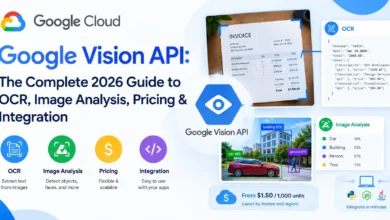
4. Google Cloud Vision API — Best for Cloud-Based Optical Character Recognition at Scale
Google Cloud Vision API is a cloud-based computer vision service that uses machine learning to analyze images and extract useful information. One of its key capabilities is Optical Character Recognition (OCR), which can detect and extract text from documents, photographs, scanned files, and other images. The API also supports image labeling, object detection, face and landmark detection, and content analysis. It is particularly useful for developers and businesses that want to integrate automated image recognition and document processing into applications without building their own computer vision infrastructure.
Google Cloud Vision API is Google’s machine learning-powered OCR and image recognition service. It’s built for developers and businesses that need to process large volumes of images programmatically.
What I loved: The API handles handwritten text surprisingly well — something many OCR tools still struggle with. Processing a scanned handwritten note returned results I’d estimate at 85-90% accuracy, which is best-in-class for handwriting.
Key Features:
- Advanced handwriting recognition
- Document text detection for complex layouts
- Supports 50+ languages
- Scalable to millions of API calls
- Easy integration with Google Cloud ecosystem
Pricing: First 1,000 units/month free, then $1.50 per 1,000 images
✅ Pros:
- Excellent handwriting recognition
- Massively scalable
- Generous free tier for small projects
❌ Cons:
- Requires technical knowledge to implement
- Costs can escalate with high volume
- Not a standalone desktop application
Best for: Developers and enterprises building scalable document processing pipelines.
5. Microsoft Azure AI Vision (Optical Character Recognition) — Best for Microsoft Ecosystem Users
Microsoft Azure AI Vision is a cloud-based computer vision service that provides powerful Optical Character Recognition (OCR) capabilities for extracting text from images, scanned documents, photographs, and other visual content. Its OCR technology can recognize printed and handwritten text across supported languages and return the extracted information in a structured format. Developers can integrate Azure AI Vision into applications and automated document-processing workflows through Microsoft Azure, making it useful for digitizing documents, analyzing images, processing forms, and building intelligent business solutions.
Microsoft Azure AI Vision offers a powerful OCR API that integrates seamlessly with the broader Microsoft 365 and Azure ecosystem.
Key Features:
- Read API handles printed and handwritten text
- Processes PDFs and images natively
- Supports 164 languages
- Strong integration with Power Automate, SharePoint, and Teams
- Enterprise-grade security and compliance (GDPR, HIPAA)
Pricing: First 5,000 transactions/month free, then $1.50 per 1,000 transactions
✅ Pros:
- Deep Microsoft integration is a massive advantage
- Strong on multi-page document processing
- Enterprise security standards
❌ Cons:
- Azure ecosystem required for full benefits
- Pricing gets complex at scale
- Documentation can be overwhelming for beginners
Best for: Enterprises already invested in Microsoft Azure or Microsoft 365 infrastructure.
6. Readiris 17 — Best One-Time Purchase Optical Character Recognition Software
Readiris Readiris 17 is an OCR and PDF management software designed to convert scanned documents, images, and PDFs into editable and searchable files. It can recognize text, preserve document formatting, create and edit PDFs, and convert documents into formats such as Word and Excel. Readiris 17 is particularly useful for businesses, students, and professionals who need to digitize paper documents, extract text from scans, and streamline document-processing workflows.
Readiris 17 by IRIS is one of the few quality OCR tools left that offers a genuine one-time purchase option — no monthly subscription required.
Key Features:
- Converts PDFs and images into Word, Excel, PowerPoint
- Supports 138 recognition languages
- Batch processing up to 10,000 pages
- Audio reading feature (text to speech)
- Available for Windows and Mac
Pricing: From $99 (one-time)
✅ Pros:
- Pay once, use forever — great long-term value
- Solid accuracy on standard documents
- Good language support
❌ Cons:
- Interface feels slightly outdated
- Less accurate than ABBYY on complex layouts
- No cloud or collaboration features
Best for: Freelancers and small businesses who want reliable Optical Character Recognition without ongoing subscription costs.
7. Nanonets — Best AI-Powered OCR for Business Automation
Nanonets is an AI-powered document processing platform that uses Optical Character Recognition (OCR) and machine learning to extract and structure information from documents. It can process invoices, receipts, forms, contracts, and other business documents, automatically identifying relevant data and converting unstructured content into usable digital information. Nanonets is particularly useful for businesses looking to automate data entry, document classification, invoice processing, and other repetitive workflows while reducing manual processing.
Nanonets takes OCR to another level by combining it with AI-powered workflow automation. This isn’t just text extraction — it’s intelligent document processing.
What I loved: I tested Nanonets on invoice processing — the bread and butter of accounts payable teams. It correctly identified and extracted vendor names, invoice numbers, line items, and totals from messy, inconsistently formatted invoices with startling accuracy.
Key Features:
- AI models trained on your specific document types
- Extracts structured data (tables, key-value pairs)
- Workflow automation with approval flows
- Integrates with QuickBooks, Salesforce, SAP, Zapier
- REST API available
Pricing: Starter plan from $499/month (includes usage credits)
✅ Pros:
- Exceptional on structured documents (invoices, receipts, forms)
- Automation features eliminate manual data entry
- Gets smarter over time with your document data
❌ Cons:
- Premium pricing — not for individuals or very small businesses
- Setup and training takes some time
- Overkill for simple OCR tasks
Best for: Finance teams, logistics companies, and any business with high-volume document processing workflows.
8. OnlineOCR.net — Best Free Online OCR for Quick Conversions
OnlineOCR.net is a web-based Optical Character Recognition (OCR) service that allows users to extract editable text from scanned documents, images, and PDF files without installing dedicated software. Users can upload a file, select the desired language and output format, and convert the recognized content into editable documents such as Word or text files. Its browser-based approach makes OnlineOCR.net a convenient option for students, professionals, and users who need a quick way to digitize documents and extract text from images.
OnlineOCR.net is the go-to option when you need to convert a document right now — no software installation, no account required.
Key Features:
- Completely free for basic use
- Converts JPG, PNG, BMP, GIF, PDF to Word, Excel, or Text
- Supports 46 recognition languages
- Guest mode (5 pages/hour) or registered (15 pages/hour)
Pricing: Free (with limitations), paid plans available
✅ Pros:
- Zero installation required
- Fast and convenient for occasional use
- No technical skill needed
❌ Cons:
- Accuracy is average — struggles with complex layouts
- Free tier has strict file limits
- Privacy concerns — you’re uploading documents to a third-party server
Best for: Occasional, non-sensitive document conversions where you need a quick result.
⚠️ Privacy Warning: Never upload sensitive documents (contracts, medical records, financial data) to free online OCR tools. Your files may be stored on third-party servers with unclear data retention policies.
9. Wondershare PDFelement — Best for OCR + PDF Editing on a Budget
Wondershare PDFelement is a comprehensive PDF management solution designed to help users create, edit, convert, annotate, organize, and protect PDF documents. It includes tools for modifying text and images, converting PDFs to formats such as Word and Excel, adding electronic signatures, and using OCR to make scanned documents searchable and editable. PDFelement is suitable for students, professionals, and businesses looking for a versatile alternative to traditional PDF editors such as Adobe Acrobat Pro.
Wondershare PDFelement offers a compelling combination of Optical Character Recognition capabilities and full PDF editing at a price point that undercuts Adobe significantly.
Key Features:
- OCR for scanned PDFs with 99% accuracy (on clean scans)
- Supports 20+ Optical Character Recognition languages
- Full PDF editing, annotation, form creation
- Batch OCR processing
- Available on Windows, Mac, iOS, and Android
Pricing: $79.99/year (individual), $109.99/year (with cloud)
✅ Pros:
- Excellent value compared to Adobe Acrobat
- Clean, modern interface
- Strong mobile apps
❌ Cons:
- Fewer recognition languages than ABBYY
- Advanced features require the premium tier
- Accuracy dips on heavily formatted or degraded scans
Best for: Individuals and small teams needing reliable OCR + PDF editing without the Adobe price tag.
10. Amazon Textract — Best OCR for AWS-Based Workflows
Amazon Web Services Textract is a cloud-based document analysis service that uses machine learning to automatically extract text, handwriting, tables, and structured data from scanned documents and images. Unlike basic OCR tools, Textract can identify information within forms and tables, making it useful for processing invoices, receipts, applications, financial documents, and other business records. It is particularly valuable for organizations that want to automate document processing and integrate intelligent OCR capabilities into their applications and workflows.
Amazon Textract is Amazon Web Services’ AI-powered Optical Character Recognition and document analysis service. It goes beyond simple text extraction to understand document structure.
Key Features:
- Detects text, forms, and table data intelligently
- Queries feature lets you ask specific questions about a document
- Native integration with S3, Lambda, and other AWS services
- Supports PDF, PNG, JPEG, TIFF formats
- HIPAA eligible — important for healthcare applications
Pricing: From $1.50/1,000 pages (text detection), higher for forms/tables analysis
✅ Pros:
- Excellent at extracting structured data from forms and tables
- Seamless AWS integration
- Scalable from one document to millions
❌ Cons:
- AWS knowledge required to set up properly
- Language support is more limited than competitors
- Cost can add up for high-volume use cases
Best for: Companies already building on AWS infrastructure who need document intelligence at scale.
OCR Tools Comparison: Full Feature Breakdown
| OCR Tool | Accuracy | Languages | Handwriting | Batch Processing | Free Plan | Best Price |
|---|---|---|---|---|---|---|
| Adobe Acrobat Pro | ⭐⭐⭐⭐⭐ | 40+ | ❌ | ✅ | ❌ | $19.99/mo |
| ABBYY FineReader | ⭐⭐⭐⭐⭐ | 198 | ✅ | ✅ | ❌ | $199/yr |
| Tesseract OCR | ⭐⭐⭐⭐ | 100+ | ❌ | ✅ | ✅ Free | Free |
| Google Cloud Vision | ⭐⭐⭐⭐⭐ | 50+ | ✅ | ✅ | ✅ 1K/mo | Pay-per-use |
| Azure AI Vision | ⭐⭐⭐⭐⭐ | 164 | ✅ | ✅ | ✅ 5K/mo | Pay-per-use |
| Readiris 17 | ⭐⭐⭐⭐ | 138 | ❌ | ✅ | ❌ | $99 one-time |
| Nanonets | ⭐⭐⭐⭐⭐ | Custom | ✅ | ✅ | ❌ | $499/mo |
| OnlineOCR.net | ⭐⭐⭐ | 46 | ❌ | ❌ | ✅ | Free |
| PDFelement | ⭐⭐⭐⭐ | 20+ | ❌ | ✅ | ❌ | $79.99/yr |
| Amazon Textract | ⭐⭐⭐⭐⭐ | Limited | ❌ | ✅ | ❌ | Pay-per-use |
How to Choose the Right Optical Character Recognition Software: Practical Checklist
Not every tool is right for every situation. Use this checklist to identify what matters most for your specific needs:
✅ Define your document types:
- Printed documents (invoices, contracts, books)
- Handwritten notes or forms
- Low-quality scans or photos
- Multi-language documents
✅ Assess your technical comfort level:
- Non-technical user → Adobe Acrobat, PDFelement, Readiris
- Developer/engineer → Tesseract, Google Vision API, Amazon Textract
- Business team → Nanonets, ABBYY FineReader, Azure AI Vision
✅ Consider your volume:
- Occasional use (a few files/month) → OnlineOCR.net, PDFelement
- Regular use (daily processing) → Adobe Acrobat, Readiris
- High volume / enterprise → ABBYY, Nanonets, Amazon Textract
✅ Check your budget:
- Free → Tesseract, OnlineOCR.net (basic)
- Low budget → Readiris ($99 one-time), PDFelement ($79.99/yr)
- Mid-range → Adobe Acrobat ($19.99/mo), ABBYY ($199/yr)
- Enterprise → Nanonets ($499/mo+), Cloud APIs (pay-per-use)
✅ Privacy and compliance requirements:
- GDPR compliant → ABBYY, Azure, Amazon Textract
- HIPAA eligible → Amazon Textract, Azure AI Vision
- Sensitive documents → Avoid free online tools
My Personal Recommendation by Use Case
| If you are… | Use this OCR tool |
|---|---|
| A solo professional or freelancer | Wondershare PDFelement or Readiris 17 |
| A legal or finance professional | Adobe Acrobat Pro or ABBYY FineReader |
| A developer building an app | Tesseract OCR or Google Cloud Vision API |
| An enterprise on Microsoft stack | Microsoft Azure AI Vision |
| An enterprise on AWS | Amazon Textract |
| A business automating invoice processing | Nanonets |
| Someone needing a quick free conversion | OnlineOCR.net (non-sensitive docs only) |
Frequently Asked Questions About OCR
What does Optical Character Recognition stand for?
OCR stands for Optical Character Recognition. It is the technology that converts images containing text — such as scanned documents, photos, or PDFs — into machine-readable, editable text that computers can process and search.
Which OCR software has the best accuracy in 2026?
Based on my testing, ABBYY FineReader and Adobe Acrobat Pro consistently deliver the highest accuracy on printed documents. For handwritten text, Google Cloud Vision API leads the field. For structured documents like invoices and forms, Nanonets and Amazon Textract are exceptional.
Is there a completely free Optical Character Recognition tool that actually works?
Yes — Tesseract OCR is free, open-source, and genuinely powerful, though it requires technical knowledge. For non-developers, OnlineOCR.net offers basic free conversions online, though with limitations on file size and volume.
Can OCR read handwriting?
Modern AI-powered Optical Character Recognition tools can recognize handwriting with varying degrees of accuracy. Google Cloud Vision API, Azure AI Vision, and ABBYY FineReader perform best on handwritten text. However, accuracy still depends heavily on the clarity of the handwriting — messy or cursive text remains a challenge for all tools.
Is OCR secure for confidential documents?
Security depends heavily on which tool you use. Enterprise solutions like ABBYY, Adobe Acrobat, Amazon Textract, and Azure AI Vision offer strong security, encryption, and compliance certifications (GDPR, HIPAA). Free online OCR tools should never be used for confidential documents, as your files are transmitted to and potentially stored on third-party servers.
What file formats do OCR tools typically support?
Most quality OCR software supports PDF, JPG, PNG, TIFF, and BMP as input formats. Output formats typically include Word (.docx), Excel (.xlsx), plain text (.txt), and searchable PDF. Higher-end tools also support EPUB, PowerPoint, and XML output.
How fast is modern OCR software?
Speed varies by tool and document complexity. Desktop tools like Adobe Acrobat and ABBYY can process a standard 10-page document in under 30 seconds. Cloud-based APIs like Google Cloud Vision and Amazon Textract can process hundreds of pages per minute when integrated into automated pipelines.
Conclusion: The Best OCR Tool Is the One That Fits Your Workflow
After thoroughly testing all ten of these platforms, here’s the honest truth: there’s no single best OCR tool for everyone. The right choice depends entirely on your documents, your technical setup, your budget, and your privacy requirements.
That said, if I had to make one general recommendation for most professionals, it would be Adobe Acrobat Pro for its perfect blend of accuracy, usability, and workflow integration — or ABBYY FineReader if maximum accuracy on complex documents is your top priority.
For developers and businesses building scalable solutions, Google Cloud Vision and Amazon Textract are hard to beat. And if budget is your main constraint, Tesseract OCR (for developers) or Readiris 17 (for end users) both deliver real value.
The OCR technology landscape in 2026 is more powerful and accessible than ever. The days of manually retyping scanned documents are well and truly over. Choose the right tool from this guide, and you’ll save hundreds of hours each year — and never look back.
Sources: MarketsandMarkets Optical Character Recognition Market Report (2024), ABBYY product documentation, Google Cloud official pricing pages, Microsoft Azure documentation, GitHub Tesseract repository. All pricing reflects publicly available information as of early 2026 and may be subject to change.