What Is a Roll-Up in Project Management? Complete Guide for Beginners with 5 Tools Comparaison

Introduction to Roll-Up
When I first started as a project coordinator, my manager asked me to “create a roll-up report for the executive meeting.” I nodded confidently, then spent the next hour frantically Googling what that actually meant. If you’re in the same boat, you’re not alone—and I’m here to make sure you understand roll-up better than I did on that stressful afternoon.
So, what exactly is a roll-up in project management?
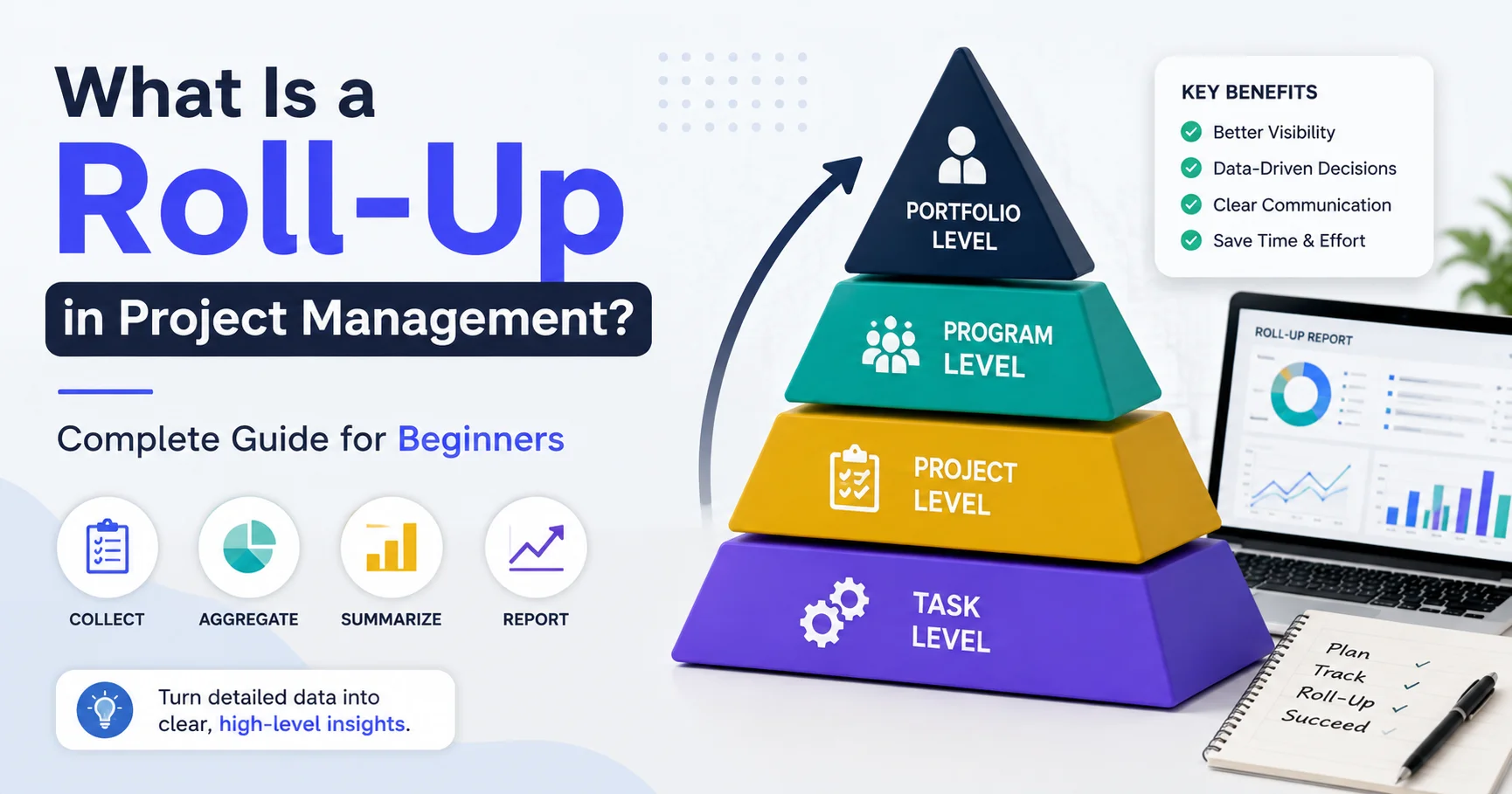
A roll-up is a feature that automatically combines (or “aggregates”) information from smaller tasks into larger summary views. Think of it like a pyramid: all the detailed work at the bottom gets summarized as it moves up through different levels—from individual tasks to phases to entire projects. Instead of manually calculating totals, percentages, or timelines, the system does it for you by rolling the data upward.
In this beginner-friendly guide, you’ll learn:
- The exact definition of roll-up and why it matters
- How roll-up actually works (explained simply)
- Real-world examples you can relate to
- Step-by-step instructions for using roll-up
- Common beginner mistakes and how to avoid them
- Which project management tools have the best roll-up features
- Practical tips for implementing roll-up in your first project
By the end of this guide, you’ll not only understand what roll-up means—you’ll know exactly how to use it to save time, improve accuracy, and impress your team with professional-looking reports.
Understanding Roll-Up: The Simple Definition
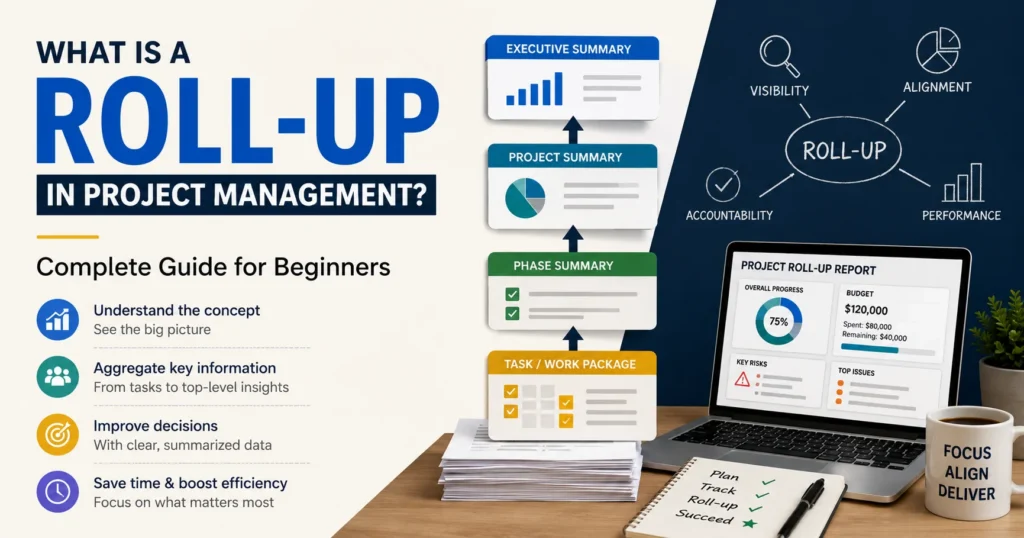
Let’s start with the basics. Roll-up (sometimes written as “rollup” or “roll up”) is the automatic process of gathering information from individual tasks and combining it into summary information at higher levels.
Imagine you’re planning a birthday party. You have different categories of tasks:
- Decorations: Buy balloons (2 hours), Hang streamers (1 hour), Set up tables (1.5 hours)
- Food: Order cake (30 minutes), Prepare snacks (2 hours), Set up beverages (45 minutes)
- Entertainment: Book DJ (15 minutes), Create playlist (1 hour), Set up sound system (1 hour)
If someone asks “How long will party preparation take?”, you could manually add up all nine tasks. Or, you could use roll-up functionality that automatically calculates:
- Decorations category: 4.5 hours total
- Food category: 3.25 hours total
- Entertainment category: 2.25 hours total
- Entire party preparation: 10 hours total
That’s roll-up in action—data flowing upward from detailed tasks to summary categories.
Why “Roll-Up”? Understanding the Name

Roll Up in Project Management refers to the process of consolidating detailed project information—such as tasks, milestones, costs, resources, risks, or progress—from lower-level activities into a higher-level summary. This approach allows project managers and stakeholders to get a clear overview of overall project performance without reviewing every individual task or data point. For example, the progress of multiple tasks can be rolled up into a single summary showing the completion status of a project phase or the entire project. Roll-ups are particularly useful for reporting, dashboards, budget tracking, and executive decision-making because they transform detailed project data into concise, easy-to-understand insights.
The term “roll-up” comes from the visual image of rolling things together—like rolling up a carpet or scroll. In project management, you’re “rolling” all the individual pieces of information together into one consolidated view.
Some people also call this:
- Data aggregation
- Summary tasks
- Parent-child rollup
- Hierarchical summation
They all mean essentially the same thing, though “roll-up” is the most common term you’ll hear in professional project management circles.
How Roll-Up Works: The Mechanics Explained Simply
Understanding how roll-up actually functions will help you use it more effectively. Let me break down the mechanics in beginner-friendly terms.
The Hierarchy Concept
Roll-up depends on creating a hierarchy—a structured arrangement where items are ranked in levels, with each level containing the level below it.
Think of a company organization chart:
- CEO (top level)
- Department Directors (second level)
- Team Managers (third level)
- Individual Employees (bottom level)
Project management hierarchies work similarly:
Level 1: Project (highest level)
└── Level 2: Phases or Work Streams
└── Level 3: Major Tasks
└── Level 4: Subtasks (lowest level)
Information enters the system at the lowest level (subtasks) and automatically rolls up through each level until it reaches the top (project).
Parent and Child Relationships
In roll-up terminology:
- Child tasks are the smaller, detailed tasks at lower levels
- Parent tasks are the larger, summary tasks that contain children
- A task can be both a parent (to tasks below it) and a child (to tasks above it)
Example hierarchy:
Website Redesign (Parent to everything below)
├── Design Phase (Parent to design tasks, Child of Website Redesign)
│   ├── Create wireframes (Child task)
│   ├── Design mockups (Child task)
│   └── Client review (Child task)
├── Development Phase (Parent to development tasks)
│   ├── Code homepage (Child task)
│   ├── Code product pages (Child task)
│   └── Code contact form (Child task)
When you update “Create wireframes” as 100% complete, that information rolls up to “Design Phase,” which recalculates its own completion percentage based on all its child tasks.
What Information Rolls Up?
Different types of data can roll up differently:
1. Duration and Dates
- Start dates: The earliest start date of all child tasks becomes the parent start date
- End dates: The latest end date of all child tasks becomes the parent end date
- Duration: Calculated based on the span from earliest start to latest finish
2. Work Hours and Effort
- All child task hours add together to create the parent total
- Example: Three subtasks of 5, 8, and 3 hours = Parent task of 16 hours
3. Cost
- All child task costs sum up to the parent cost
- Example: Subtasks costing $500, $1,200, and $800 = Parent cost of $2,500
4. Completion Percentage
- This usually calculates as a weighted average based on task duration or effort
- Example: If you have two subtasks—one 80% complete (10 hours) and one 40% complete (5 hours)—the parent completion would be approximately 67% (weighted by hours)
5. Status and Priority
- Often uses highest value logic
- If any child task is “At Risk,” the parent shows “At Risk”
- If any child is “High Priority,” the parent becomes “High Priority”
Important for beginners: Not every field in your project management tool will automatically roll-up. Some fields require manual entry even at parent levels. Check your specific tool’s documentation.
Automatic vs. Manual Roll-Up
Most modern project management software offers automatic roll-up—you enter data at the child task level, and parent tasks update instantly without you doing anything.
However, some situations require manual roll-up:
- When your tool doesn’t support automatic aggregation for certain fields
- When you need to override the automatic calculation with a manual value
- When working with spreadsheets instead of dedicated PM software
I made the mistake early in my career of manually entering values in both parent and child tasks, which created conflicts and errors. Pro tip: When using automatic roll-up, only enter data at the child task level and let the system handle the parents.
Real-World Roll-Up Examples for Beginners
A roll-up is the process of aggregating detailed information into a higher-level summary to provide a simplified and comprehensive view of data. In project management, business reporting, and data analysis, roll-ups combine metrics such as task progress, budgets, costs, schedules, or performance indicators from multiple sources into a single overview. This allows managers and stakeholders to quickly evaluate overall performance, identify trends, and make informed decisions without reviewing every individual detail. By presenting complex information in an organized and concise format, roll-ups improve reporting efficiency, enhance visibility, and support more effective planning and decision-making.

Abstract explanations only go so far. Let me show you concrete examples of roll-up in different scenarios.
Example 1: Simple Home Renovation Project
Let’s say you’re managing a bathroom renovation. Here’s how roll-up would work:
| Task Level | Task Name | Duration | Cost | Status |
|---|---|---|---|---|
| PROJECT | Bathroom Renovation | 15 days | $8,500 | In Progress |
| Phase | Demolition | 3 days | $1,200 | Complete |
| Task | Remove old fixtures | 1 day | $400 | Complete |
| Task | Remove tiles | 1.5 days | $600 | Complete |
| Task | Haul away debris | 0.5 days | $200 | Complete |
| Phase | Plumbing | 4 days | $2,800 | In Progress |
| Task | Install new pipes | 2 days | $1,500 | Complete |
| Task | Install bathtub | 1.5 days | $1,000 | In Progress |
| Task | Install sink | 0.5 days | $300 | Not Started |
| Phase | Tiling | 5 days | $2,500 | Not Started |
| Task | Prepare surfaces | 1 day | $300 | Not Started |
| Task | Install floor tiles | 2 days | $1,200 | Not Started |
| Task | Install wall tiles | 2 days | $1,000 | Not Started |
| Phase | Finishing | 3 days | $2,000 | Not Started |
| Task | Paint walls | 1.5 days | $800 | Not Started |
| Task | Install lighting | 1 day | $900 | Not Started |
| Task | Final cleanup | 0.5 days | $300 | Not Started |
Notice how:
- The PROJECT total duration (15 days) is calculated from the earliest start to the latest finish of all phases
- The PROJECT total cost ($8,500) is the sum of all phase costs
- The PROJECT status shows “In Progress” because at least one phase is in progress
- Each Phase duration and cost rolls up from its child tasks
This automatic calculation means if the bathtub installation takes an extra day, the Plumbing phase duration automatically updates, which then updates the overall project timeline—without you manually recalculating anything.
Example 2: Marketing Campaign Rollup
Here’s a marketing campaign example showing how completion percentages roll-up:
Social Media Product Launch Campaign
- Email Marketing (40% complete, 20 hours planned)
- Write email copy (100% complete, 8 hours)
- Design email template (50% complete, 6 hours)
- Set up automation (0% complete, 6 hours)
- Social Media Content (67% complete, 15 hours planned)
- Create Instagram posts (100% complete, 5 hours)
- Create Facebook posts (100% complete, 5 hours)
- Create LinkedIn posts (0% complete, 5 hours)
- Paid Advertising (25% complete, 25 hours planned)
- Design ad creatives (100% complete, 10 hours)
- Set up ad campaigns (0% complete, 10 hours)
- Create landing page (0% complete, 5 hours)
Overall Campaign Roll-Up:
- Total Hours: 60 hours (20 + 15 + 25)
- Overall Completion: Approximately 42% (weighted by hours from each section)
- Hours Completed: About 25 hours
- Hours Remaining: About 35 hours
The system automatically calculates that you’re 42% done with the entire campaign by weighing each section’s completion percentage against its planned hours.
Example 3: Software Development Sprint
For those in tech, here’s how roll-up works in an agile development context:
Sprint 12: User Dashboard Features
- Epic: User Profile Management (13 story points total, 62% complete)
- User story: Update profile picture (3 points, 100% complete)
- User story: Edit bio section (5 points, 80% complete)
- User story: Privacy settings (5 points, 20% complete)
- Epic: Analytics Dashboard (21 story points total, 29% complete)
- User story: Display pageview chart (8 points, 50% complete)
- User story: Display user growth metrics (8 points, 25% complete)
- User story: Export data feature (5 points, 0% complete)
Sprint Total:
- Total Story Points: 34 points
- Sprint Completion: Approximately 42% complete
- Velocity Projection: At current rate, need 2 more days to complete sprint
The roll-up shows that despite having completed some stories entirely, the overall sprint is less than halfway done—critical information for the daily standup meeting.
Step-by-Step: How to Use Roll-Up as a Beginner
Now that you understand what roll-up is, let me walk you through actually using it. I’ll provide general steps that apply to most project management tools.
Step 1: Choose a Tool That Supports Roll-Up
Not every project management tool has robust roll-up features. For beginners, I recommend:
Best beginner-friendly tools with roll-up:
| Tool | Ease of Use | Roll-Up Quality | Best For | Starting Price |
|---|---|---|---|---|
| Asana | ⭐⭐⭐⭐⭐ | ⭐⭐⭐⭐ | Small teams, first-time PM users | Free (basic) |
| Monday.com | ⭐⭐⭐⭐⭐ | ⭐⭐⭐⭐½ | Visual learners, marketing teams | $8/user/month |
| ClickUp | ⭐⭐⭐⭐ | ⭐⭐⭐⭐½ | Power users wanting flexibility | Free (basic) |
| Smartsheet | ⭐⭐⭐½ | ⭐⭐⭐⭐⭐ | Excel lovers, detailed planners | $7/user/month |
| Trello | ⭐⭐⭐⭐⭐ | ⭐⭐½ | Simple projects, Kanban fans | Free (basic) |
For your first project using roll-up, I suggest starting with Asana or Monday.com—they balance simplicity with powerful roll-up functionality.
Step 2: Create Your Project Hierarchy
Before you can use roll-up, you need to build a proper structure. Here’s how:
Planning your hierarchy:
- Identify your top level (usually the project itself)
- Determine your phases or major categories (these become your second level)
- List major tasks under each phase (third level)
- Break tasks into subtasks if needed (fourth level)
Example structure for a beginner:
PROJECT: Company Website Launch
  ├── PHASE: Planning
  │     ├── TASK: Define requirements
  │     ├── TASK: Create sitemap
  │     └── TASK: Gather content
  ├── PHASE: Design
  │     ├── TASK: Create wireframes
  │     ├── TASK: Design homepage
  │     └── TASK: Design interior pages
  ├── PHASE: Development
  │     ├── TASK: Set up hosting
  │     ├── TASK: Build homepage
  │     └── TASK: Build interior pages
  └── PHASE: Launch
        ├── TASK: Testing
        ├── TASK: Deploy to production
        └── TASK: Announce launch
Beginner tip: Start with 3-4 levels maximum. More levels create unnecessary complexity for your first roll-up project.
Step 3: Set Up Your Tasks in the Tool
Let me walk you through setup using Asana as an example (other tools follow similar principles):
In Asana:
- Create a new project and name it (e.g., “Company Website Launch”)
- Add your phases as section headers (Planning, Design, Development, Launch)
- Under each section, add your major tasks
- Click any task to open details, then add subtasks if needed
- For each subtask, enter:
- Due date
- Assignee
- Estimated hours (in custom fields)
- Any costs (in custom fields)
In Monday.com:
- Create a new board with your project name
- Add groups for each phase
- Add tasks (items) under each group
- Click the task dropdown arrow to add subitems (subtasks)
- Fill in columns for dates, people, status, hours, etc.
In ClickUp:
- Create a new list (your project)
- Add tasks for each phase
- Click the task name, then add nested subtasks underneath
- Use custom fields to add hours, costs, and other data you want to roll-up
Step 4: Enter Data at the Lowest Level Only
This is where beginners often make mistakes. Here’s the golden rule:
✅ DO: Enter detailed information only at the child task level (the lowest, most detailed tasks)
❌ DON’T: Enter data in both parent and child tasks—this creates conflicts
Example of correct data entry:
- Website Launch ← Leave blank, let it roll-up automatically
- Design Phase ← Leave blank, let it roll-up automatically
- Create wireframes ← Enter: 8 hours, $600, Due: Feb 15
- Design homepage ← Enter: 12 hours, $900, Due: Feb 22
- Design interior pages ← Enter: 16 hours, $1,200, Due: March 1
The system will automatically calculate that Design Phase = 36 hours, $2,700, runs Feb 15-March 1.
Step 5: Configure What Rolls Up (Custom Fields)
Many tools require you to specify which custom fields should roll-up.
How to enable roll-up in common tools:
Asana:
- Go to project settings
- Add custom fields (Hours, Cost, etc.)
- Set field type (Number for hours/costs)
- Enable “Sum” or “Roll-up values” in field settings
Monday.com:
- Add columns to your board (Numbers, Timeline, etc.)
- Most columns automatically aggregate to group summaries
- Use Summary Row feature to show rolled-up totals at the bottom
ClickUp:
- Add custom fields to tasks
- Go to field settings
- Enable “Roll-up” option
- Choose calculation method (Sum, Average, etc.)
Smartsheet:
- Use formulas in parent rows
- Example:
=SUM(CHILDREN())to sum all child values - Apply formula to any numeric column you want to roll-up
Step 6: Review and Interpret Your Roll-Up Data
Once set up, you’ll see rolled-up information in parent tasks. Here’s how to read it:
Understanding rolled-up values:
- Dates: Parent task dates should span from the earliest child start to the latest child finish
- Hours/Costs: Parent should show the sum total of all children
- Completion %: Usually shows weighted average (longer tasks weighted more heavily)
- Status: Often shows “worst case” (if any child is at risk, parent shows at risk)
Check your roll-up accuracy:
Every few weeks, spot-check your rollup calculations:
- Manually add up a few child task hours and verify they match the parent
- Check that parent dates make logical sense
- Ensure completion percentages align with your understanding of progress
Step 7: Create Roll-Up Reports
The real power of roll-up comes when creating reports for stakeholders.
Simple roll-up report creation:
- Filter to show only parent/summary tasks (hide all subtask detail)
- Export or share just the high-level view with executives
- Create dashboard widgets showing rolled-up metrics
- Schedule automatic reports that pull rolled-up data weekly
In Asana, use Portfolio views to see multiple projects rolled up together. In Monday.com, use Dashboard widgets. In ClickUp, create Dashboard cards that aggregate data.
Real example from my experience: I managed a product launch with 230 individual tasks. For the CEO’s weekly update, I created a roll up view showing just the 8 major phases. He got complete visibility in a 2-minute read instead of wading through hundreds of tasks.
Common Roll-Up Mistakes Beginners Make (And How to Fix Them)
I’ve made every one of these mistakes personally. Learn from my errors:
Mistake #1: Creating Too Flat a Structure
What it looks like:
- 50 tasks all at the same level with no hierarchy
- No grouping or phases
- Everything reporting directly to the project level
Why it’s a problem: Without hierarchy, there’s nothing to roll up to. You lose the summary view benefit entirely.
How to fix it:
Group related tasks into phases or categories. Even simple grouping (like “Phase 1: Planning,” “Phase 2: Execution,” “Phase 3: Completion”) creates useful rollup points.
Mistake #2: Too Many Hierarchy Levels
What it looks like:
- Project > Program > Phase > Work Stream > Task Group > Task > Subtask > Sub-subtask
- Eight or more levels deep
Why it’s a problem: Excessive levels create confusion, make the structure hard to navigate, and slow down the tool’s performance.
How to fix it:
Limit yourself to 3-4 levels for most projects. Only enterprise portfolio management needs more than 5 levels.
Mistake #3: Manually Entering Data in Parent Tasks
What it looks like:
- Entering hours in both the parent task AND its children
- Manually calculating and entering parent task completion percentages
- Updating parent dates separately from child dates
Why it’s a problem: Creates data conflicts, double-counting, and inaccurate totals. The automatic roll up can’t work properly.
How to fix it:
Delete all data from parent tasks and enter it only in child tasks. Let the system calculate parent values automatically.
Mistake #4: Inconsistent Task Granularity
What it looks like:
- Some subtasks representing 2 hours of work
- Other subtasks representing 2 weeks of work
- Mixing very detailed and very high-level tasks at the same hierarchy level
Why it’s a problem: Rolled-up completion percentages become meaningless when tasks vary wildly in size.
How to fix it:
Keep tasks at similar levels of granularity. If most subtasks are 4-8 hours, break down that 80-hour subtask into smaller pieces.
Mistake #5: Not Understanding Weighted Averages
What it looks like:
- Expecting three subtasks (100% complete, 50% complete, 0% complete) to show parent task as 50% complete
- Confusion when the actual rollup shows 67% or 33% instead
Why it’s a problem: Most tools weight completion by task duration or effort, not simple averages.
How to fix it:
Learn your specific tool’s calculation method. If you want simple averages, make all child tasks the same duration.
Mistake #6: Forgetting to Update Child Tasks
What it looks like:
- Parent task shows 10% complete for weeks
- You’ve actually made significant progress but forgot to update subtask statuses
Why it’s a problem: Roll-up is only as good as the data you put in. Garbage in, garbage out.
How to fix it:
Set a daily or weekly reminder to update task progress. Make it part of your routine—I update mine every morning with my coffee.
Mistake #7: Mixing Manual and Automatic Roll-Up
What it looks like:
- Some parent tasks using automatic rollup
- Other parent tasks with manually entered values
- No clear indication which is which
Why it’s a problem: Creates confusion and reporting errors when people don’t know which values are calculated vs. manual.
How to fix it:
Pick one approach and stick to it. If you must manually override some values, add a comment or tag explaining why.
Roll-Up Best Practices for Beginners
Based on my years of experience, here are the practices that will set you up for success:
✅ Best Practice #1: Start Simple
Don’t try to roll up everything in your first project. Begin with:
- Task duration (dates)
- Basic completion percentages
- Maybe cost if it’s relevant
Add complexity later as you get comfortable.
✅ Best Practice #2: Use Consistent Naming
Name your tasks systematically so rolled-up views make sense:
Good naming:
- Phase 1: Discovery
- 1.1 Stakeholder interviews
- 1.2 Requirements gathering
- 1.3 Competitive analysis
Poor naming:
- Some planning stuff
- Talk to people
- Figure out what we need
- Look at competitors
Clear names make rolled-up reports professional and understandable.
✅ Best Practice #3: Update Regularly
Roll up only works with current data. Set a schedule:
- Daily: Update task completion percentages
- Weekly: Update effort hours and costs
- Bi-weekly: Review and adjust timelines
✅ Best Practice #4: Verify Roll-Up Accuracy Monthly
Once a month, spot-check your rollup calculations:
- Pick 3-5 parent tasks
- Manually calculate what the totals should be
- Compare to what the system shows
- Investigate any discrepancies
This catches configuration errors before they cause problems.
✅ Best Practice #5: Educate Your Team
If others are entering data into your project, make sure they understand:
- The hierarchy structure
- Where to enter data (child tasks only)
- Why accurate updates matter
- How their updates affect rolled-up reports
I created a simple one-page visual guide for my team showing our project hierarchy and where to enter data. Mistakes dropped by 80%.
✅ Best Practice #6: Use Templates
Once you’ve set up roll-up successfully in one project, save it as a template. This ensures:
- Consistent structure across projects
- Proper roll-up configuration already in place
- Faster project setup next time
✅ Best Practice #7: Document Your Rollup Methodology
Write down answers to:
- What fields roll-up and how?
- What’s the calculation method for completion %?
- Are costs summed or averaged?
- How do you handle exceptions?
This documentation helps when training new team members or troubleshooting issues.
Quick Start Checklist: Your First Roll-Up Project
Ready to implement roll-up? Use this checklist:
Planning Phase:
- [ ] Choose a project management tool with rollup capabilities
- [ ] Sketch out your project hierarchy on paper (3-4 levels maximum)
- [ ] Identify what data you want to roll-up (dates, hours, costs, completion)
- [ ] Decide on naming conventions for tasks
Setup Phase:
- [ ] Create your project in the chosen tool
- [ ] Build your hierarchy (project > phases > tasks > subtasks)
- [ ] Set up custom fields for hours, costs, or other data you’re tracking
- [ ] Configure which fields should roll-up (enable sum/average as appropriate)
- [ ] Enter test data to verify rollup is working correctly
Execution Phase:
- [ ] Train team members on where and how to enter data
- [ ] Enter data only at the child task level (lowest level)
- [ ] Set up a regular update schedule (daily or weekly)
- [ ] Create summary views showing only parent tasks for stakeholder reports
Maintenance Phase:
- [ ] Update task progress according to your schedule
- [ ] Review rolled-up data weekly for accuracy
- [ ] Spot-check calculations monthly
- [ ] Adjust hierarchy or calculations if needed
- [ ] Document lessons learned for next project
Comparing Roll-Up Across Different Project Types
Roll up works differently depending on your project type. Here’s what to expect:
Waterfall Projects
How roll-up works best:
- Very structured hierarchy (phases → tasks → subtasks)
- Sequential task dependencies
- Clear start and end dates
- Fixed-scope deliverables
Recommended approach:
Use roll-up for timeline and budget tracking. Create phases for each stage of your waterfall (Requirements, Design, Development, Testing, Deployment) and let costs and timelines roll up through these phases.
Agile/Scrum Projects
How roll up works best:
- Roll-up from stories → epics → initiatives
- Track story points and velocity
- Short sprint cycles
- Frequent updates
Recommended approach:
Roll up story points and completion status from user stories to epics. Use sprint-level rollups to track velocity and burndown.
Marketing Campaigns
How roll-up works best:
- Roll-up by channel (social media, email, paid ads, etc.)
- Track budget by channel
- Monitor campaign deliverables
- Aggregate performance metrics
Recommended approach:
Create channel-based hierarchies and roll-up both effort (hours) and spend (budget) to see total campaign investment.
Event Planning
How roll-up works best:
- Roll up by event component (venue, catering, entertainment, etc.)
- Track vendor costs
- Monitor task completion status
- Ensure all components ready by event date
Recommended approach:
Use roll-up primarily for budget and timeline management, with clear milestones at each major component level.
Construction/Engineering
How roll-up works best:
- Very detailed hierarchies (project → phase → area → task → subtask)
- Significant budget tracking
- Resource allocation
- Compliance and quality gates
Recommended approach:
Implement robust roll-up across all dimensions (cost, time, resources, quality checks). Use conditional rollup for quality gates (all children must pass before parent passes).
Troubleshooting Common Roll-Up Problems
When things go wrong, here’s how to fix them:
Problem: Parent Task Shows Wrong Date Range
Symptoms: Parent task end date is before some child task end dates, or dates don’t make logical sense.
Likely causes:
- Manual dates entered in parent task overriding rollup
- Child tasks not properly linked to parent
- Tool not configured for automatic date rollup
Solutions:
- Clear all dates from parent task
- Verify child tasks are properly nested under parent
- Check tool settings to ensure date rollup is enabled
- Refresh/recalculate the project
Problem: Completion Percentage Seems Wrong
Symptoms: Parent shows 75% complete but most child tasks are barely started, or vice versa.
Likely causes:
- One massive task skewing weighted average
- Manual percentage entered in parent task
- Empty subtasks being counted as 0% instead of being ignored
Solutions:
- Check if task duration/hours are properly weighted
- Break very large tasks into smaller pieces for better weighting
- Remove manual percentage from parent task
- Delete placeholder subtasks that haven’t started yet
Problem: Costs Don’t Add Up Correctly
Symptoms: Parent task cost doesn’t equal sum of child task costs.
Likely causes:
- Cost field not set to “sum” in rollup configuration
- Costs entered in both parent and child (double-counting)
- Some child costs using different currency
Solutions:
- Verify rollup calculation method is “sum” not “average”
- Clear all parent task costs
- Ensure consistent currency across all tasks
- Check for hidden/archived subtasks still being counted
Problem: Roll Up Very Slow or Not Updating
Symptoms: Changes to child tasks don’t immediately appear in parent tasks, or system seems sluggish.
Likely causes:
- Very large project (thousands of tasks) slowing calculation
- Tool performance issues
- Rollup set to manual calculation instead of automatic
Solutions:
- Check tool settings for automatic vs. manual recalculation
- Archive completed project sections to reduce active task count
- Simplify hierarchy if you have 6+ levels
- Contact tool support if performance persists
FAQs
What’s the difference between roll-up and rollover in project management?
Roll up aggregates data upward from child tasks to parent tasks within a hierarchy. Rollover refers to moving incomplete tasks from one time period to the next (like rolling over incomplete sprint tasks to the next sprint). They’re completely different concepts—roll up is about data aggregation, while rollover is about rescheduling.
Can I use roll-up with Excel or Google Sheets?
Yes, but you’ll need to use formulas instead of automatic features. Use functions like SUM(), MIN(), MAX(), and AVERAGE() to create manual roll up calculations. For example, if child task costs are in cells B5:B10, your parent cell would use =SUM(B5:B10). This works but requires more manual setup and maintenance than dedicated project management tools.
Do all project management tools support roll-up?
No. Basic tools like simple to-do lists or basic Kanban boards often don’t support hierarchical roll up. Tools with robust roll-up include Asana, Monday.com, ClickUp, Smartsheet, Microsoft Project, and Wrike. Free basic tools like Trello have limited roll up capabilities. Check your specific tool’s documentation for “summary tasks,” “parent-child relationships,” or “rollup” features.
How do I handle tasks that span multiple projects in roll-up?
This is tricky. Most tools don’t handle cross-project task rollup well. Your options:
1. Duplicate the task in both projects (but updates won’t sync)
2. Use portfolio-level views that aggregate across multiple projects
3. Create a “shared resources” project where cross-project tasks live, then link to them from individual projects
4. Use integration tools like Zapier to sync data between projects
Can roll-up handle different time zones?
Most cloud-based tools handle time zones automatically using each user’s settings. However, be aware that rolled-up dates might display differently to users in different time zones. Best practice: set project dates in the time zone where the work is happening, and communicate clearly which time zone you’re using for deadlines.
What happens to roll-up when I delete a child task?
The parent task’s rolled-up values automatically recalculate without the deleted child task. For example, if your parent task showed 40 hours total and you delete a 5-hour child task, the parent automatically updates to 35 hours. This happens in real-time in most modern tools.
Should I roll-up everything or just some fields?
Roll-up only what adds value. Typically useful to roll up:
– Dates/timelines
– Hours/effort
– Costs/budget
– Completion percentages
– Priority/risk level
Don’t bother rolling up:
– Detailed task descriptions
– Individual comments
– Assignee names (unless using resource rollup features)
– Granular custom fields that only make sense at task level
How granular should my lowest-level tasks be for effective roll-up?
Aim for tasks representing 4-24 hours of work at the lowest level. Smaller than 4 hours becomes administrative overhead; larger than 24 hours doesn’t give you granular enough tracking. This “sweet spot” ensures your rollup data reflects real progress without drowning in micromanagement.
Can I override automatic roll-up calculations?
Yes, most tools allow manual overrides, but use this sparingly. If you override an automatic calculation, document WHY in comments. Common legitimate override scenarios include fixed-price contracts where cost doesn’t relate to hours, or milestone-based projects where completion isn’t task-based. Excessive overrides usually indicate a structure or configuration problem.
How do I explain roll-up to non-technical stakeholders?
Use this simple analogy: “Roll-up is like checking your bank account. Instead of reviewing every individual transaction, you see the total balance. But if you want details, you can drill down into specific categories or dates. Roll up gives executives the total picture while project managers can dive into the details whenever needed.”
Conclusion: Making Roll-Up Work for You
When I think back to those early days manually compiling reports for hours every week, I’m amazed at how much time roll-up has given back to me. But here’s what I’ve learned: roll-up is a tool, not magic.
The real value comes from:
- Setting up your structure thoughtfully before you start
- Maintaining clean, accurate data at the task level
- Understanding what the numbers actually mean instead of blindly trusting calculations
- Teaching your team how their updates flow into the bigger picture
If you take nothing else from this guide, remember these three things:
- Start simple. Your first roll-up project doesn’t need to be perfect. Build a basic 3-level hierarchy, track dates and completion, and learn from there.
- Enter data once. Put information only in the child tasks at the lowest level and let the system roll it up. Resist the urge to manually enter data at every level.
- Verify regularly. Trust the system, but spot-check calculations monthly to ensure everything’s working as expected.
Roll-up transformed how I manage projects—from spending 40% of my time on reporting to spending 5%. That reclaimed time goes into actually managing the project, solving problems, and supporting my team.
Your first roll up project might feel awkward. You’ll probably make some of the mistakes I outlined in this guide. That’s okay. Every project manager I know struggled with roll up initially. But once it clicks—once you see that beautiful summary dashboard update automatically as your team completes tasks—you’ll never want to go back to manual reporting.
Start with one small project. Build your hierarchy carefully. Enter clean data. And watch as roll-up reveals the complete picture of your project without you lifting a finger beyond your regular task updates.
You’ve got this. Now go set up that first roll up project and see for yourself how powerful it can be.