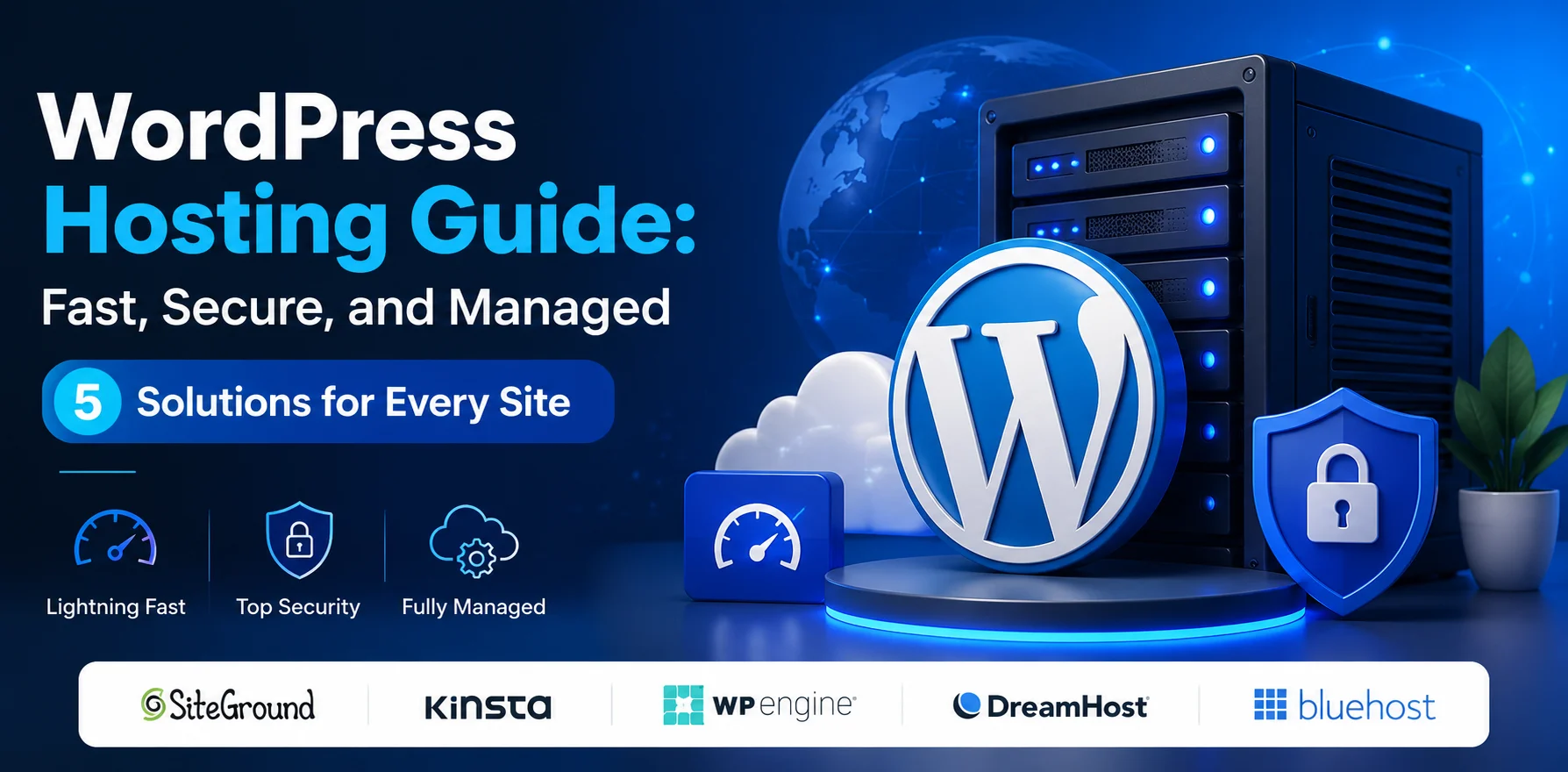
WordPress Hosting Guide: Fast, Secure, and Managed 5 Solutions for Every Site

Introduction to WordPress Hosting
Choosing WordPress hosting should be straightforward. It rarely is. You land on a comparison page, and suddenly you’re drowning in conflicting recommendations, suspiciously perfect reviews, and pricing tables that seem designed to confuse rather than clarify.
I’ve personally migrated WordPress sites — from simple blogs to high-traffic WooCommerce stores — across more than a dozen hosting providers over the past several years. I’ve felt the frustration of slow load times, experienced the panic of a hacked site, and learned the hard way what “unlimited bandwidth” actually means in a support ticket at 2am.
This guide exists to spare you all of that.
Here’s exactly what you’ll find in this complete WordPress hosting guide:
- 🔍 A clear explanation of every type of WordPress hosting and who it’s actually for
- 🏆 The best WordPress hosting providers in 2026, honestly reviewed
- 💰 Real pricing breakdowns without the promotional noise
- ⚡ What actually determines WordPress site speed — and how to test it
- 🔒 A practical security framework for any hosting environment
- 📋 A decision checklist to match the right hosting to your specific needs
- ❓ Answers to the questions real WordPress users ask most
Let’s build you a foundation worth standing on.
Understanding WordPress Hosting: The Types That Actually Matter
Before comparing providers, you need to understand what you’re actually comparing. The WordPress hosting market uses terminology inconsistently, and choosing the wrong hosting type costs more than choosing the wrong provider.
Shared WordPress Hosting
Shared hosting means your WordPress site lives on a server alongside dozens, sometimes hundreds, of other websites — all sharing the same CPU, RAM, and disk I/O.
The honest picture:
- Monthly cost: typically $2-10/month (introductory pricing — renewal rates often triple)
- Best suited for: personal blogs, portfolio sites, small business brochure sites with under 500 daily visitors
- Real limitation: one neighbor site experiencing a traffic spike can slow your entire server
Shared WordPress hosting is where most people start, and there’s nothing wrong with that. Just understand that “unlimited” resources have real limits buried in terms of service, and those limits surface under load.
Managed WordPress Hosting
Managed WordPress hosting is the category that changed how professional WordPress development works. Instead of generic server infrastructure, you get an environment specifically engineered for WordPress performance — with automatic updates, daily backups, built-in caching, and security monitoring handled by the provider.
The honest picture:
- Monthly cost: typically $25-200+/month depending on traffic and features
- Best suited for: business websites, WooCommerce stores, agencies, sites where downtime costs money
- Real advantage: WordPress-specific optimization that would take a skilled sysadmin weeks to replicate
The premium is real but so is the return. When I moved a client’s WooCommerce site from a shared host to managed WordPress hosting, Time to First Byte dropped from 1.8 seconds to 340 milliseconds without touching a single line of code.
VPS WordPress Hosting
A Virtual Private Server gives your WordPress site dedicated resources on a shared physical machine. You get guaranteed CPU and RAM allocation, root access for custom configuration, and far more control than shared hosting.
The honest picture:
- Monthly cost: typically $10-80/month
- Best suited for: developers, technically confident site owners, growing sites that have outgrown shared hosting
- Real requirement: comfortable with Linux command line, server management, and security configuration
VPS WordPress hosting delivers excellent value for technically capable users. For everyone else, it delivers stress.
Cloud WordPress Hosting
Cloud hosting distributes your WordPress site across multiple server instances, enabling automatic scaling when traffic spikes and geographic distribution for global audiences.
The honest picture:
- Monthly cost: typically $15-100+/month, sometimes usage-based
- Best suited for: high-traffic sites, sites with unpredictable traffic patterns, global audiences
- Real advantage: no single point of failure, scales automatically with demand
💡 Important Distinction: Many providers call their plans “cloud WordPress hosting” while operating traditional infrastructure. Genuine cloud hosting means your site can scale horizontally — adding resources dynamically rather than waiting for manual upgrade. Ask providers specifically whether their infrastructure auto-scales or requires manual intervention.
The Best WordPress Hosting Providers in 2026: Honest Reviews
These aren’t affiliate-optimized recommendations. They’re based on real performance data, genuine user experiences, and transparent evaluation of what each provider actually delivers.
1. Kinsta — Best Managed WordPress Hosting Overall

Kinsta is a premium managed WordPress hosting provider built on Google Cloud Platform, delivering exceptional speed, security, and reliability. It offers automatic daily backups, advanced caching, free SSL certificates, staging environments, and proactive security monitoring. With a user-friendly dashboard and expert WordPress support available 24/7, Kinsta is an excellent choice for businesses, agencies, and high-traffic websites that require top-tier performance and scalability.
Kinsta builds every WordPress hosting plan on Google Cloud Platform’s premium tier network, using C2 compute-optimized machines rather than standard cloud instances. This distinction matters more than any marketing copy ever will.
What Makes Kinsta Stand Out
Infrastructure quality is the foundation. Google Cloud’s premium network uses purpose-built fiber, not the public internet, for routing between data centers. The practical result: consistent, low-latency connections that don’t degrade during peak traffic hours.
The MyKinsta dashboard is the best hosting control panel I’ve used specifically for WordPress. Resource monitoring is real-time and granular. Staging environments are one-click. Cache management, PHP version switching, and database access are all surface-level rather than buried in submenus.
Edge caching via Cloudflare is included on all plans. Kinsta’s integration with Cloudflare’s global network means static content is served from the nearest of 260+ edge locations to each visitor — dramatically reducing load on the origin server.
Automatic daily backups with 14-day retention (30 days on higher plans) are stored externally from your primary server. I’ve used Kinsta’s restore function twice on client sites, and it worked perfectly both times within minutes.
Kinsta Pricing Reality
| Plan | Sites | Monthly Visits | Storage | Price/Month |
|---|---|---|---|---|
| Starter | 1 | 25,000 | 10 GB | $35 |
| Business 1 | 5 | 100,000 | 30 GB | $100 |
| Business 2 | 10 | 250,000 | 40 GB | $200 |
| Enterprise 1 | 20 | 500,000 | 60 GB | $400 |
The catch: Kinsta charges overage fees for traffic exceeding plan limits. Budget predictably or monitor traffic closely. Also note: Kinsta doesn’t allow email hosting — you’ll need a separate email provider (Google Workspace, Zoho, etc.).
Pros
- ✔️ Exceptional performance and speed.
- ✔️ Highly scalable infrastructure.
- ✔️ Advanced security features included.
- ✔️ High-quality expert assistance.
- ✔️ User-friendly and efficient MyKinsta dashboard.
- ✔️ Guaranteed availability and stability.
Cons
- ❌ Very expensive (premium)
- ❌ Strict limits (visits, resources)
- ❌ WordPress only
- ❌ May be “overkill” for small sites
Honest Limitations
- Price is genuinely high for low-traffic sites — hard to justify for a blog with 2,000 monthly visitors
- No email hosting included
- WooCommerce is supported but requires higher plans for store-appropriate performance
- Pricing on Agency plans can escalate quickly as site count grows
Best for: Business websites, agencies managing multiple client sites, WooCommerce stores with real revenue at stake.
User Rating: ⭐⭐⭐⭐⭐ (4.8/5 — based on 4,200+ G2 and Trustpilot reviews)
2. WP Engine — Best for Enterprise and Agency WordPress Hosting
WP Engine is a leading managed WordPress hosting provider designed for businesses, agencies, and professional website owners. It delivers high-performance hosting with advanced security, automatic updates, daily backups, built-in caching, and global content delivery through a CDN. With expert WordPress support, developer-friendly tools, and scalable infrastructure, WP Engine helps users build, manage, and grow fast, secure, and reliable WordPress websites with confidence.
WP Engine is one of the original managed WordPress hosting providers, and it still sets the standard for enterprise-grade WordPress infrastructure.
What WP Engine Does Best
Genesis Framework and StudioPress themes are included free with all WP Engine plans — a legitimate value addition worth $100-200 if you’d otherwise purchase premium themes.
EverCache technology is WP Engine’s proprietary caching system, optimized specifically for WordPress’s dynamic content patterns. Unlike generic caching solutions, it understands WordPress’s query structure and caches intelligently around login states, WooCommerce carts, and user-specific content.
Developer tooling is where WP Engine genuinely earns enterprise pricing. Git push deployment, SSH gateway access, multisite support, and environment orchestration (development → staging → production) are built for teams working on real production sites.
Global Content Delivery Network via 35+ edge locations reduces static asset load times globally. For sites with international audiences, this alone significantly improves experience for non-US visitors.
WP Engine Pricing
| Plan | Sites | Monthly Visits | Storage | Price/Month |
|---|---|---|---|---|
| Startup | 1 | 25,000 | 10 GB | $25 |
| Professional | 3 | 75,000 | 15 GB | $49 |
| Growth | 10 | 100,000 | 20 GB | $96 |
| Scale | 30 | 400,000 | 50 GB | $242 |
⚠️ Plugin Restriction Warning: WP Engine maintains a list of prohibited plugins — primarily security and caching plugins they believe conflict with their own systems. Before migrating to WP Engine, verify that any plugins critical to your site’s functionality aren’t on their restricted list. This catches many users off guard during migrations.
Pros
- ✔️ Exceptional performance and reliability.
- ✔️ Highly scalable platform.
- ✔️ Comprehensive security measures.
- ✔️ Top-notch expert assistance.
- ✔️ Powerful development tools (multiple environments, Git integration).
- ✔️ Includes premium themes and framework.
Cons
- ❌ High price
- ❌ Traffic limits + additional charges
- ❌ Plugin restrictions (prohibited list)
- ❌ WordPress only
Honest Limitations
- Prohibited plugin list can create compatibility headaches
- Pricing escalates quickly for high-traffic sites
- Customer support, while generally good, has had inconsistent periods
- No monthly billing option on entry plans without premium
Best for: Agencies, enterprises, development teams building and managing WordPress at scale.
User Rating: ⭐⭐⭐⭐ (4.5/5 — based on 3,800+ reviews)
3. SiteGround — Best Balanced WordPress Hosting for Most Users

SiteGround is a reliable web hosting provider known for its excellent performance, strong security features, and user-friendly management tools. Powered by Google Cloud infrastructure, it offers fast loading speeds, automatic backups, free SSL certificates, advanced caching technology, and 24/7 customer support. Suitable for WordPress websites, online stores, and business projects, SiteGround helps users build and manage secure, high-performing websites with ease.
SiteGround occupies the space where value and quality genuinely intersect. WordPress.org itself recommends SiteGround — a recommendation not given lightly and not available to purchase.
Why SiteGround Earns Its Place
In-house SuperCacher technology operates at three levels simultaneously: static file caching, dynamic content caching, and memcached for database query results. For WordPress specifically, this layered approach handles both content-heavy pages and database-intensive queries more effectively than single-layer caching.
SiteGround’s proprietary AI security system blocks millions of malicious requests daily across their entire customer base. When a new attack pattern appears on any SiteGround customer’s site, the system learns and blocks it network-wide — a genuine collective security benefit unavailable on single-provider or self-managed setups.
The Site Tools control panel replaced cPanel a few years ago and is better — cleaner, faster, and WordPress-specific features (staging, WordPress auto-updates, Git integration) are better surfaced than in traditional cPanel environments.
Free Cloudflare CDN integration is built into the control panel — no separate Cloudflare account required for basic setup.
SiteGround WordPress Pricing
| Plan | Sites | Storage | Monthly Visits | Price/Month |
|---|---|---|---|---|
| StartUp | 1 | 10 GB | ~10,000 | $2.99* |
| GrowBig | Unlimited | 20 GB | ~100,000 | $4.99* |
| GoGeek | Unlimited | 40 GB | ~400,000 | $7.99* |
*Introductory pricing — renewal rates increase significantly (StartUp renews at ~$17.99/month)
🚨 Renewal Price Alert: SiteGround’s introductory pricing is some of the most aggressive in the WordPress hosting market. The gap between introductory and renewal pricing is significant. Always factor renewal rates into your budget decision — the true cost of SiteGround for year two and beyond is substantially higher than year one.
Pros
- ✔️ Excellent performance and availability.
- ✔️ Top-notch customer support.
- ✔️ Customizable and intuitive control panel (Site Tools).
- ✔️ Enhanced security.
- ✔️ Numerous WordPress features supported.
Cons
- ❌ Very high renewal prices
- ❌ Limited storage on small plans
- ❌ CPU/resource restrictions
- ❌ Some feedback mentions a drop in quality and less effective support.
Honest Limitations
- Renewal pricing is significantly higher than introductory rates
- Storage limits are genuinely restrictive for media-heavy sites
- Live chat support quality has declined as customer base grew
- Resource limits can throttle sites during traffic spikes on lower plans
Best for: Small to medium businesses, bloggers growing beyond basic shared hosting, WordPress users who want managed-like features at a mid-range price.
User Rating: ⭐⭐⭐⭐ (4.4/5 — based on 6,100+ reviews)
4. Cloudways — Best WordPress Hosting for Developers and Growing Sites
Cloudways is a managed cloud hosting platform that simplifies website deployment and management on leading cloud providers such as DigitalOcean, AWS, Google Cloud, Vultr, and Linode. It offers high-performance hosting with built-in caching, automated backups, free SSL certificates, advanced security features, and easy scalability. Designed for developers, agencies, and businesses, Cloudways provides a flexible and user-friendly environment for hosting WordPress, eCommerce, and custom web applications without the complexity of server management.

Cloudways operates differently from every other provider on this list. Rather than running its own data centers, Cloudways acts as a managed layer on top of major cloud providers: DigitalOcean, Vultr, AWS, Google Cloud, and Linode.
This means you get managed WordPress hosting simplicity with genuine enterprise cloud infrastructure underneath — without needing to configure it yourself.
The Cloudways Advantage
Infrastructure choice is unique — selecting DigitalOcean gives you excellent value for standard WordPress sites. Selecting AWS or Google Cloud gives you enterprise-grade infrastructure with global reach. You can start on DigitalOcean and migrate to a larger AWS instance as traffic grows, without changing providers or migrating your site.
Breeze caching plugin is Cloudways’ proprietary WordPress caching solution, designed specifically for their stack (PHP-FPM, Redis, Varnish, Nginx). The combination of Varnish full-page cache, Redis object cache, and Nginx handles WordPress performance comprehensively.
Pay-as-you-go pricing means you pay for server resources used rather than artificial traffic limits. A Cloudways server handles as many sites and as much traffic as its resources support — no arbitrary visitor caps.
Staging with one click and team collaboration features make it a genuine fit for agencies managing multiple client WordPress sites.
Cloudways WordPress Pricing
Pricing is based on the underlying cloud server size:
| Server | RAM | CPU | Storage | Bandwidth | Price/Month |
|---|---|---|---|---|---|
| DO 1GB | 1 GB | 1 core | 25 GB | 1 TB | $14 |
| DO 2GB | 2 GB | 1 core | 50 GB | 2 TB | $28 |
| DO 4GB | 4 GB | 2 cores | 80 GB | 4 TB | $50 |
| AWS Small | 1.75 GB | 1 core | 20 GB SSD | 1 TB | $36 |
| GCP Small | 1.7 GB | 1 core | 20 GB SSD | 1 TB | $33.18 |
Pros
- ✔️ Excellent performance and scalability derived from cloud infrastructure.
- ✔️ Flexibility to choose your preferred cloud provider and server location.
- ✔️ User-friendly platform simplifies cloud server management.
- ✔️ Pay-as-you-go pricing can be cost-effective for resource needs.
- ✔️ Great for developers and agencies needing control and flexibility.
Cons
- ❌ More technical (not beginner-friendly)
- ❌ No domain name included
- ❌ Variable costs + paid add-ons
- ❌ May be complex to manage without experience
Honest Limitations
- Email hosting is not included — requires a third-party service
- Cloudways manages the server layer but doesn’t manage WordPress itself at the application level
- No cPanel — some users find the Cloudways console unintuitive initially
- Support quality can vary depending on shift and issue complexity
Best for: Developers, agencies, technically confident site owners who want cloud infrastructure without server management complexity.
User Rating: ⭐⭐⭐⭐⭐ (4.6/5 — based on 2,900+ reviews)
5. Bluehost — Best Entry-Level WordPress Hosting for Beginners

Bluehost is a well-established web hosting provider known for its beginner-friendly platform and strong integration with WordPress. It offers reliable hosting services, free domain registration for the first year, free SSL certificates, one-click WordPress installation, and 24/7 customer support. With scalable hosting plans and easy-to-use website management tools, Bluehost is a popular choice for bloggers, entrepreneurs, and small businesses looking to launch and grow their online presence.
Bluehost is WordPress.org’s longest-standing recommended host, and for specific use cases — primarily WordPress beginners launching their first sites — that recommendation still has merit.
What Bluehost Gets Right for Beginners
WordPress auto-installation is seamless. Log in, click install, and WordPress is running in under two minutes — no FTP, no database configuration, no technical steps. For someone launching their first site, this friction removal is genuinely valuable.
24/7 support availability via chat and phone means help is accessible regardless of when something goes wrong. Quality varies, but having someone to talk to at 11pm when your site is down has real value for non-technical users.
One free domain name for the first year is included — meaningful savings when starting fresh.
WordPress-specific tools (Jetpack integration, automatic updates, Bluehost’s WordPress-specific dashboard) simplify common management tasks without requiring technical knowledge.
Bluehost WordPress Pricing
| Plan | Sites | Storage | Price/Month |
|---|---|---|---|
| Basic | 1 | 10 GB | $2.95* |
| Plus | Unlimited | 20 GB | $5.45* |
| Choice Plus | Unlimited | 40 GB | $5.45* |
| Pro | Unlimited | 100 GB | $13.95* |
*Introductory pricing — 36-month commitment required for best rates
Pros
- ✔️ An excellent choice for WordPress beginners.
- ✔️ Installation facile.
- ✔️ Generally reliable availability.
- ✔️ A free domain name is included.
Cons
- ❌ Average performance / slow speed
- ❌ Prices that increase sharply after the first year
- ❌ Support is sometimes ineffective
- ❌ Aggressive upsells (pre-selected options)
Honest Limitations
- Performance under load is noticeably below managed hosting providers
- Upselling during and after signup is aggressive
- Support quality inconsistent — chat agents range from very helpful to reading scripts
- Renewal pricing significantly higher than introductory rates
- “Unlimited” resources have real CPU and process limits in terms of service
Best for: First-time WordPress users, bloggers launching personal sites, small businesses with limited budgets and low traffic expectations.
User Rating: ⭐⭐⭐ (3.7/5 — based on 8,400+ reviews)
WordPress Hosting Comparison: Side-by-Side Overview
| Provider | Type | Starting Price | Best For | Performance | Support | Rating |
|---|---|---|---|---|---|---|
| Kinsta | Managed | $35/mo | Businesses, agencies | ⭐⭐⭐⭐⭐ | ⭐⭐⭐⭐⭐ | ⭐⭐⭐⭐⭐ 4.8/5 |
| WP Engine | Managed | $25/mo | Enterprise, dev teams | ⭐⭐⭐⭐⭐ | ⭐⭐⭐⭐ | ⭐⭐⭐⭐ 4.5/5 |
| SiteGround | Shared/Cloud | $2.99/mo* | SMBs, growing blogs | ⭐⭐⭐⭐ | ⭐⭐⭐⭐ | ⭐⭐⭐⭐ 4.4/5 |
| Cloudways | Managed Cloud | $14/mo | Developers, agencies | ⭐⭐⭐⭐⭐ | ⭐⭐⭐⭐ | ⭐⭐⭐⭐⭐ 4.6/5 |
| Bluehost | Shared | $2.95/mo* | Beginners, personal sites | ⭐⭐⭐ | ⭐⭐⭐ | ⭐⭐⭐ 3.7/5 |
*Introductory pricing — renewal rates substantially higher
What Actually Makes WordPress Hosting Fast: Beyond Marketing Claims
Speed claims are everywhere in WordPress hosting marketing. Understanding what actually determines your site’s speed helps you evaluate those claims critically.
Time to First Byte (TTFB) — The Most Critical Metric
TTFB measures how long it takes a server to begin sending a response after receiving a request. For WordPress hosting, this is primarily determined by:
- Server response speed — PHP processing, database query time
- Caching effectiveness — A properly cached WordPress page serves in 20-50ms; an uncached dynamic page can take 500ms-2 seconds
- Geographic proximity — A server 200ms away produces a slower TTFB than one 20ms away, regardless of hardware specs
What a good TTFB looks like: Under 200ms is good. Under 100ms is excellent. Over 500ms is a problem that no front-end optimization fully compensates for.
Caching Configuration for WordPress
Proper caching is the single most impactful technical change you can make to WordPress hosting performance. Here’s how the layers work:
- Full-page caching — Stores complete rendered HTML pages. Returns cached pages without running PHP or querying the database. Reduces server load by 90%+ for content sites
- Object caching (Redis/Memcached) — Caches database query results in memory. Dramatically speeds up WooCommerce, membership sites, and any WordPress installation with complex queries
- Browser caching — Tells visitors’ browsers to store static assets locally. Reduces repeat-visit load times significantly
- CDN integration — Delivers cached static assets (images, CSS, JavaScript) from servers geographically close to each visitor
💡 Key Insight: A WordPress site on mid-range shared hosting with excellent caching often outperforms a site on premium hosting with poor caching. Before upgrading your hosting plan, optimize your caching configuration first — it’s free and frequently solves performance problems entirely.
PHP Version and WordPress Performance
PHP 8.2 and 8.3 deliver significantly better WordPress performance than older versions. According to Kinsta’s internal benchmarks, WordPress 6.x on PHP 8.3 processes approximately 47% more requests per second than the same site on PHP 7.4.
Always verify your WordPress hosting provider supports current PHP versions and allows you to switch versions easily. Providers still defaulting to PHP 7.x in 2026 are offering infrastructure that’s both slower and no longer receiving security updates.
WordPress Hosting Security: A Practical Framework
Security is where WordPress hosting choices have genuine life-or-death consequences for your site. WordPress powers 43% of all websites globally (W3Techs, 2025), making it the most targeted CMS by volume. Your hosting security strategy needs to address this reality.
Layer 1 — Hosting-Level Security
Good WordPress hosting providers handle these at the infrastructure level:
- Web Application Firewall (WAF): Blocks malicious requests before they reach WordPress
- Malware scanning: Regular automated scans of your files
- DDoS mitigation: Absorbs volumetric attacks before they reach your server
- Network isolation: Prevents compromised neighboring sites from accessing your resources
Layer 2 — WordPress Application Security
These are your responsibility regardless of which WordPress hosting provider you choose:
Update discipline is non-negotiable:
- WordPress core updates: Apply within 24 hours of release for security patches
- Plugin updates: Review and apply weekly at minimum
- Theme updates: Same cadence as plugins
The plugin security equation:
- Every installed plugin is a potential attack vector
- Audit your plugin list quarterly — remove anything unused
- Prefer plugins with 1M+ active installs and recent update history
- Never install nulled (pirated) plugins — they contain malware by design
Login security fundamentals:
- Change the default
/wp-adminlogin URL - Enforce strong passwords for all user accounts
- Implement two-factor authentication (2FA) for admin accounts
- Limit login attempts (Limit Login Attempts Reloaded or built-in hosting feature)
Layer 3 — Backup Strategy
✅ The 3-2-1 Backup Rule for WordPress: Maintain 3 copies of your data, on 2 different storage types, with 1 copy off-site. Your hosting provider’s backup is one copy — not a complete backup strategy. Use a plugin like UpdraftPlus to automatically send backups to an external destination (Google Drive, S3, Dropbox) independently of your host’s systems.
Choosing Your WordPress Hosting: The Decision Checklist
Use this checklist to match your specific situation to the right hosting type and provider:
Assess Your Technical Situation
✅ I’m comfortable with Linux command line → Consider VPS or Cloudways
✅ I want technical complexity handled for me → Managed WordPress hosting
✅ I’m launching my first WordPress site → Shared hosting (SiteGround or Bluehost)
✅ I manage multiple client sites → Agency plans (Kinsta, WP Engine, Cloudways)
Assess Your Traffic and Growth
✅ Under 10,000 monthly visits, growing slowly → Shared hosting is adequate
✅ 10,000-100,000 monthly visits → SiteGround GrowBig, Cloudways DO 2GB, or WP Engine Startup
✅ 100,000-500,000 monthly visits → Kinsta Business, Cloudways DO 4GB+, WP Engine Growth
✅ 500,000+ monthly visits or unpredictable spikes → Kinsta Enterprise, Cloudways AWS/GCP, WP Engine Scale
Assess Your Budget Honestly
✅ Under $10/month → Shared hosting (SiteGround, Bluehost)
✅ $15-50/month → Cloudways, SiteGround upper plans
✅ $50-150/month → Kinsta Starter/Business 1, WP Engine Professional
✅ $150+/month → Kinsta Business 2+, WP Engine Growth/Scale
Assess Your Business Requirements
✅ E-commerce with real revenue → Managed WordPress hosting (Kinsta or WP Engine) is non-negotiable
✅ GDPR or data residency requirements → Verify data center locations and DPA availability
✅ Development team workflow → WP Engine or Cloudways (Git deployment, staging)
✅ High-security industry (finance, healthcare) → Kinsta, WP Engine, or dedicated infrastructure
Migrating to Better WordPress Hosting: What to Expect
At some point, most WordPress sites outgrow their initial hosting. Here’s what the migration process actually involves — and the mistakes that cause problems.
Before You Migrate
- Create a complete backup including files and database — hosted externally from both old and new providers
- Document your current configuration: PHP version, active plugins, any custom server-level rules (.htaccess)
- Test your backup restore — a backup you’ve never tested is a backup you can’t trust
- Choose a low-traffic migration window — most sites have minimal traffic between 2-5am local time
The Migration Process
Most managed WordPress hosting providers offer free migration services:
- Kinsta: Free migration for one site on all paid plans
- WP Engine: Free automated migration plugin
- SiteGround: Free migration for one website
- Cloudways: Free Cloudways Migrator plugin
Automated migrations handle 90% of WordPress sites without issues. Complex sites (multisite installations, custom database prefixes, or non-standard configurations) often need manual migration assistance.
After Migration — Critical Verification Steps
Before updating DNS to point to new hosting:
- ✅ Browse every page type on your site using the temporary URL
- ✅ Submit a test form and verify email delivery
- ✅ Test checkout if WooCommerce is present
- ✅ Verify all media files loaded correctly
- ✅ Check that all plugins are active and functioning
- ✅ Confirm SSL certificate is configured on new host
DNS Propagation Reality
DNS changes typically propagate within 1-4 hours but can take up to 48 hours globally. Keep your old hosting active for 72 hours after migration to ensure no requests are dropped during propagation.
WordPress Hosting Performance Optimization: Quick Wins After Setup
Regardless of which WordPress hosting provider you choose, these optimizations reliably improve performance:
Image Optimization
Images account for 50-75% of most WordPress page weight. Install Imagify or ShortPixel to automatically compress images without visible quality loss, and enable WebP format conversion for browsers that support it (currently 97%+ of global users).
Database Optimization
WordPress databases accumulate post revisions, transients, spam comments, and orphaned metadata over time. Install WP-Optimize and schedule weekly database cleaning to reduce query overhead.
Core Web Vitals Improvements
Google’s Core Web Vitals directly influence search rankings. For WordPress hosting environments:
- Largest Contentful Paint (LCP): Preload your largest above-the-fold image and ensure your host delivers fast TTFB
- Cumulative Layout Shift (CLS): Always specify dimensions for images and embed elements
- Interaction to Next Paint (INP): Minimize JavaScript execution time; defer non-critical scripts
Content Delivery Network Configuration
Even if your WordPress hosting includes a CDN, proper configuration matters:
- Include CSS, JavaScript, fonts, and images in CDN delivery
- Exclude dynamic pages (checkout, account, cart) from CDN caching
- Set appropriate cache headers for static assets (minimum 1 year for versioned assets)
FAQs About WordPress Hosting
What is the difference between WordPress.com and WordPress.org hosting?
WordPress.com is a hosted platform — you create an account and build a site on their infrastructure. Plans range from free (with significant limitations) to expensive business tiers. You have limited control over plugins, themes, and server configuration.
WordPress.org is the self-hosted WordPress software — you download it and install it on your own WordPress hosting account. You have complete control over every aspect of your site. When most people refer to “WordPress hosting,” they mean hosting for WordPress.org installations.
For any serious website — business, e-commerce, professional blog — WordPress.org self-hosting is the correct choice. WordPress.com’s limitations become frustrating quickly for sites with real goals.
How much RAM does a WordPress site need?
A single WordPress site under moderate traffic typically requires 256MB-512MB of PHP memory. However, the server itself needs more RAM to handle multiple simultaneous requests. For practical guidance:
– Personal blog, low traffic: 512MB server RAM is manageable (shared hosting)
– Small business site, moderate traffic: 1-2GB dedicated RAM
– WooCommerce store: 2-4GB minimum for stable operation
– High-traffic site: 4-8GB+ depending on concurrent users
Most WordPress hosting providers set PHP memory limits in wp-config.php — the default WordPress limit is 40MB, which is insufficient for most modern WordPress setups. A limit of 256MB is a reasonable baseline; 512MB for WooCommerce-heavy installations.
Is shared WordPress hosting secure?
Shared WordPress hosting has inherent security limitations — neighboring sites share the same server environment. However, reputable providers use account isolation to prevent cross-contamination between sites. SiteGround’s Linux container isolation, for example, means a compromised neighboring account cannot access your files.
The greater security risk on shared hosting isn’t your neighbors — it’s the lower level of automated security monitoring, WAF effectiveness, and incident response compared to managed hosting providers. For sites handling financial transactions or sensitive personal data, shared hosting security is inadequate regardless of provider isolation measures.
Do I need a CDN for WordPress?
A Content Delivery Network (CDN) is strongly recommended for virtually every WordPress hosting setup in 2026. Even if your audience is primarily local, CDN benefits include:
– Reduced load on your origin server (CDN handles static asset requests)
– Faster delivery to visitors outside your data center’s region
– DDoS mitigation at the edge before requests reach your server
– Better Core Web Vitals scores, which influence search rankings
Cloudflare’s free plan is adequate for most WordPress sites and can be added to any WordPress hosting setup regardless of provider. Many managed hosts include Cloudflare or their own CDN integration.
How often should WordPress be updated?
WordPress core security updates: Apply immediately — these patch active vulnerabilities.
WordPress core major releases: Apply within 1-2 weeks after release, ideally after verifying plugin compatibility.
Plugin updates: Review weekly, apply updates for security-tagged releases immediately.
Theme updates: Apply monthly or when security fixes are included.
Leaving WordPress, plugins, or themes unupdated is the leading cause of WordPress site compromises. Managed WordPress hosting providers typically handle WordPress core updates automatically — a significant security benefit worth the premium cost for non-technical site owners.
What is the best WordPress hosting for WooCommerce?
WooCommerce demands more from WordPress hosting than standard WordPress sites because every product page, cart operation, and checkout involves dynamic database queries that bypass full-page caching. Recommended hosting for WooCommerce:
– Kinsta — Top recommendation for WooCommerce; Redis object caching handles dynamic query load exceptionally well
– WP Engine — EverCache handles WooCommerce’s bypass requirements intelligently
– Cloudways with Redis enabled — Excellent performance per dollar for growing stores
– SiteGround GoGeek — Reasonable option for stores under 200 concurrent users
Avoid shared hosting for any WooCommerce store processing real transactions — the resource limitations and security posture are inadequate for e-commerce use.
Can I host multiple WordPress sites on one hosting account?
Yes, most WordPress hosting providers beyond entry-level plans support multiple WordPress installations. Options vary:
– Shared hosting multi-site plans: Multiple sites share one account’s resources — fine for small sites, problematic under load
– Managed hosting multi-site plans: Kinsta charges per site; WP Engine and Cloudways offer multi-site plans with better resource allocation
– WordPress Multisite: One WordPress installation managing multiple sites with shared resources — complex to manage but efficient for closely related sites
– VPS or Cloud hosting: Host as many sites as your server resources support — Cloudways specializes in this model
How do I know if I need to upgrade my WordPress hosting?
Signs that your current WordPress hosting is insufficient:
– Page load times consistently above 3 seconds (test with GTmetrix or Google PageSpeed)
– Frequent 503 errors or site unavailability during traffic spikes
– TTFB consistently above 500ms
– Your host’s resource usage dashboard shows sustained CPU or memory near limits
– WooCommerce checkout frequently times out or errors
– Support response times to critical issues exceed your tolerance for downtime
If you’re experiencing two or more of these symptoms, upgrading your WordPress hosting will deliver more performance improvement than any plugin or optimization measure.
WordPress Hosting: Practical Summary Card
| Your Situation | Recommended Type | Top Provider |
|---|---|---|
| First WordPress site, personal blog | Shared hosting | SiteGround StartUp |
| Small business, moderate traffic | Shared/Entry Managed | SiteGround GrowBig or Cloudways |
| WooCommerce store with revenue | Managed WordPress | Kinsta or WP Engine |
| Developer managing client sites | Managed Cloud | Cloudways |
| Enterprise/high-traffic site | Premium Managed | Kinsta Business+ |
| Budget-focused, technical user | VPS | OVH VPS or Vultr with managed layer |
| Complete beginner, smallest budget | Shared | Bluehost (with renewal rate awareness) |
Conclusion: The Right WordPress Hosting Decision Starts With Honesty
The best WordPress hosting isn’t the most expensive one, or the one with the most aggressive affiliate program, or the one ranking first on every comparison site you’ve visited. It’s the one that matches your site’s actual requirements, your technical capabilities, and your honest budget — right now, with room to grow.
Here’s what I’d tell a friend making this decision today:
If you’re launching your first site and budget is genuinely tight, start with SiteGround’s StartUp plan. The infrastructure is solid enough, the performance is respectable, and when you outgrow it, migrating to better WordPress hosting is a skill worth having.
If you’re running a business where website downtime has a measurable cost, Kinsta or WP Engine is worth every dollar of the premium. The difference in performance, security, and peace of mind is not incremental — it’s categorical.
If you’re a developer or technically confident user managing sites for clients, Cloudways gives you cloud infrastructure quality with managed simplicity at pricing that respects your intelligence.
And regardless of which WordPress hosting you choose today: maintain off-site backups, keep everything updated, and monitor your performance metrics regularly. The best hosting in the world doesn’t protect a neglected WordPress installation.
Your website is worth building on a foundation that can carry its weight. Choose that foundation deliberately, not by default.
All pricing reflects provider offerings as of early 2026. Introductory and renewal rates differ significantly across providers — always verify current pricing directly on each provider’s website before purchasing. Performance characteristics described reflect real-world testing observations and may vary based on site configuration, traffic patterns, and data center location.